

Message Templates
Creating Templates
Create reusable message templates for quick, consistent communication.
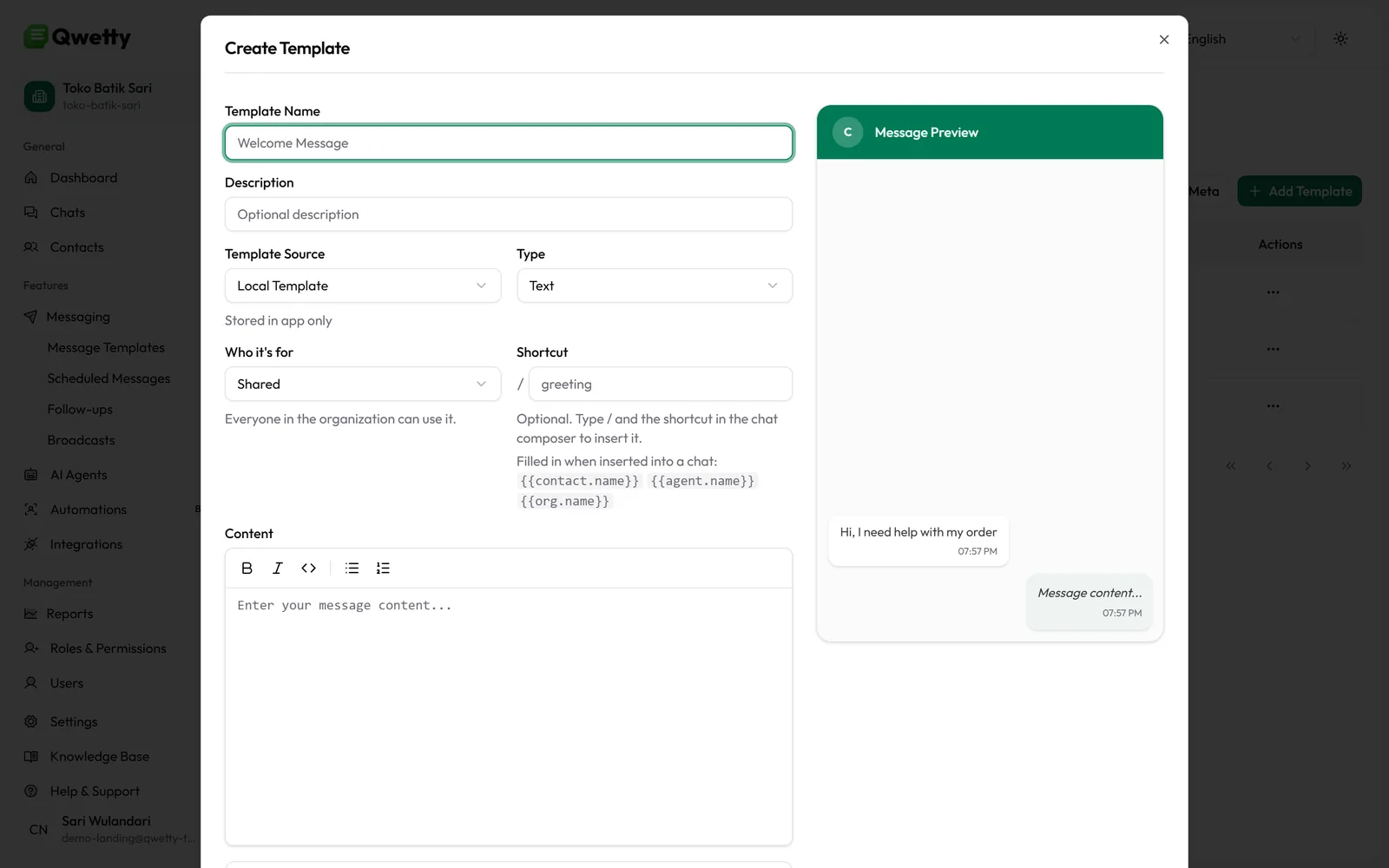
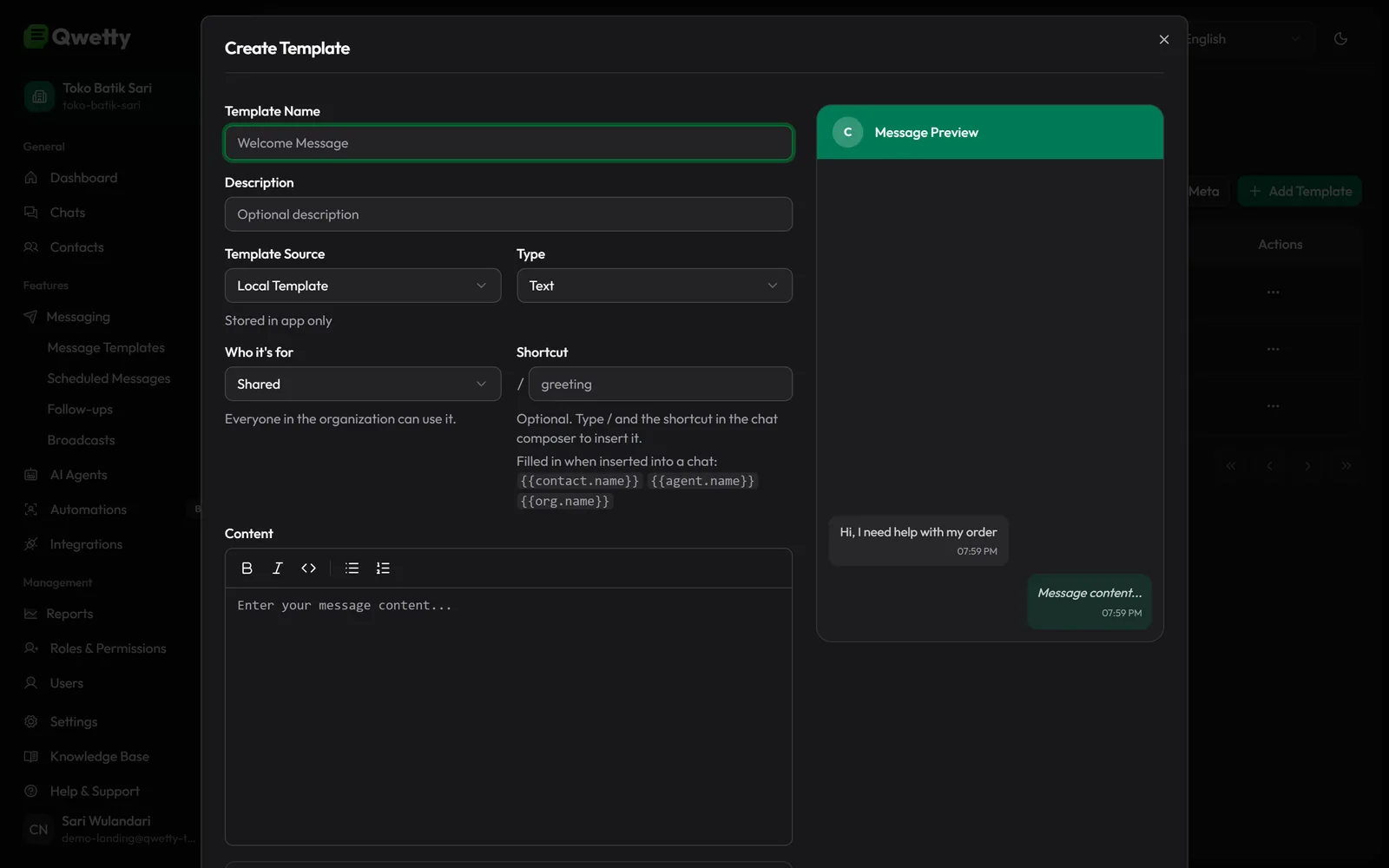
Creating a template
Section titled “Creating a template”- Go to Messaging → Message Templates from the main navigation
- Choose the Shared or Personal tab, then click Add Template
- Fill in the template details:
- Template Name — A descriptive name for the template. Meta templates may only use lowercase letters, numbers, and underscores
- Description — Optional notes about the template
- Template Source — Local Template (stored in Qwetty only) or Meta Template (submitted for WhatsApp approval)
- Type — Text, Image, Video, or Document. For media types you upload the file, and the message body becomes an optional Caption
- Content — The message body
- Enabled — Toggle whether the template is available for use
- For Local templates, you’ll also set:
- Who it’s for — Shared (everyone in the organization can use it) or Personal (only you, in your own chat composer)
- Shortcut — Optional. Type
/and the shortcut in the chat composer to insert the template
- For Meta templates, you’ll also set:
- Channel — The WhatsApp API channel the template belongs to; it can only be sent through that channel
- Language — Template language
- Category — Utility, Marketing, or Authentication
- Header Text and Footer Text — Optional structural elements
- Buttons — URL, phone number, or quick reply buttons
- Body examples — Sample values for each variable, required by Meta for review
- Click Create Template
A preview of the message is shown beside the form as you type.
Variable placeholders
Section titled “Variable placeholders”Variables personalize a template, and the format depends on the source.
Meta templates use numbered variables:
Hello {{1}}, your order #{{2}} has been shipped!When using the template in the inbox, you’ll be prompted to fill in the value for each numbered variable.
Local templates use named variables that Qwetty fills in automatically when you insert the template into a chat: {{contact.name}}, {{agent.name}}, and {{org.name}}. You can still edit the text before sending.
Editing templates
Section titled “Editing templates”- Go to Message Templates
- Open the row’s action menu and choose Edit Template
- Update the content and click Save Template
For Meta templates, the current approval status is shown while editing, and saving changes re-submits the template to Meta.
Deleting templates
Section titled “Deleting templates”From the Message Templates list, open the row’s action menu and choose Delete Template. Deleting a Meta template also deletes it from your WhatsApp Business account.
Next steps
Section titled “Next steps”- WhatsApp Template Sync — Sync templates with Meta for WhatsApp approval
- Sending Messages — Use templates in conversations

