

Channel Management
Channel Dashboard
The channel dashboard gives you an at-a-glance view of each connected channel’s health and performance.
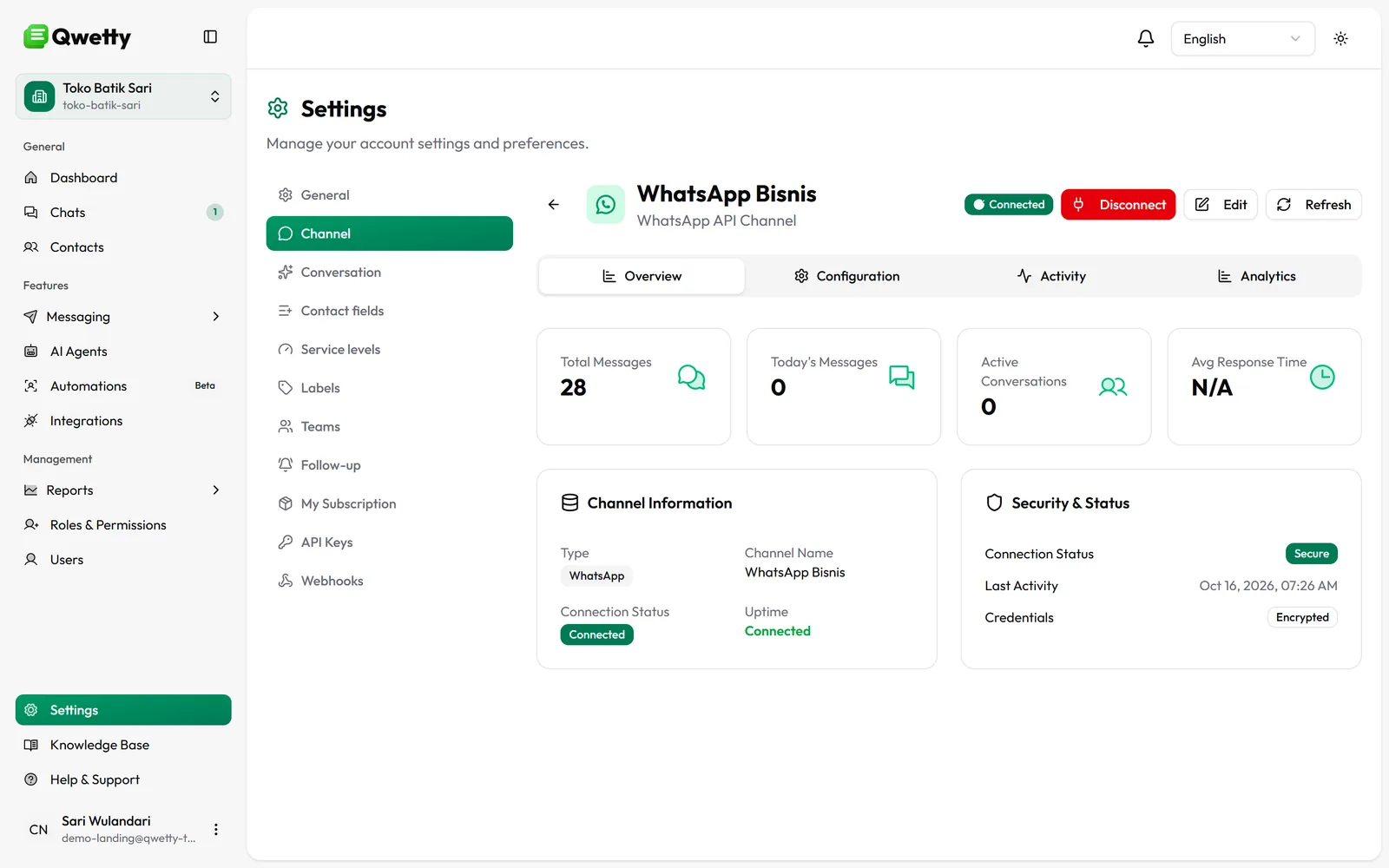
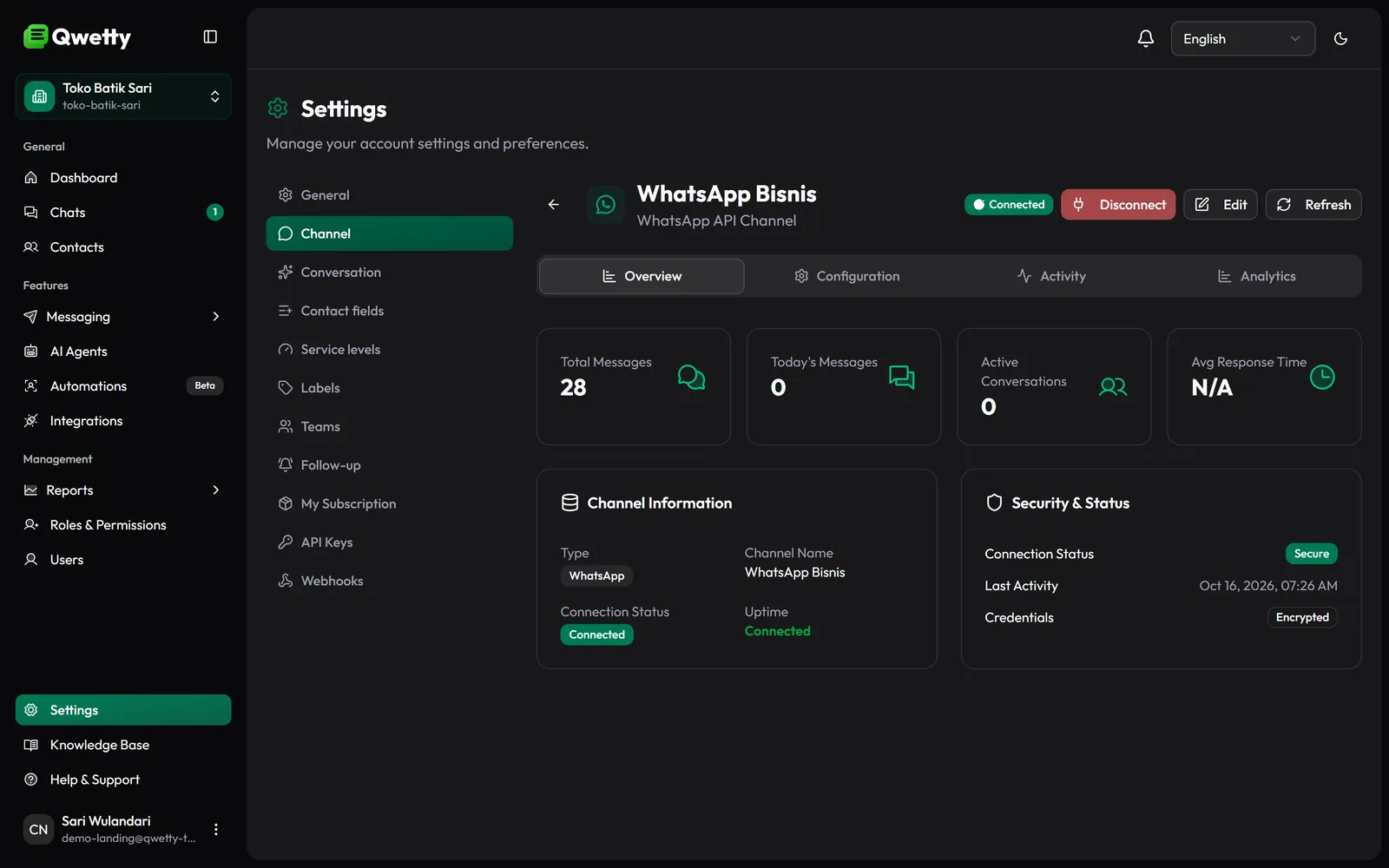
Accessing the dashboard
Section titled “Accessing the dashboard”Go to Settings → Channel → [Your Channel] → Details. The Overview tab is the default view.
Message metrics
Section titled “Message metrics”The top of the dashboard shows key metrics:
| Metric | Description |
|---|---|
| Total Messages | All messages sent and received on this channel |
| Today’s Messages | Messages sent and received today |
| Active Conversations | Currently open chat threads |
| Avg Response Time | Average time your team takes to respond |
Channel information
Section titled “Channel information”The information displayed varies by channel type:
WhatsApp channels
Section titled “WhatsApp channels”- Phone number and verified name
- Display phone number
- Quality rating (Green/Yellow/Red)
- Platform type and messaging tier
- Business profile details (industry, email, description, address, websites)
Instagram channels
Section titled “Instagram channels”- Profile picture and username
- Followers, following, and post count
- Account type and biography
- Website link
Messenger channels
Section titled “Messenger channels”- Page picture, name, and category
- Page ID and follower count
- Page link
Web Chat channels
Section titled “Web Chat channels”- Channel type, name, and status
- Connection uptime
Security & status
Section titled “Security & status”A dedicated card shows:
- Connection status — Whether the channel is currently connected
- Quality rating — For WhatsApp channels
- Last activity — Most recent message or event
- Credentials encryption — Confirmation that stored credentials are encrypted
Next steps
Section titled “Next steps”- Channel Configuration — Configure channel settings
- Channel Activity — View activity logs
- Channel Analytics — Detailed performance analytics

