

Reports & Analytics
Activity Logs
Activity logs provide a record of who did what and when across your organization. Entries are kept for 30 days.
Accessing activity logs
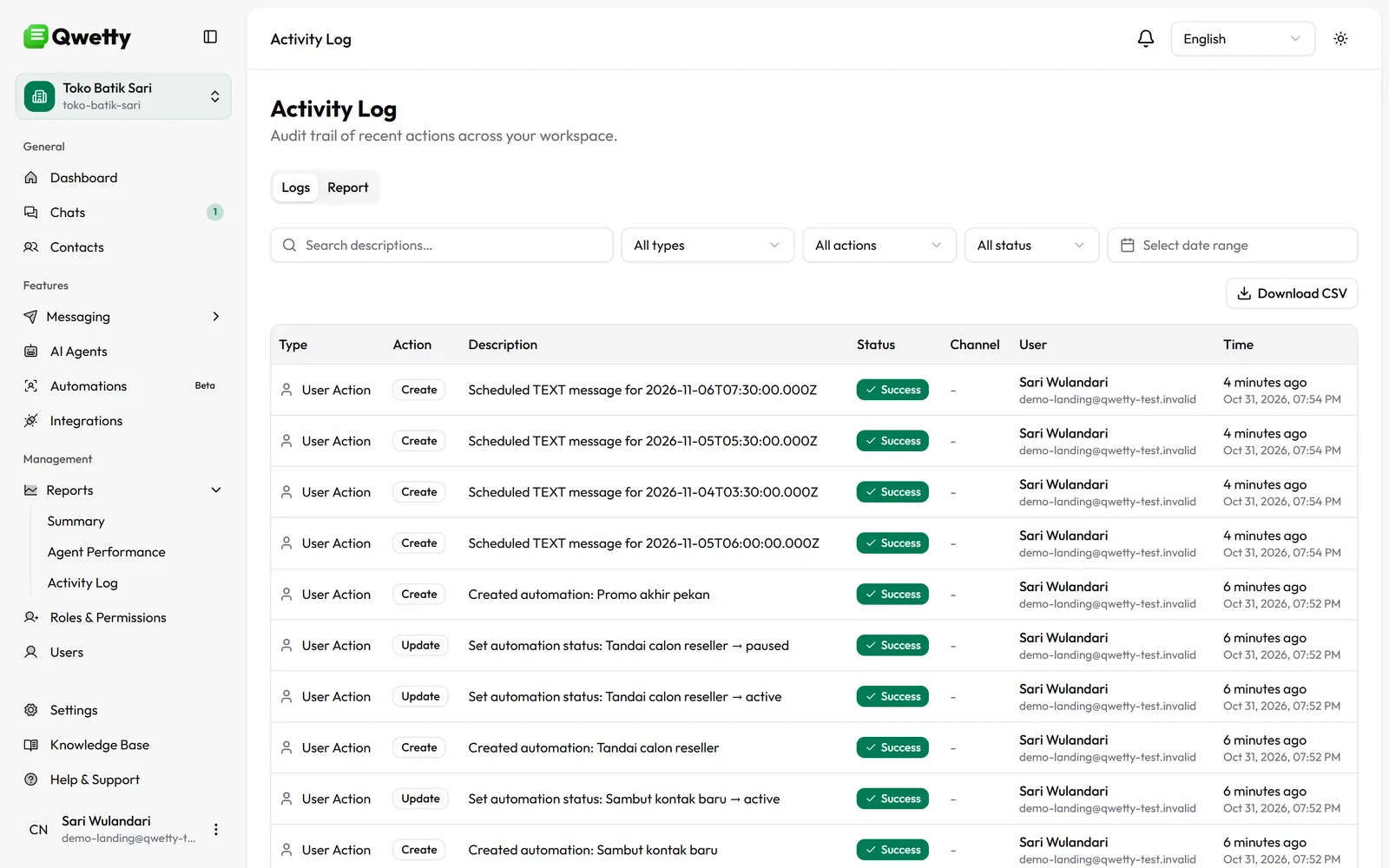
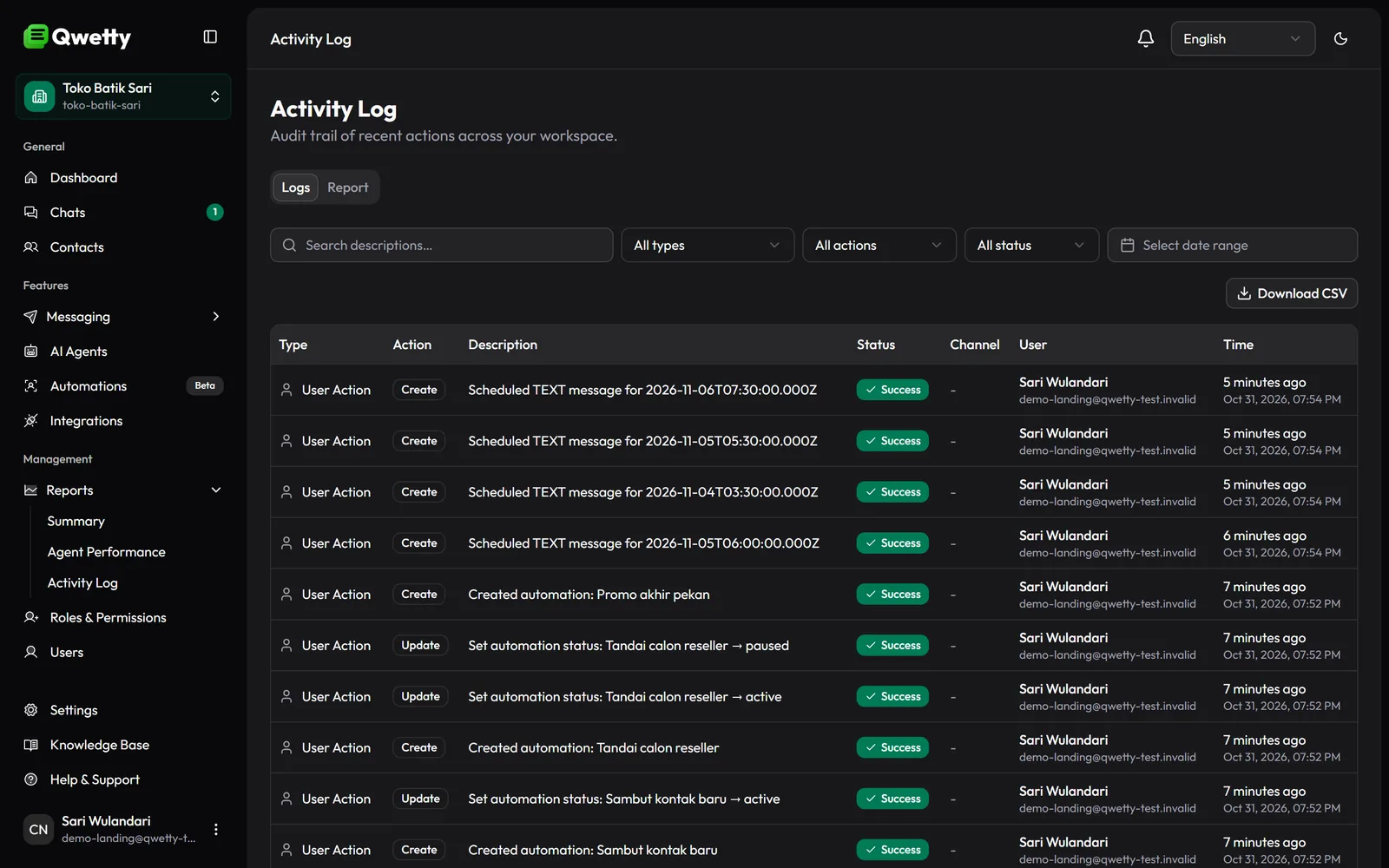
Section titled “Accessing activity logs”Go to Reports → Activity Log to view the organization-wide log, or go to Settings → Channel → [Channel] → Activity for channel-specific logs.
Log entry details
Section titled “Log entry details”Each log entry shows these columns:
| Field | Description |
|---|---|
| Type | Category of event (message, channel connection, error, user action, chatbot action, system) |
| Action | What happened (connect, disconnect, create, update, delete, send, receive, etc.) |
| Description | A human-readable summary of the event |
| Status | Outcome (success, error, warning) |
| Channel | The channel the event relates to |
| User | Who performed the action |
| Time | When it occurred |
Filtering
Section titled “Filtering”Filter logs by:
- Search — Free-text search
- Type — Event category
- Action — Connect, send, delete, etc.
- Status — Success, error, warning
- Date range — Custom time period
Logs and Report views
Section titled “Logs and Report views”The Activity Log page has two tabs: Logs (the table described above) and Report (an analytics view with overview cards and charts for volume, type, status, and action, plus top channels, top users, and recent errors).
Use Download CSV on the Logs tab to export the entries that match your current filters.
Use cases
Section titled “Use cases”- Security audits — Track who accessed or modified what
- Troubleshooting — Find errors and their context
- Compliance — Export records with Download CSV before they age out
- Team monitoring — See team member activity patterns
Next steps
Section titled “Next steps”- Reports Overview — Dashboard KPIs
- Channel Activity — Per-channel activity logs

