

Scheduled Messages
Scheduled Messages
Schedule messages to be sent at a future date and time — useful for follow-ups, reminders, and campaigns.
Creating a scheduled message
Section titled “Creating a scheduled message”- From the Chats page, open a conversation
- Write your message in the composer — you can also attach a file
- Click the arrow on the send button and choose Send Later
- In Schedule Message, pick the date and time for delivery
- Click Schedule
Scheduling is available on WhatsApp, Instagram and Messenger chats (not Web Chat), on plans that include scheduled messages.
Instagram and Messenger note: These channels cannot send outside their messaging window, so a time after the window closes is refused.
WhatsApp note: When scheduling on a WhatsApp API channel outside the 24-hour window, a template is required. The action becomes Select Template & Schedule, and plain text is blocked until you choose a template.
Managing scheduled messages
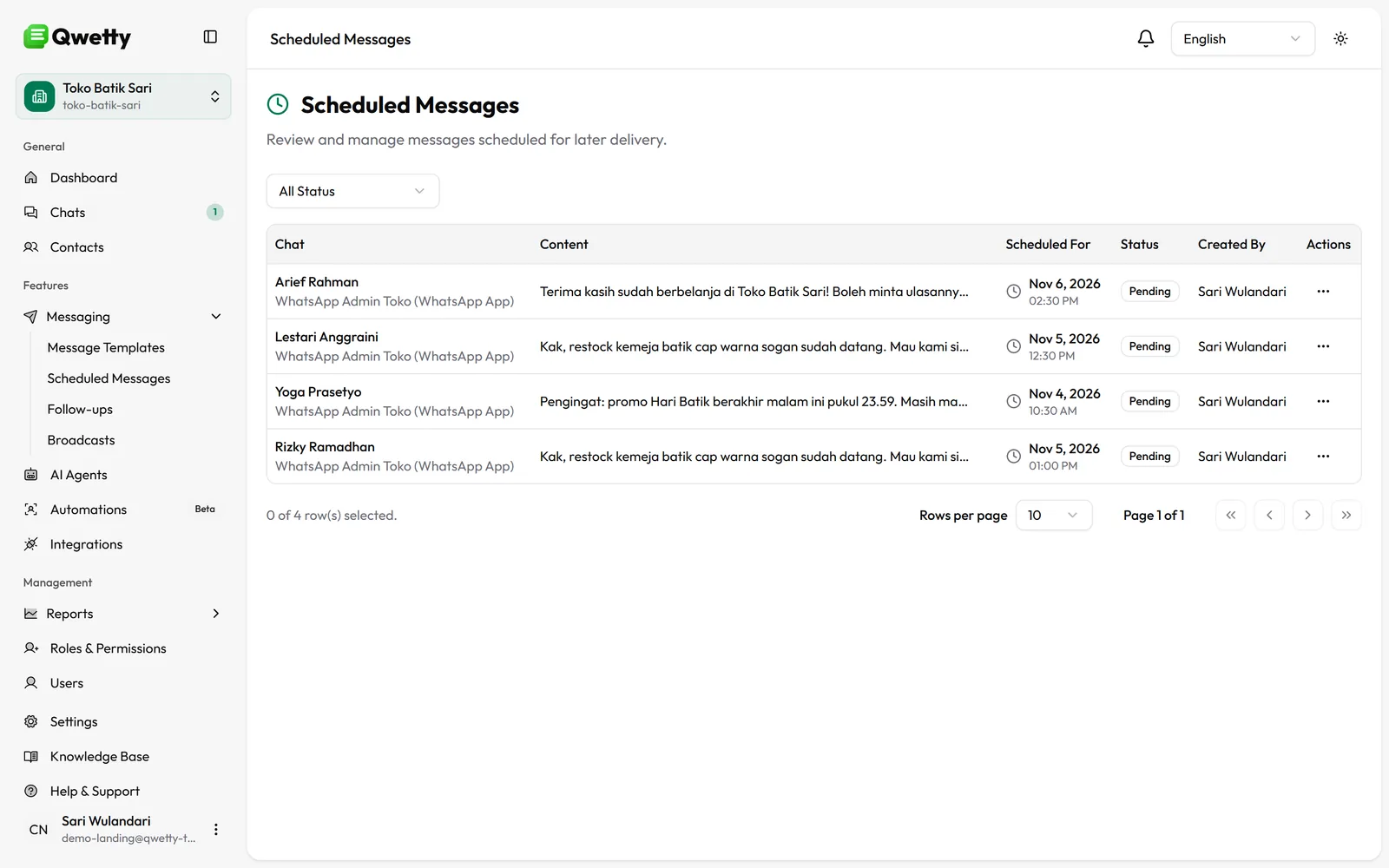
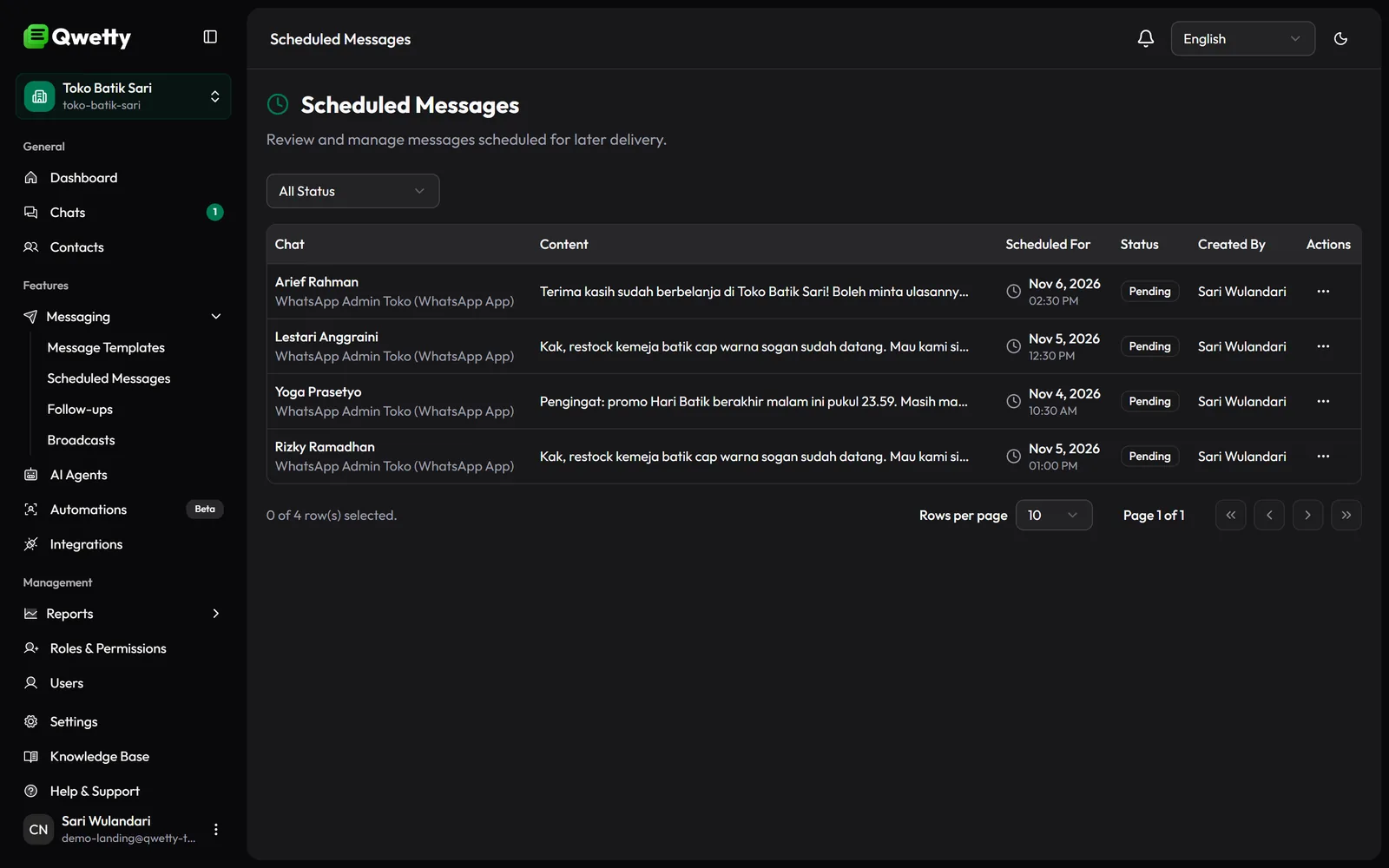
Section titled “Managing scheduled messages”Go to the Scheduled Messages page from the main navigation to see all queued messages.
Filtering
Section titled “Filtering”Filter messages by status:
- Pending — Queued and waiting to be sent
- Sending — Being sent right now
- Sent — Successfully sent
- Failed — Could not be sent (for example, the messaging window closed before the scheduled time, or the channel was deleted)
- Cancelled — Cancelled before delivery
Editing
Section titled “Editing”Open the row’s action menu on a Pending message and choose Edit to change its content, file attachment, or delivery time. (Edit and Cancel are only available while a message is pending.)
Cancelling
Section titled “Cancelling”Use Cancel from a pending message’s action menu to prevent it from being sent.
Use cases
Section titled “Use cases”- Follow-ups — Schedule a check-in message after resolving a conversation
- Reminders — Send appointment or deadline reminders
- Campaigns — Queue promotional messages for a specific date
Next steps
Section titled “Next steps”- Sending Messages — Send messages immediately
- Message Templates — Use templates with scheduled messages

