

Broadcasts
Creating a Broadcast
Send an approved WhatsApp template to a list of contacts.
Prerequisites
Section titled “Prerequisites”- A connected WhatsApp Cloud API channel
- An approved Meta template for that channel (see WhatsApp Template Sync)
- Contacts with phone numbers
Creating a broadcast
Section titled “Creating a broadcast”-
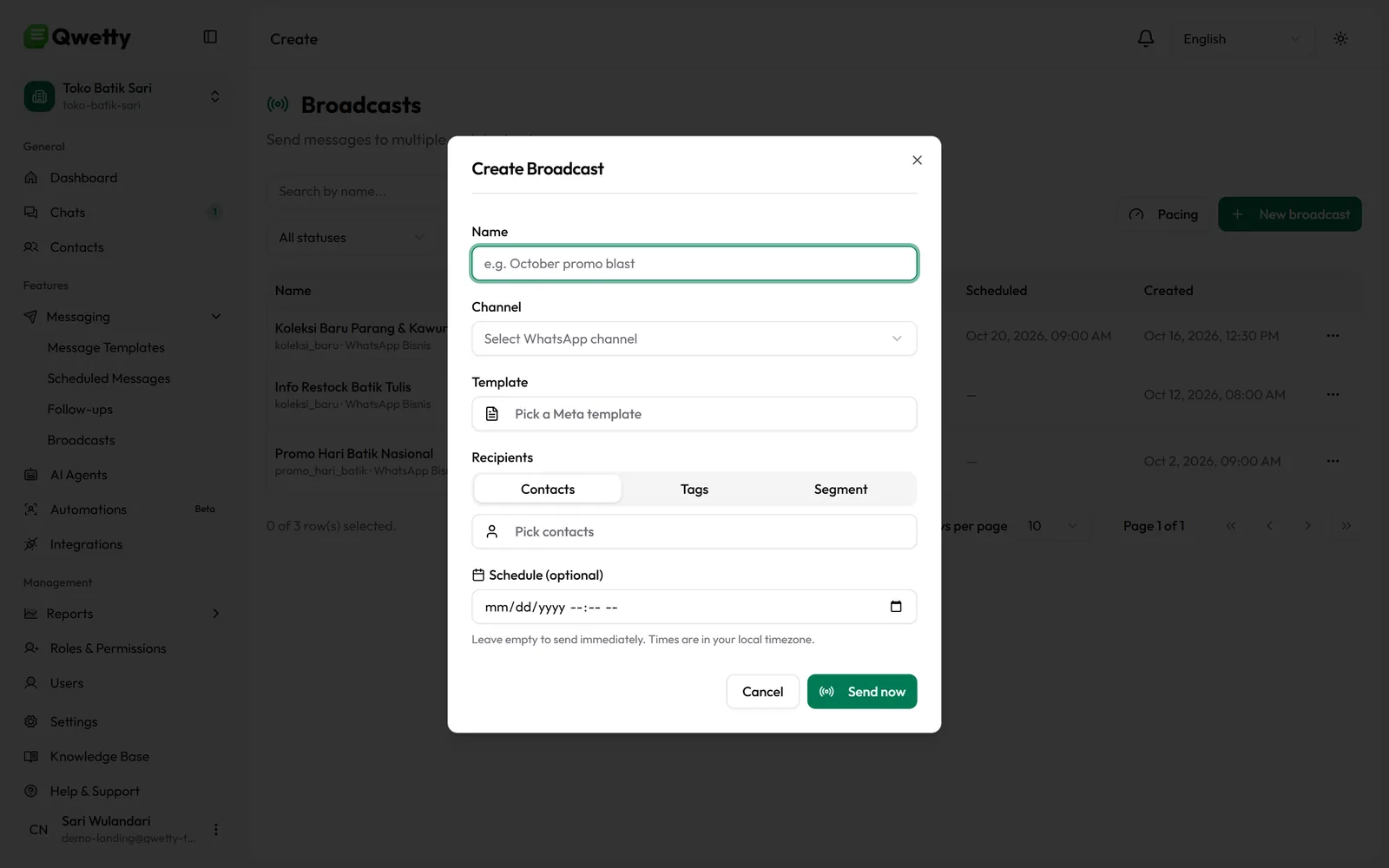
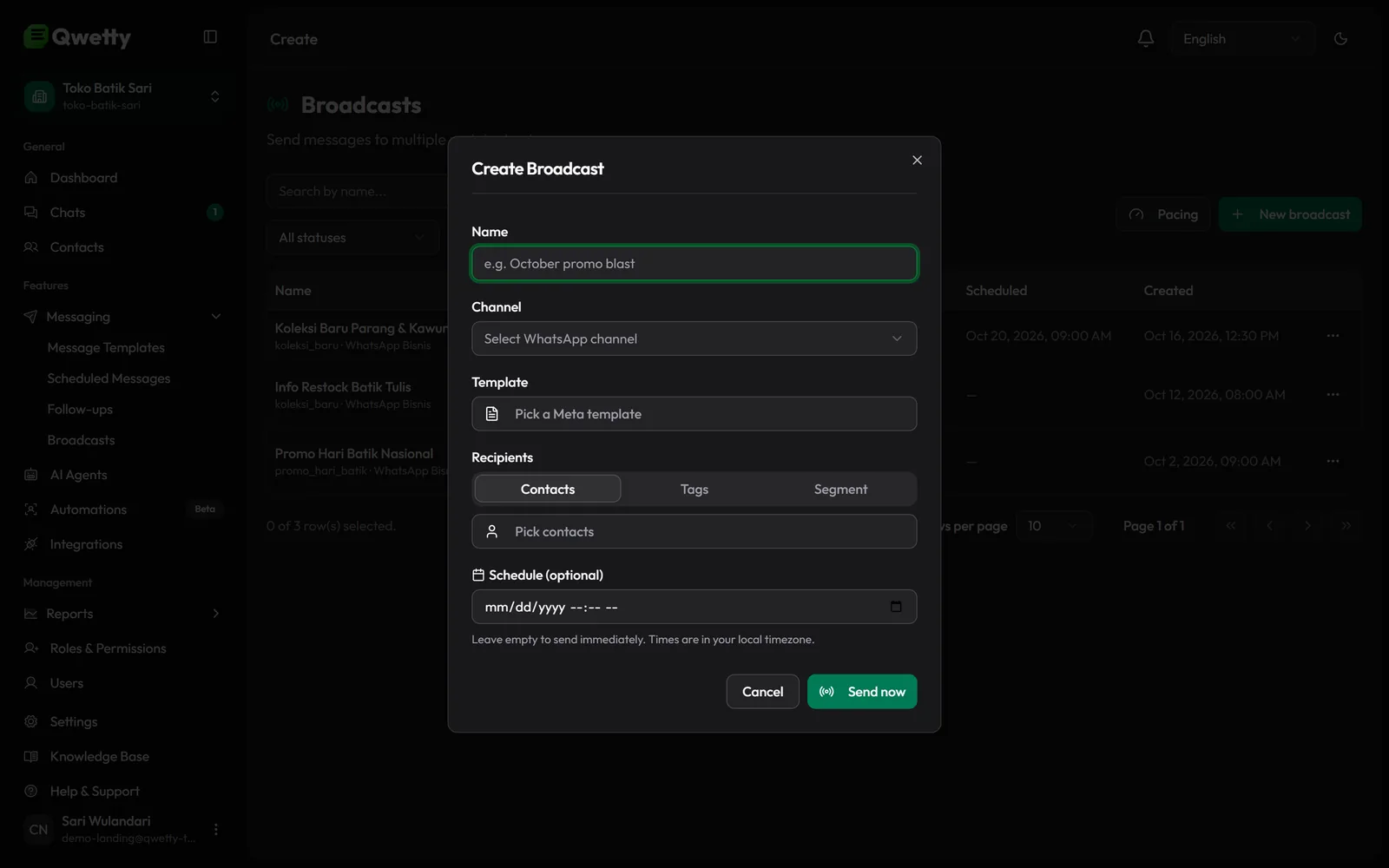
Go to Broadcasts and click New broadcast
-
Enter a Name for the broadcast
-
Select the WhatsApp Channel to send from (if you have only one, it’s selected automatically)
-
Click Pick a Meta template and choose an approved template
-
If the template has variables, click Configure variables and give each one a contact field (such as the contact’s name) or a fixed value
-
Choose the Recipients:
- Contacts — Click Pick contacts and select them from your directory. Contacts without a phone number are shown but can’t be selected
- Tags — Everyone carrying any of the tags you choose
- Segment — A saved contact segment
A live count shows how many people the broadcast reaches, and how many are left out because they opted out or have no phone number.
-
Optionally set a Schedule (optional) date and time, in your local timezone. Leave it empty to send right away
-
Click Send now, or Schedule broadcast if you set a time
On a WhatsApp App channel (only available to some accounts), step 4 lets you pick a local template — text, image, video or document — or choose Write a message and type your own.
{{contact.name}}and{{org.name}}are filled in for each recipient.
Scheduling
Section titled “Scheduling”If you set a schedule, the broadcast moves to Scheduled status and sends at the chosen time. Until then you can Edit it, or Cancel broadcast from its detail page. Clearing the time while editing keeps it as a draft that doesn’t send. Once a broadcast starts sending it can no longer be edited.
A scheduled broadcast works out its audience again when it starts: a Tags or Segment audience picks up contacts added since you scheduled it, and anyone who opted out in the meantime is skipped.
Tracking results
Section titled “Tracking results”Open a broadcast to see its progress: total recipients, delivery, read, reply and failure rates, and per-status counts. The recipients table lists each contact with its individual status, with tabs to filter by status and a link to open the chat. Search recipients by name or phone. The Failed and Skipped tabs add an Error column with the reason. For any recipient that failed, click Retry to send to that person again (this needs the Broadcasts → Send permission).
Messages go out at the pace set in Broadcast Pacing, and each one counts toward your monthly message quota.
- Only approved Meta templates can be broadcast on a WhatsApp Cloud API channel — drafts and pending templates won’t appear in the picker.
- Contacts who have opted out of automated messages are skipped.
Next steps
Section titled “Next steps”- Broadcasts Overview — Statuses and concepts
- Broadcast Pacing — How fast broadcasts send
- WhatsApp Template Sync — Get templates approved by Meta

