

Team & Organization
Organization Settings
Manage your organization’s profile and general settings. Everything on this page applies to the whole organization; your own name, language, password and notifications are on your Account page instead.
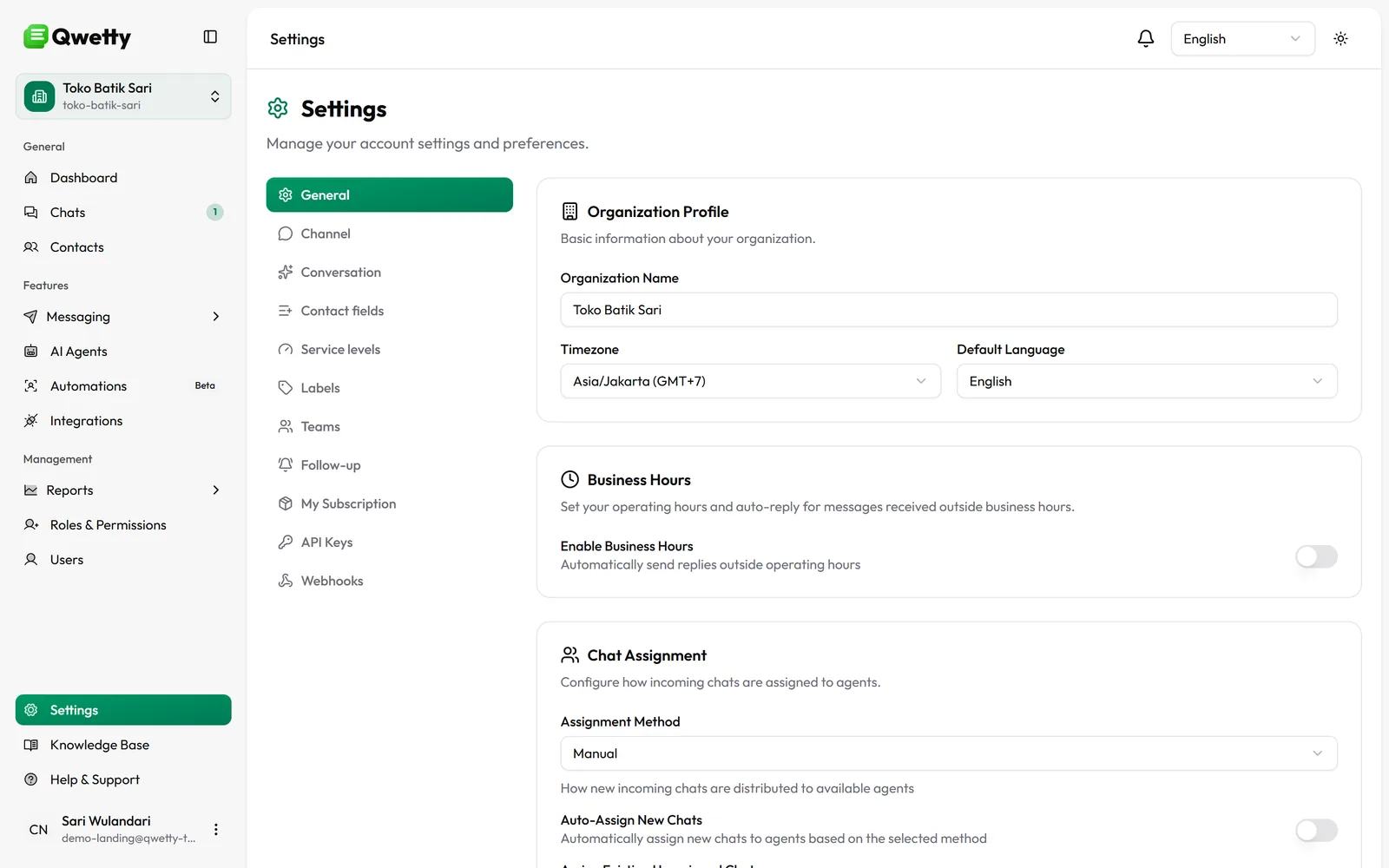
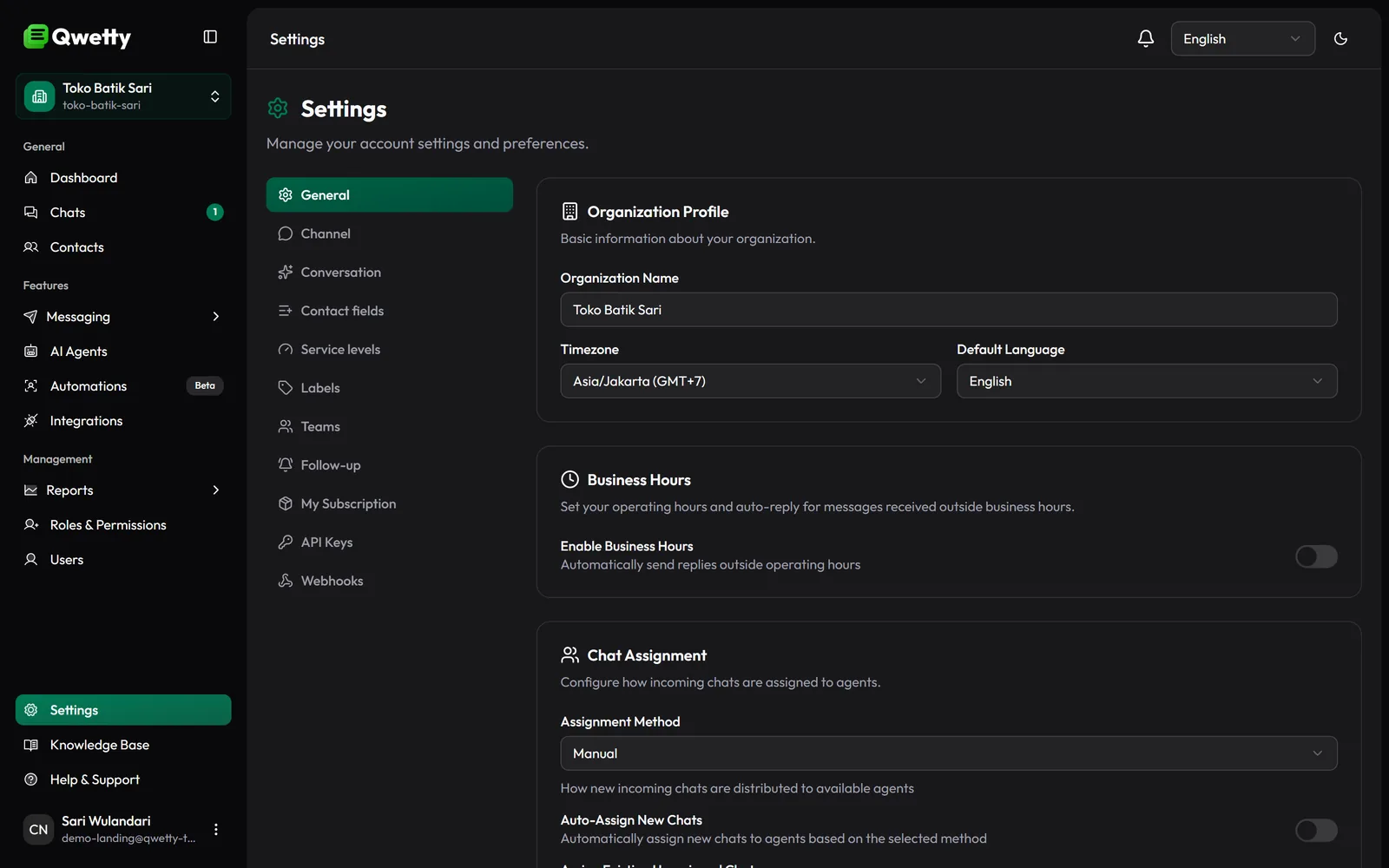
Accessing settings
Section titled “Accessing settings”Go to Settings from the main navigation. The General tab shows organization-wide settings.
- You need Settings → View to open the tab, and Settings → Edit to change anything. With view access only, the page says You have view-only access to settings. Changes are disabled.
- Export data and Danger Zone appear only for the organization’s owner.
Change any of the sections below, then click Save Settings at the bottom of the form to apply them all at once.
Organization profile
Section titled “Organization profile”- Organization Name — Your organization’s display name
- Timezone — The organization’s timezone. Reports, business hours and the weekly summary use it.
- Default Language — Default language for the workspace (English or Indonesian). Members can override the language and timezone for themselves in Profile & Preferences.
Business Hours and Chat Assignment
Section titled “Business Hours and Chat Assignment”- Business Hours — Per-day operating schedule. With Enable Business Hours on, the Auto-Reply Message is sent to messages that arrive outside those hours.
- Chat Assignment — The Assignment Method for new incoming chats (Manual, Round Robin, Load Balanced, or First reply) and auto-assign behavior.
Notification Preferences
Section titled “Notification Preferences”| Setting | Description |
|---|---|
| Weekly summary email | Every Monday morning, the owner gets a summary of last week’s conversations |
Sign-in alerts, invitations, billing and export emails are always sent. Push notifications and sounds are personal — each member sets them in Notifications.
Contact Preferences
Section titled “Contact Preferences”Automatically save contacts — when on, new senders are added to your contacts automatically. When off, save them manually with Save Contact.
Security Settings
Section titled “Security Settings”| Setting | Description |
|---|---|
| Session Timeout (minutes) | Automatically log members out after this many minutes of inactivity (5–1440) |
| Login Alerts | Email a member when someone signs in to their account |
Both apply to every member of the organization. Passwords, two-factor sign-in and active sessions are personal — see Password & Sessions and Two-Factor Sign-In.
Billing Information
Section titled “Billing Information”The details printed on your invoices and receipts:
- Company / Billing Name
- NPWP — for Indonesian businesses’ tax records
- Billing Address
- Billing Email (Optional)
See Payments & Invoices for where invoices are found.
Export data
Section titled “Export data”The owner can download the organization’s contacts, chats and messages as a zip of CSV files.
- Click Request export
- Wait while it shows Preparing export… — you can leave the page; Qwetty emails you a link when the file is ready
- Click Download next to the export, or use the link in the email
Each export is listed with its date and status: Queued, Preparing, Ready, Failed or Expired. A ready export shows its size and how long it stays available — the download works for seven days, after which you need to request a new one. Only one export can be prepared at a time.
Deleting the organization
Section titled “Deleting the organization”Only the owner can delete an organization. In Danger Zone, click Delete Organization. The confirmation explains what happens:
- Every member loses access now, and scheduled messages, broadcasts and follow-ups are cancelled.
- Connected channels are disconnected now. WhatsApp and Instagram have to be reconnected after a restore.
- Any subscription is cancelled now and will not be charged again.
- The organization can be restored by the owner for 14 days. After that it is erased for good, with all its chats, messages, contacts, templates and API keys.
To confirm, type the organization’s exact name and click Delete Organization.
Consider exporting your data first: once the organization is erased, it cannot be recovered.
Restoring a deleted organization
Section titled “Restoring a deleted organization”For 14 days after deletion, the owner sees the organization under Recently deleted organizations — on the Organization card of their Account page, or when signing in with no other organization left — with the date it will be Erased permanently. Click Restore.
A restore brings back the organization and its data, but not what deletion switched off: reconnect its WhatsApp and Instagram channels, and reschedule any broadcasts or follow-ups — those stayed cancelled.
Next steps
Section titled “Next steps”- Managing Members — Manage team members
- Plans & Subscribing — Your plan and subscription
- Leave or Delete Your Account — Transfer ownership or leave

