

Inbox & Conversations
AI Conversation Summary
Qwetty can summarize a conversation in a few sentences, so you can pick up a long chat — or one a teammate handed you — without scrolling through the whole history.
Where summaries appear
Section titled “Where summaries appear”- Above the thread — When a conversation has a summary, a collapsed AI Summary bar sits at the top of the message view. Click it to expand the summary
- In the contact panel — Click Contact info in the chat header; the AI Summary card shows the summary and when it was last Updated
Generating a summary yourself
Section titled “Generating a summary yourself”Summaries are normally made automatically (see below), but you can ask for one at any time:
- If the conversation has no summary yet, click Generate summary in the AI Summary card
- To refresh an existing one, click Regenerate summary (the refresh icon on the card)
If a conversation is too short, you’ll see Not enough messages to summarize yet.
Anyone who can see the conversation can generate its summary.
Summary settings
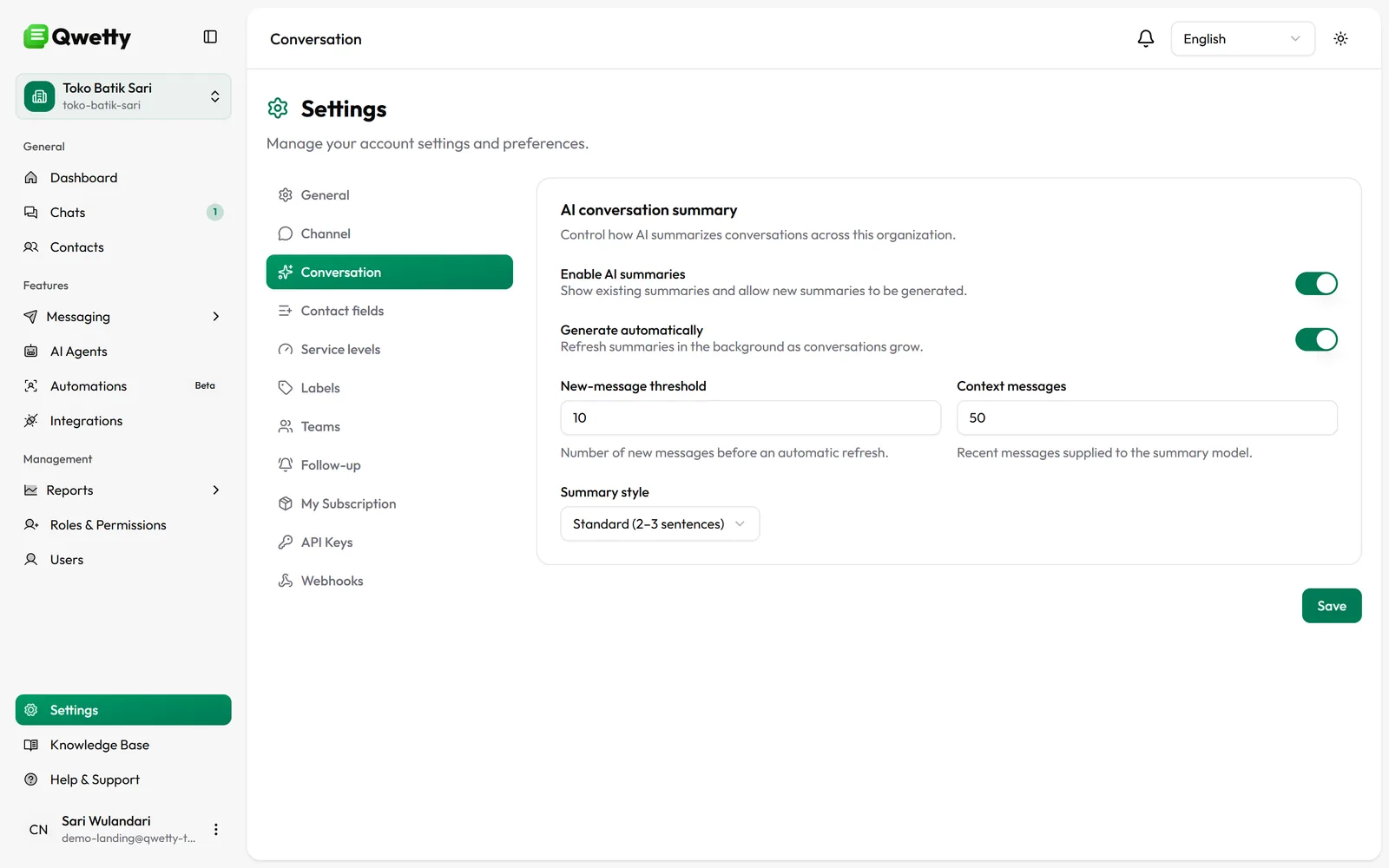
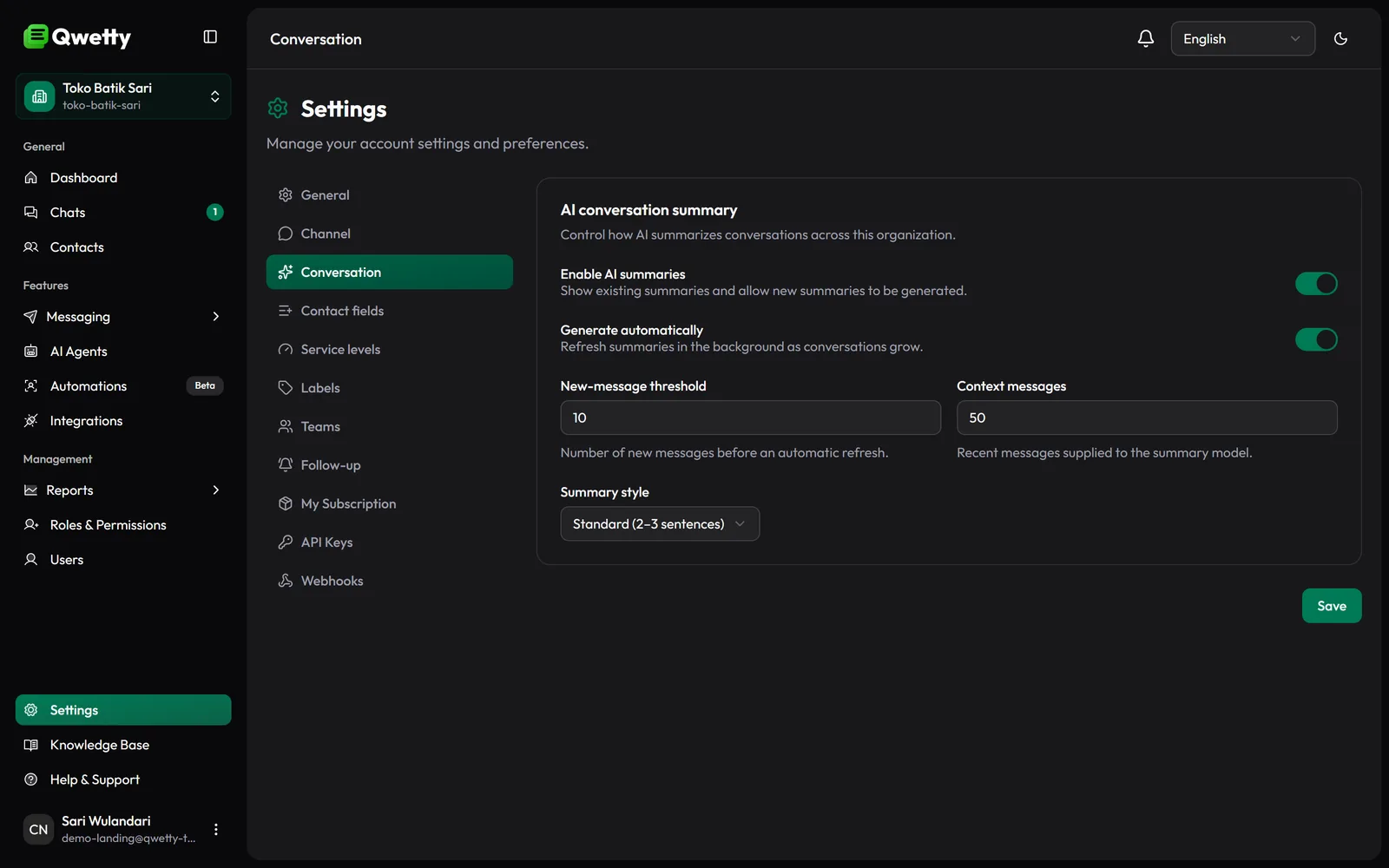
Section titled “Summary settings”Go to Settings → Conversation to control summaries for the whole organization. The page is titled AI conversation summary.
| Setting | What it does | Default |
|---|---|---|
| Enable AI summaries | Shows existing summaries and allows new ones to be generated. When off, summaries are hidden everywhere and can’t be generated | On |
| Generate automatically | Refreshes summaries in the background as conversations grow | On |
| New-message threshold | How many new messages a conversation needs before its summary is refreshed automatically (5–100) | 10 |
| Context messages | How many recent messages are given to the AI when it writes a summary (20–200). Must be at least the new-message threshold | 50 |
| Summary style | Brief (1–2 sentences), Standard (2–3 sentences) or Detailed (4–6 sentences) | Standard |
Click Save to apply your changes.
Anyone with Settings → View can open this page; changing it needs Settings → Edit. Members with view-only access see You have view-only access to settings. Changes are disabled.
Summaries elsewhere
Section titled “Summaries elsewhere”When you create a ClickUp task from a message, you can tick Include the conversation summary to add this summary to the task. See Message Actions.
Next steps
Section titled “Next steps”- Inbox Overview — The layout of the inbox and contact panel
- Teams and Assignment — Hand conversations over with context
- Internal Notes — Add your own notes for the team

