

Contacts
Importing Contacts
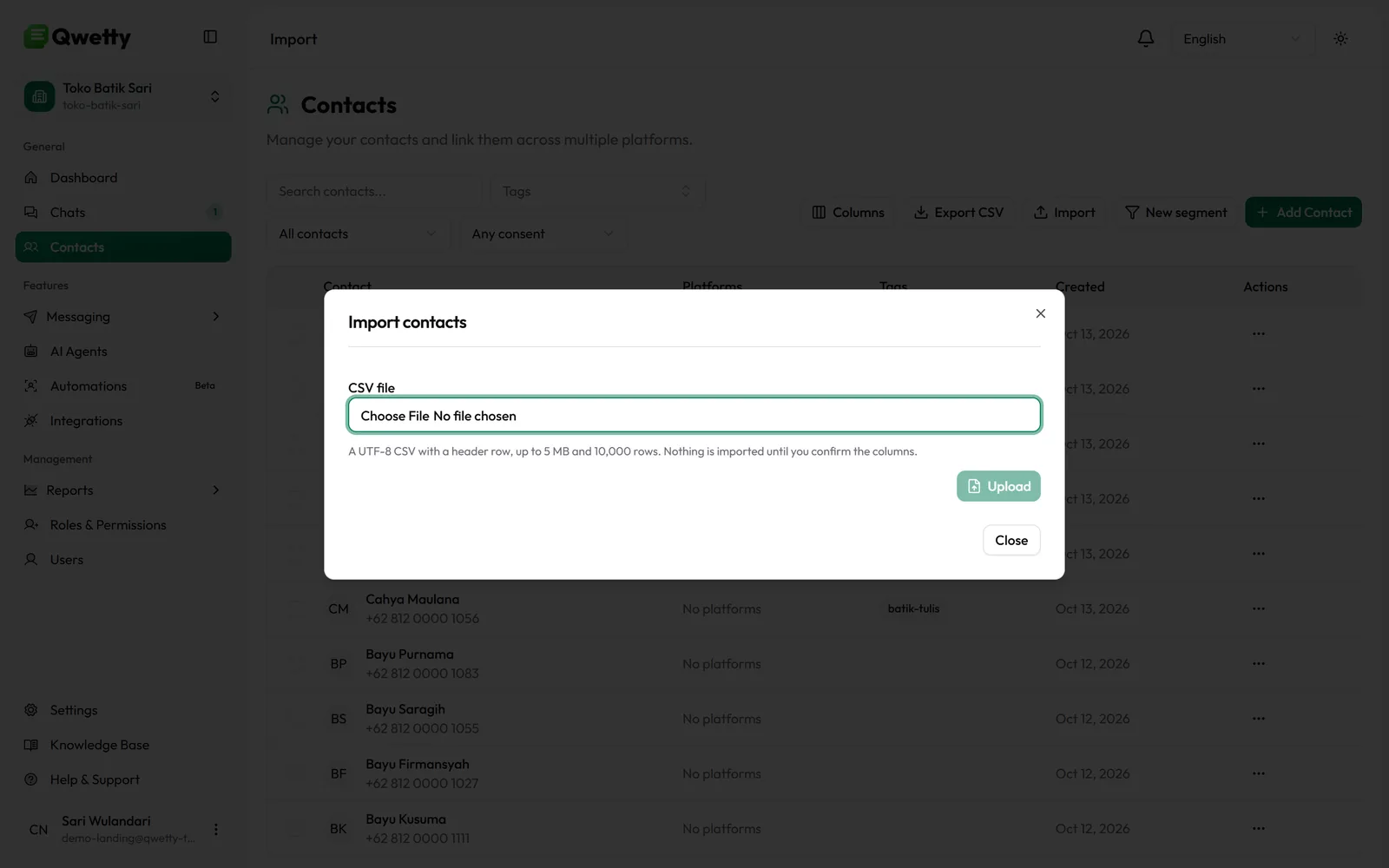
Import contacts in bulk from a CSV file exported from a spreadsheet, another CRM, or your phone. An import runs in three steps — upload, map the columns, watch it run — and nothing is written until you confirm the mapping.
Importing needs the Contacts → Create permission. Updating contacts that already exist also needs Contacts → Edit.
Preparing the file
Section titled “Preparing the file”| Requirement | Detail |
|---|---|
| Format | CSV, encoded as UTF-8. In Excel, use Save As → CSV UTF-8; in Google Sheets, File → Download → Comma-separated values |
| Header row | The first line holds the column names. Every line after it is one contact |
| Separator | Comma, semicolon or tab — detected automatically from the header row |
| Size | Up to 5 MB and 10,000 rows, not counting the header |
| Phone numbers | With the country code (6281234567890 or +62 812-3456-7890), or in local form starting with 0 (081234567890), which is read as an Indonesian number. Spaces, dashes and brackets are fine |
Values containing the separator or a line break must be in double quotes, as spreadsheet programs do automatically. Blank lines are ignored. If two columns share a header, the second is shown as, for example, Phone (2); a column with no header is shown as Column 3.
There is no limit on the total number of contacts on any plan — the file limits above are the only bound. Split a larger list into several files.
A simple file:
Name,Phone,Email,Tags,Membership tierSiti Rahma,6281234567890,siti@example.com,"vip, reseller",GoldBudi Santoso,+62 812 9876 5432,,newsletter,SilverStep 1: Upload
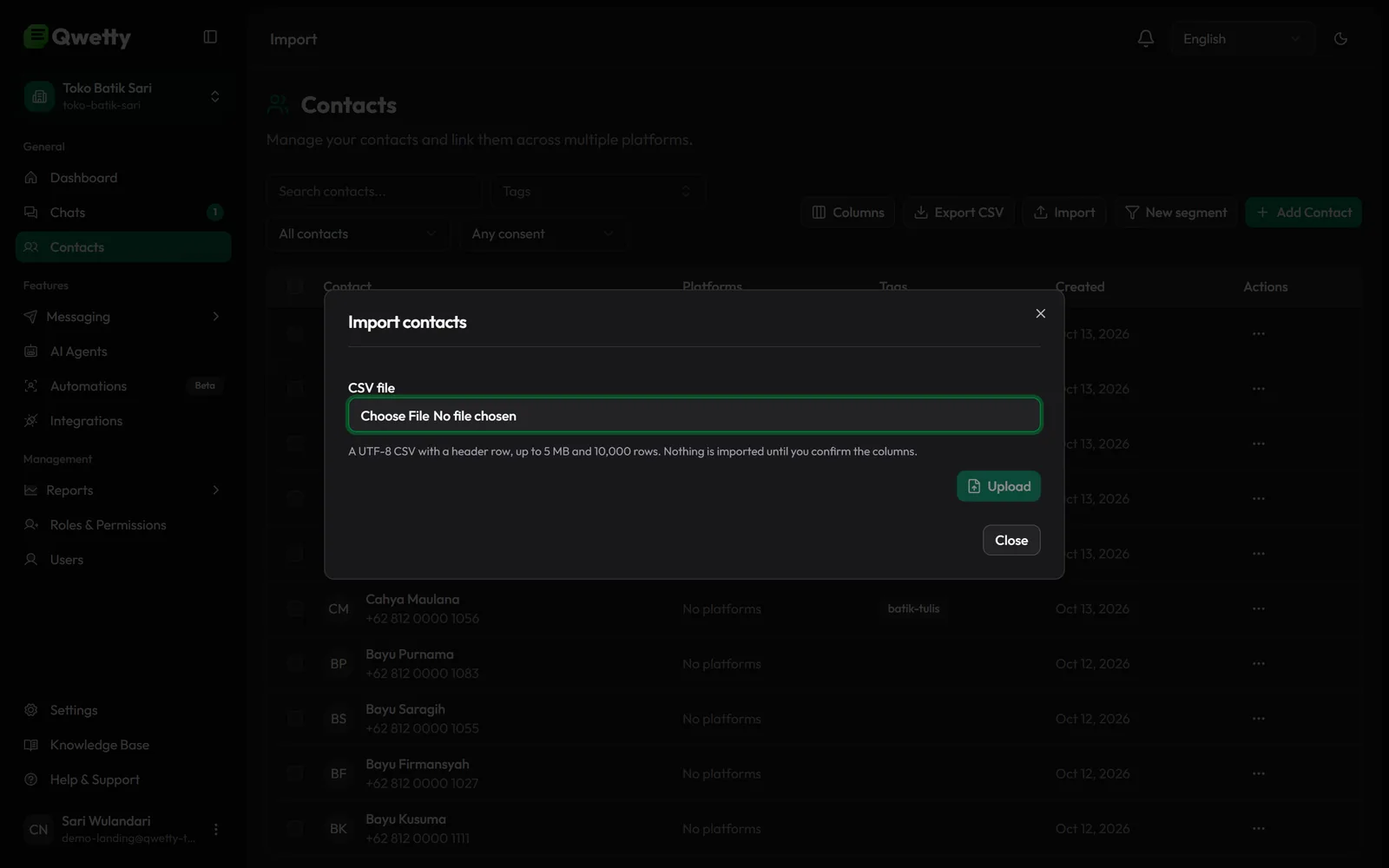
Section titled “Step 1: Upload”- Go to Contacts and click Import
- Choose the file under CSV file
- Click Upload
Qwetty reads the file’s columns and first rows. Files that aren’t UTF-8, are empty, or exceed the limits are refused here with a message saying why.
Step 2: Map the columns
Section titled “Step 2: Map the columns”Qwetty shows how many rows it found, then a table with each Column, its value in the First row, and what it Fills. Choose, for each column:
| Option | Fills |
|---|---|
| Name | The contact’s name |
| Phone | The primary phone number |
| The primary email address | |
| Notes | The contact’s notes |
| Tags (comma-separated) | Tags. Separate several with a comma, semicolon or ` |
| Any custom field | That custom field, listed by its label |
| Don’t import | Nothing — the column is ignored |
Qwetty pre-fills the mapping from the header names. It recognizes common English and Indonesian spellings — for example Name, Nama or Customer for name; Phone, WhatsApp, WA, No HP or Telepon for phone; Email or Surel for email; Notes or Catatan for notes; Tags or Label for tags — and a custom field’s key or label. Check it before you start.
Each option fills from one column only: picking an option already used by another column moves it to the new column. You must map at least one of Name, Phone or Email — otherwise you see Map at least one of name, phone or email.
Matching existing contacts
Section titled “Matching existing contacts”Under When a row matches a contact (by phone, then email), choose what happens to a row that belongs to someone already in your contacts:
| Option | What happens |
|---|---|
| Update the existing contact | The row’s values are added to the contact (see below). Needs Contacts → Edit, and is the default when you have it |
| Skip the row | The contact is left alone and the row is counted as skipped |
| Create a new contact anyway | No matching is done; every row becomes a new contact, even if that creates duplicates |
A row is matched on its phone number first, compared in normalized form so +62 812-3456-7890 and 6281234567890 are the same. Only if no contact has that number is it matched on its email address. If the phone or email matches more than one contact, Qwetty doesn’t guess: the row fails, and you can merge the duplicates and import it again.
Updating never erases anything. When a row updates a contact:
- An empty cell leaves the stored value as it is
- A non-empty Name, Notes or custom field cell replaces the stored value
- Tags from the row are added to the contact’s existing tags
- The phone or email is set only if the contact has none yet; an existing number or address is never replaced
Tags for every contact
Section titled “Tags for every contact”Under Add tags to every imported contact, type up to 10 tags (press Enter after each). They are added to every contact the import creates or updates — useful for marking where a list came from, such as expo-2026. Afterwards, filter the contact list by that tag to find them.
When everything looks right, click Start import.
Step 3: Progress and results
Section titled “Step 3: Progress and results”The import runs in the background, showing Importing… 1,200 of 4,000 rows with a progress bar. You can close the window; the import keeps going.
When it finishes, you see four counts:
| Count | Meaning |
|---|---|
| Created | New contacts added |
| Updated | Existing contacts that received values from the file |
| Skipped | Rows matching an existing contact, with Skip the row chosen |
| Failed | Rows that couldn’t be imported |
If any rows failed, click Download errors (CSV). The file lists each failed row’s line number in your original file (the header is line 1), the reason, and the row’s original values, so you can fix them and import just those rows again. It holds up to the first 1,000 failed rows. The reasons are written in the language of the person who ran the import; the column headings (row, error) stay in English.
Why a row fails
Section titled “Why a row fails”- The phone number or email address isn’t valid
- The row has no name, phone or email — the name falls back to the phone, then the email, so one of the three is enough
- The name is longer than 255 characters
- The phone or email matches more than one existing contact
- A custom field value doesn’t fit its type:
- Number — digits with an optional decimal point (
1500or4.5; not1,500) - Date — written as
YYYY-MM-DD, for example2026-03-31 - Yes / no —
yes,y,true,1oryafor yes;no,n,false,0ortidakfor no - Choice — one of the field’s options, in any upper or lower case
- Text — up to 1,000 characters
- Number — digits with an optional decimal point (
Tags longer than 50 characters are shortened, and a contact keeps at most 100 tags.
Recent imports
Section titled “Recent imports”The first step of the import window lists Recent imports — the last 20, with their file name, date, counts and status: Not started (uploaded but never started), Queued, Running, Completed or Failed. Click Show progress to reopen one that is still running, or Download errors (CSV) for one that finished with failed rows. Click Start over at any point to go back to this step.
Next steps
Section titled “Next steps”- Custom Fields — Create fields before importing so columns can map to them
- Merging Contacts — Clean up duplicates an import couldn’t match
- Search, Filter and Export — Export contacts to CSV

