

Integrations
Integrations Overview
Integrations connect Qwetty to the tools your team already uses. Once an integration is connected, your team can act on it from the inbox (for example, save a message to a Google Sheet or turn it into a ClickUp task), and automations can call it as a step in a workflow.
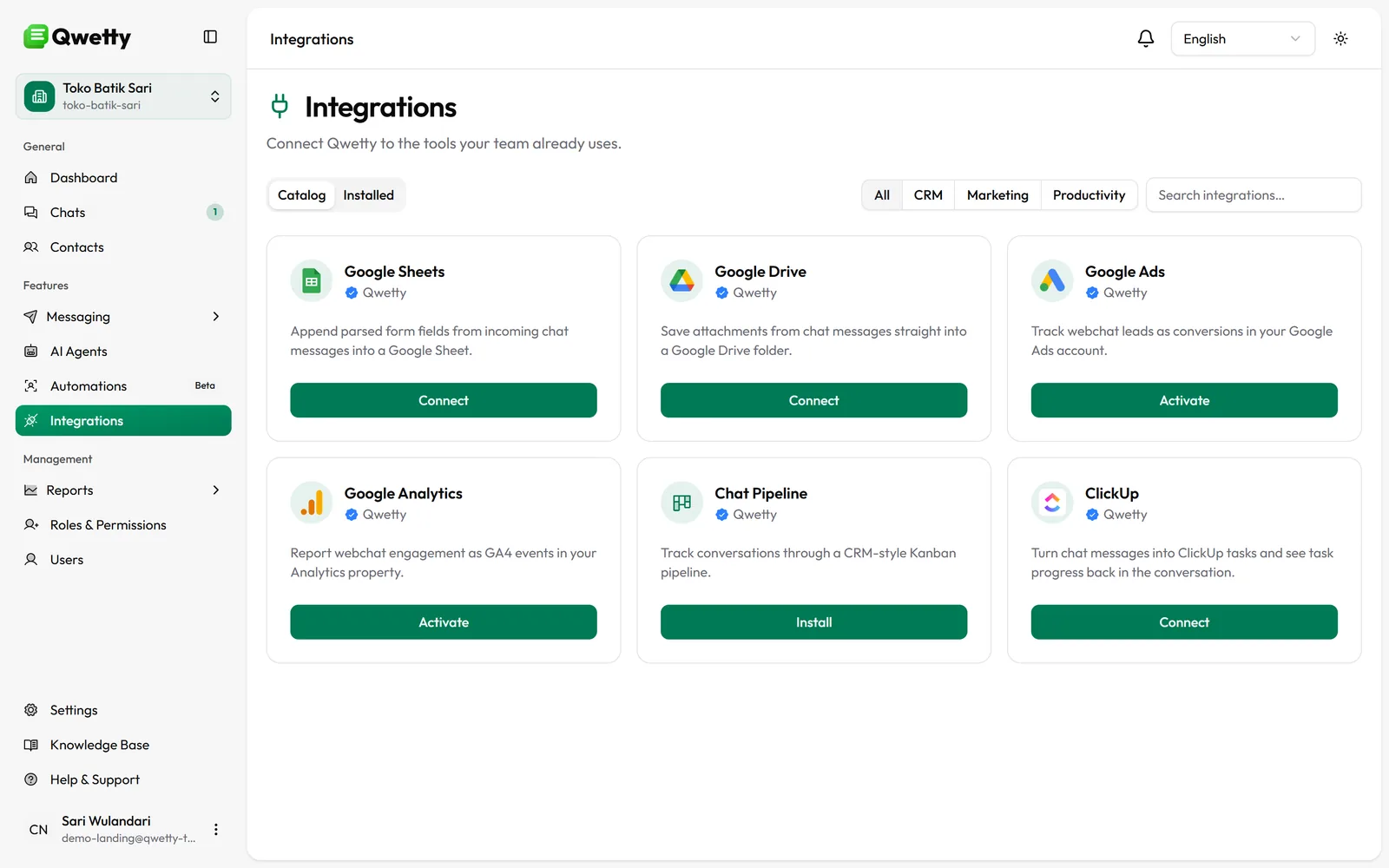
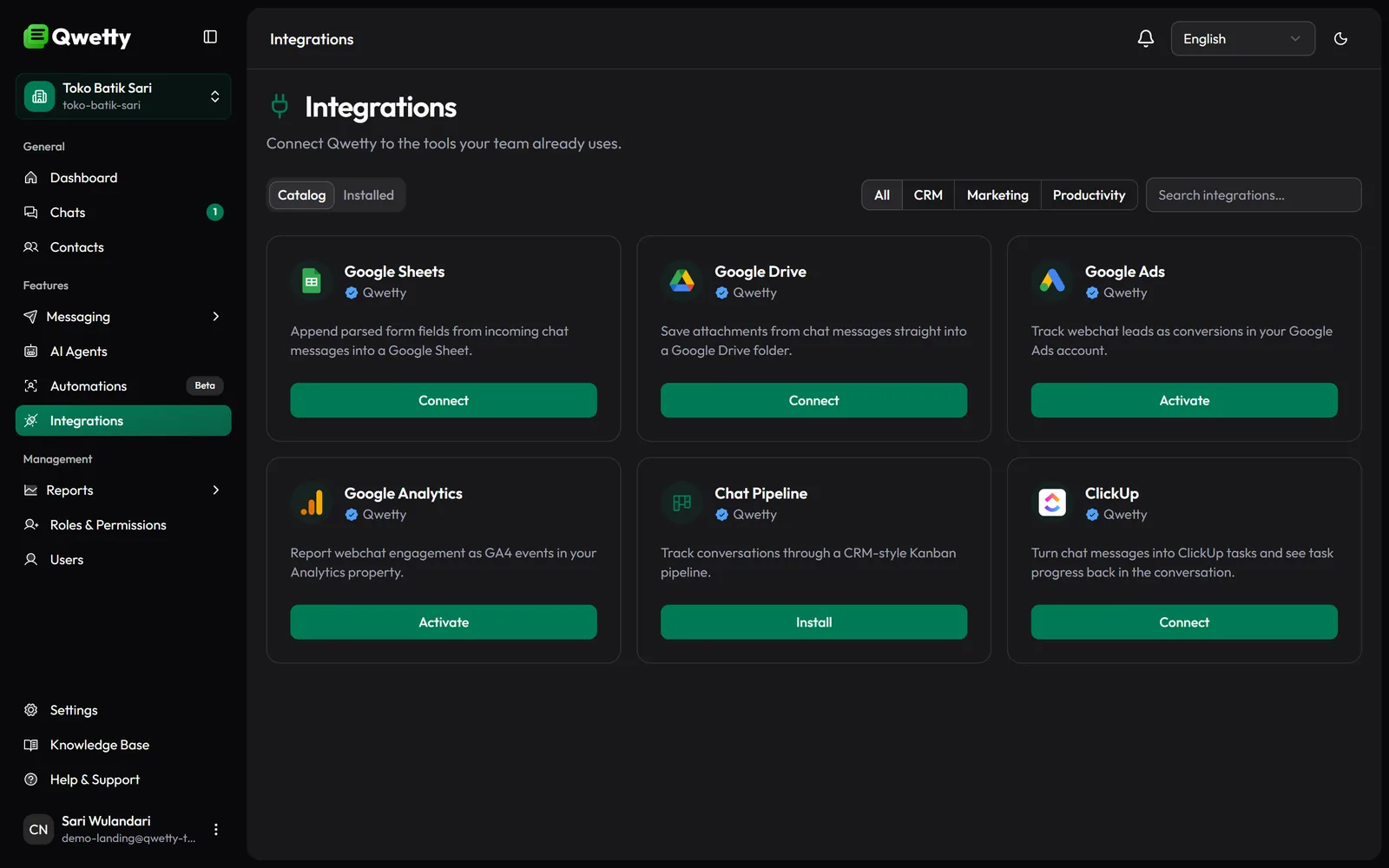
Available integrations
Section titled “Available integrations”| Integration | Category | How you connect | What it adds |
|---|---|---|---|
| Google Sheets | Productivity | Sign in with Google | Save to Google Sheet on chat messages, plus eight automation steps |
| Google Drive | Productivity | Sign in with Google | Save to Google Drive for message attachments, plus six automation steps |
| ClickUp | Productivity | Sign in with ClickUp | Create ClickUp task from any message, with task updates shown in the chat |
| Chat Pipeline | CRM | Install — no account needed | A Kanban board of your conversations, plus three automation steps |
| Google Ads | Marketing | Activate — no account needed | Conversion tracking and offline conversion export for Web Chat widgets |
| Google Analytics | Marketing | Activate — no account needed | GA4 events for your Web Chat widgets’ conversation funnel |
The Integrations page
Section titled “The Integrations page”Open Integrations from the sidebar. The page has two tabs:
- Catalog — Every integration available to your organization. Filter by category (All, CRM, Marketing, Productivity) or type in Search integrations…. Click a card to open its details.
- Installed — The integrations your organization has connected, each with its status. The tab shows a count when anything is connected.
The details window
Section titled “The details window”Clicking an integration card opens its details window, which shows:
- A description of what the integration does
- What you can do — the features it adds
- Permissions — what the integration may access in the other service (for integrations that sign in with an account)
- Your connection — once connected: the Google account used (Google integrations), Status, the date it was Connected, and when it was Last used
- Recent saves — for Google Sheets and Google Drive, the most recent messages saved through the integration, each linking to the file in Google
Connecting an integration
Section titled “Connecting an integration”There are two ways to connect, depending on the integration.
Integrations that sign in to another service
Section titled “Integrations that sign in to another service”Google Sheets, Google Drive and ClickUp ask you to sign in to that service and approve access.
- Go to Integrations and stay on the Catalog tab
- Click Connect on the integration’s card (or open the card and click Connect)
- A popup opens on the provider’s sign-in page. Sign in and approve the access Qwetty asks for
- The popup closes and a toast confirms Integration connected.
The access belongs to the account you sign in with. Qwetty stores the access token encrypted and never shows it again.
Integrations you switch on
Section titled “Integrations you switch on”Chat Pipeline, Google Ads and Google Analytics do not sign in anywhere. Open the card and click Install (Chat Pipeline) or Activate (Google Ads, Google Analytics). Their settings live elsewhere: the board for Chat Pipeline, and each Web Chat channel’s Tracking section for Google Ads and Google Analytics.
One connection per integration
Section titled “One connection per integration”An organization can have one active connection to each integration. Trying to connect a second time shows Already connected. Disconnect first to reconnect with a different account. To switch to another Google or ClickUp account, disconnect first and then connect again.
Connection status
Section titled “Connection status”| Status | Meaning |
|---|---|
| Active | The connection works. Its features appear in the inbox and in the automation editor |
| Pending | The connection has not finished being set up |
| Error | The other service refused Qwetty’s access — for example, the app was removed from ClickUp. The last error is shown under the connection on the Installed tab, and the card shows Reconnect required |
| Disconnected | The connection was removed. It no longer appears on the Installed tab |
Inbox actions and automation steps only work while the connection is Active.
Reconnect required
Section titled “Reconnect required”A catalog card or details window shows Reconnect required when a connection that signs in (Google Sheets, Google Drive, ClickUp) needs you to approve access again — either because it is in Error after access was revoked or expired, or because it was approved before the integration needed a new permission. Click Reconnect on the card, or under Your connection in the details window, and approve access again.
Reconnecting repairs the same connection: its settings and data are kept, only the credentials are replaced, and it does not use another slot of your plan’s integration limit. The same Reconnect button appears in the inbox save dialogs when this happens.
Disconnecting
Section titled “Disconnecting”- Go to Integrations and open the Installed tab
- Open the ⋯ menu on the connection and choose Disconnect (Uninstall for Chat Pipeline, Deactivate for Google Ads and Google Analytics)
- Confirm
You can also disconnect from the details window. Disconnecting deletes the stored access token and stops every inbox action and automation step that uses the integration. Files, spreadsheets and tasks already created in the other service are not deleted. To connect again later, you will need to sign in again.
Integrations in automations
Section titled “Integrations in automations”Each connected integration that offers automation steps adds them to the Integrations category of the node picker, named after the integration (for example, Google Sheets: Append row). See Building Workflows.
- In each step, choose the Connection to use, then fill in the step’s fields. Most fields accept variables from the trigger, such as
{{triggerPayload.body}} - The step’s result is available to later steps as
{{integrationResult}}— for example{{integrationResult.url}}after Create spreadsheet. Each integration step replaces the previous result - A step waits up to 30 seconds for the other service. If the call fails, the run fails at that step; you can retry it from the automation’s Run history
- The Integration Connected and Integration Disconnected triggers start a workflow when any integration is connected or disconnected
Integration steps only appear for people who can view integrations, and only for integrations that are connected.
Who can manage integrations
Section titled “Who can manage integrations”Integrations have four permissions, set per role in Roles & Permissions (see Roles & Permissions):
| Permission | Allows |
|---|---|
| View | Open the Integrations page and details, see the Chat Pipeline board, see which messages were already saved |
| Connect | Connect, activate, install or reconnect an integration |
| Edit | Use integrations from the inbox (save to Sheet or Drive, create ClickUp tasks) and edit or move cards on the Chat Pipeline board |
| Disconnect | Disconnect, deactivate or uninstall an integration |
The organization owner and the Administrator role have all four. The default Agent role has none, so agents do not see the Integrations group in the message menu unless you give their role View and Edit.
Plan limits
Section titled “Plan limits”Integrations are included in every plan, and each plan sets how many integrations can be connected at the same time — 3 on Starter, 15 on Professional, and a custom number on Enterprise. Every connection that is not disconnected counts, including one with an Error status. Without an active subscription, the Integrations page shows an upgrade prompt instead of the catalog.
When you reach the limit, connecting another integration is refused with Integration quota exceeded (used/limit). Upgrade your plan to raise this limit. Disconnect one you no longer use, or upgrade your plan. Reconnecting an existing connection is not affected by the limit.
Troubleshooting
Section titled “Troubleshooting”| Problem | What to do |
|---|---|
| The connection shows Error | Access was revoked or expired in the other service. Click Reconnect on the card or in the details window and approve access again |
| Reconnect required | Open the details window and click Reconnect |
| A Google save fails after working before | Qwetty’s access may have been removed in the Google account’s security settings. Click Reconnect and approve access again |
| The integration’s items are missing from the message menu | Check that the connection is Active and that your role has View and Edit for Integrations |
| Connect is missing on the card | Your role does not have the Connect permission |
Next steps
Section titled “Next steps”- Google Sheets — Save form replies as spreadsheet rows
- ClickUp — Turn messages into tasks
- Chat Pipeline — Track conversations on a Kanban board
- Building Workflows — Use integrations in automations

