

Inbox & Conversations
Sending Messages
Send messages to your contacts directly from the inbox across all connected channels.
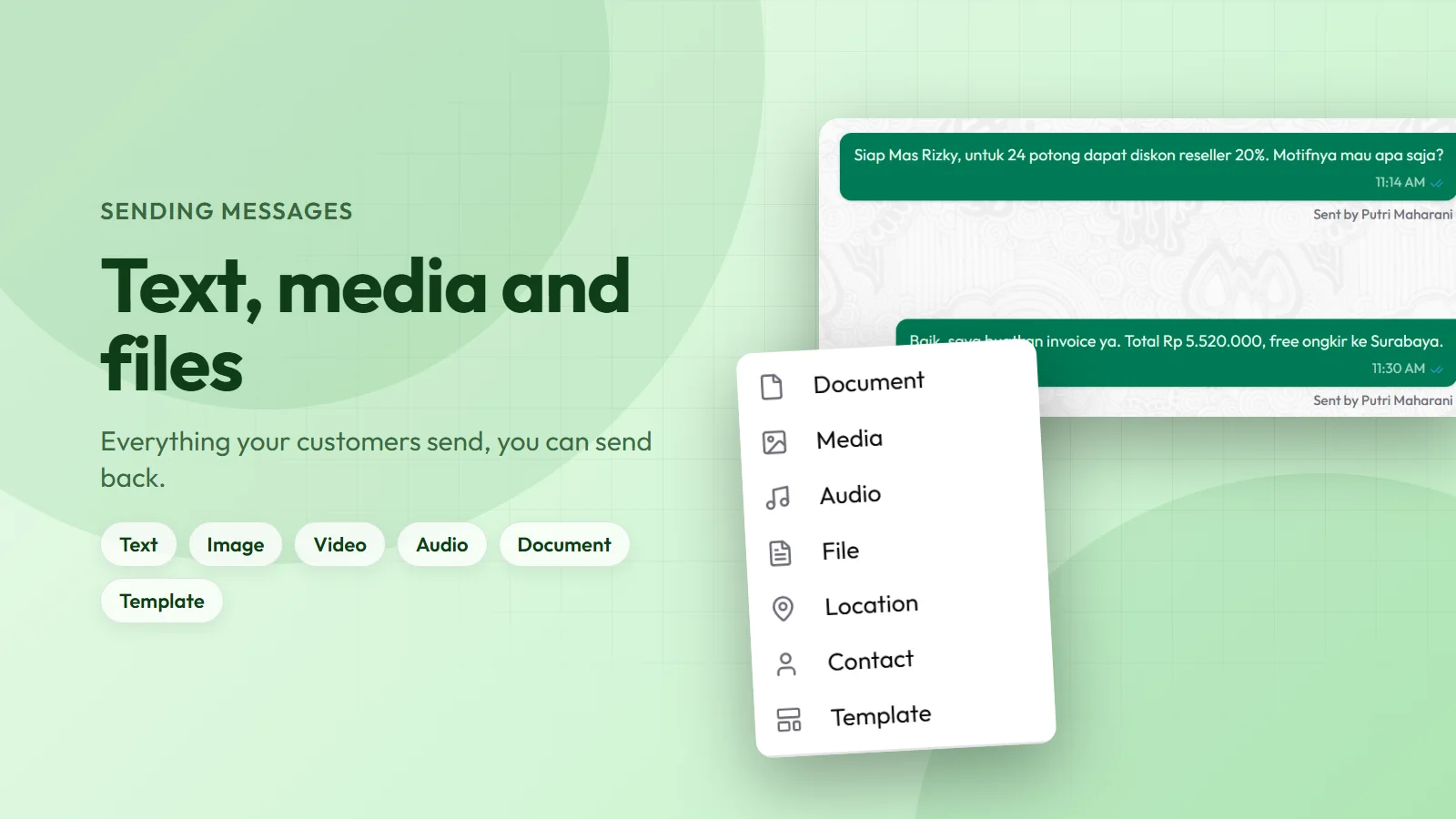
Composing a message
Section titled “Composing a message”At the bottom of the message view, use the composer to write your message. You can:
- Type text — Write your message directly
- Attach files — Use the paperclip (Attach file) menu to send a Document, Media (images and videos), Audio, any File, or a Contact card. Files can be up to 100 MB, and you can also drag a file onto the conversation or paste it
- Use templates — Choose Template from the same menu, or type
/in the message box - Add emoji — Use the emoji picker
- Reply to a specific message — Use Reply from a message’s menu to quote it
Message types
Section titled “Message types”| Type | Supported Channels |
|---|---|
| Text | All channels |
| Image | All channels |
| Video | All channels |
| Audio | All channels |
| Document | WhatsApp, Messenger, Web Chat |
| Contact | WhatsApp, Web Chat |
| Meta template | WhatsApp (Business API channels) |
See Channel Limitations for messaging windows and other per-channel rules.
Using message templates
Section titled “Using message templates”Choose Template from the paperclip menu to browse templates, or type / followed by part of a template’s name (or its shortcut) to pick one inline. Templates with numbered variables open a Template Variables dialog where you fill in each value before sending.
Templates are especially useful for WhatsApp, where you must use an approved template to start a conversation outside the 24-hour window.
See Message Templates for more details.
Sending later
Section titled “Sending later”On WhatsApp, Instagram and Messenger chats, click the arrow on the send button and choose Send Later to schedule the message instead of Send Now. See Scheduled Messages.
Message status
Section titled “Message status”After sending, messages show delivery status as an icon next to the time:
| Status | Meaning |
|---|---|
| Sending (spinner) | Message is being sent |
| Sent (one tick) | Message left Qwetty |
| Delivered (two ticks) | Message reached the recipient’s device |
| Read (two blue ticks) | Recipient has seen the message |
| Failed (red alert icon) | Message could not be sent — hover the icon to see why, then retry or resolve it |
Next steps
Section titled “Next steps”- Message Templates — Create reusable templates
- Message Actions — Reply to, react to, edit and forward messages
- Keyboard Shortcuts — Template shortcuts and other keys
- Managing Conversations — Organize your inbox

