

Team & Organization
Managing Members
Add team members to your organization so they can access the inbox, manage contacts, and handle conversations.
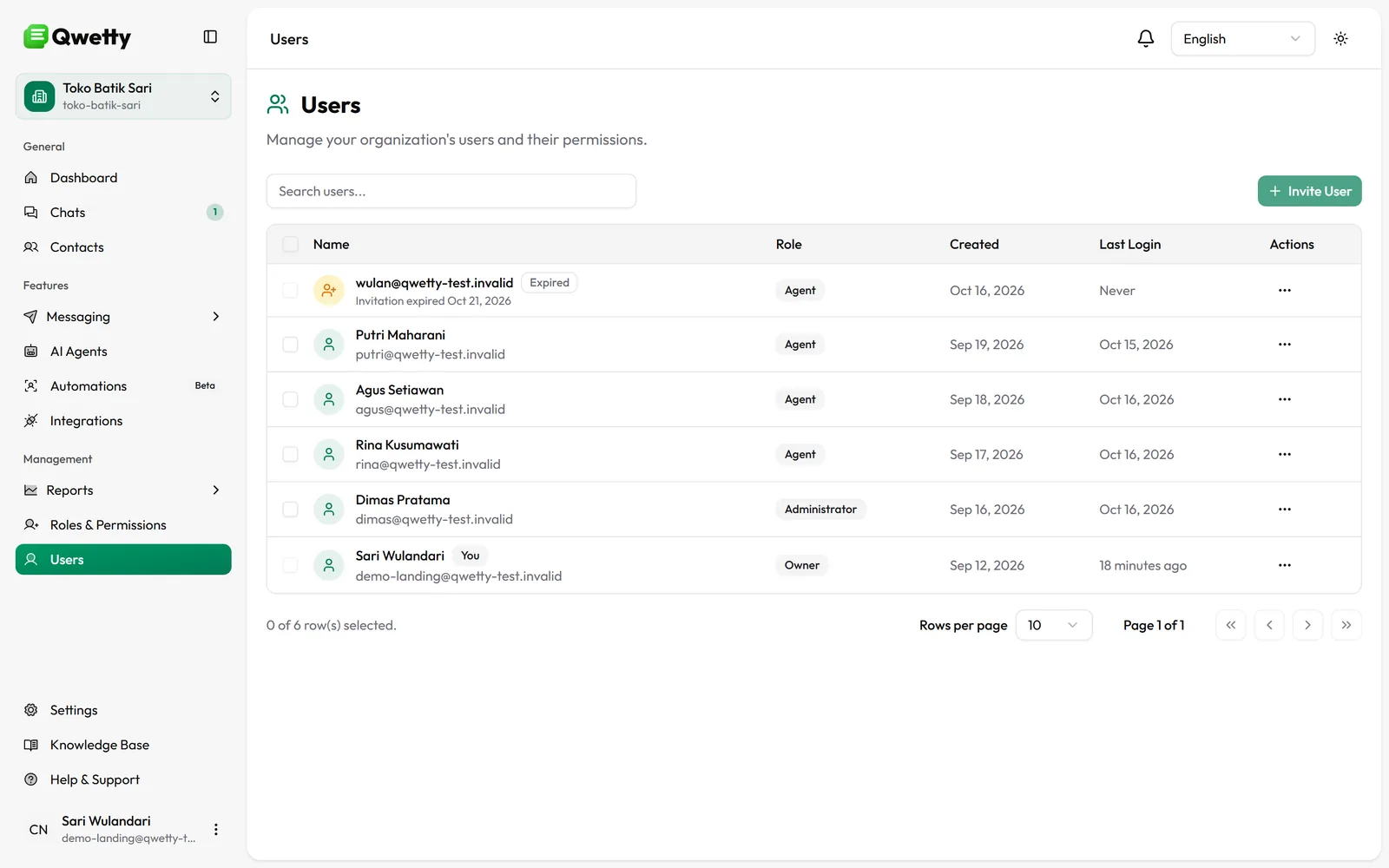
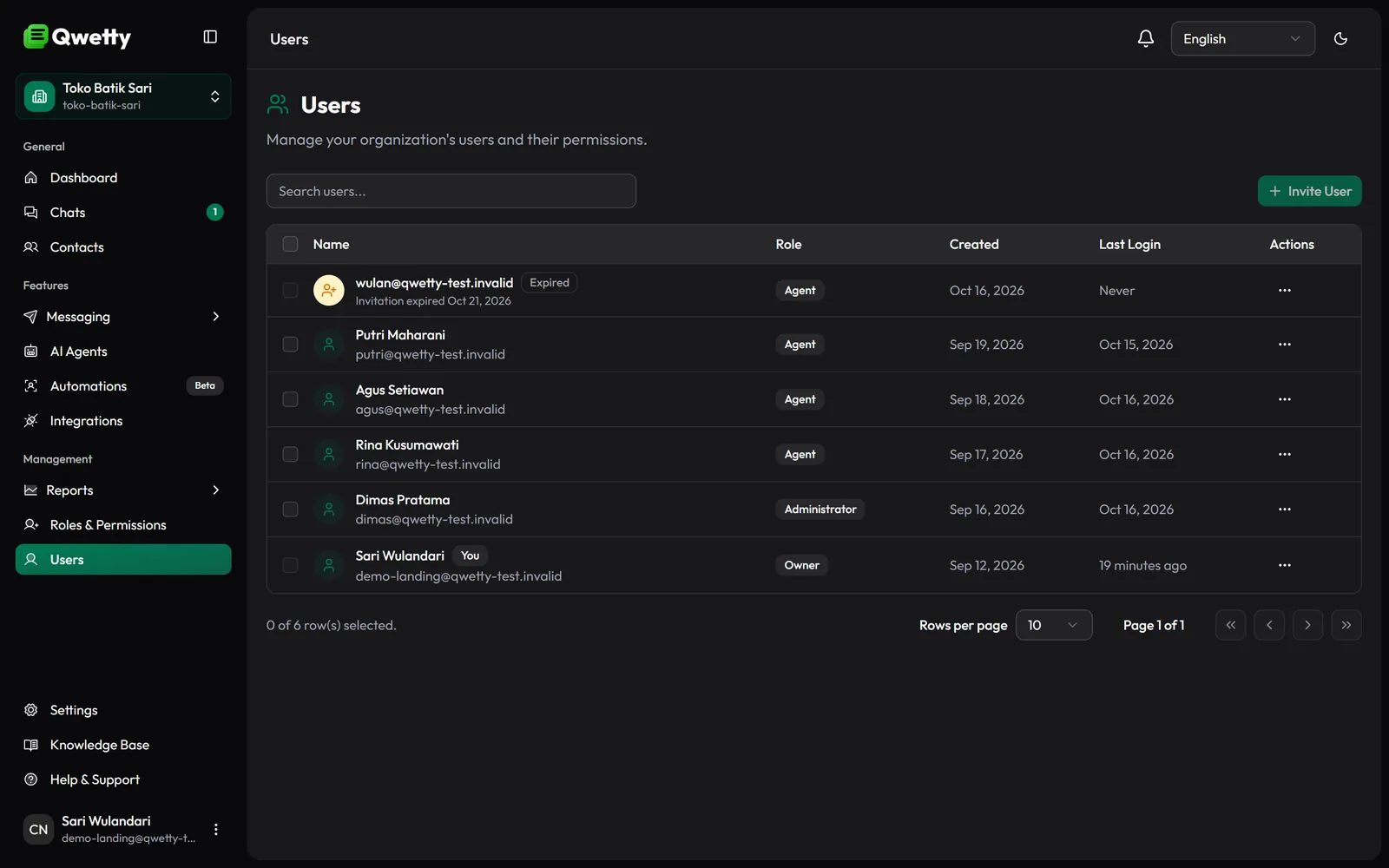
Inviting team members
Section titled “Inviting team members”- Go to Users from the main navigation
- Click Invite User
- Enter the member’s email address
- Choose a Role (the role selector appears when your plan includes custom roles; otherwise new members join as administrators)
- Click Send Invitation
The invited member will receive an email with instructions to join your organization. If you’ve reached your plan’s team member limit, Invite User is disabled until you upgrade.
Managing members
Section titled “Managing members”From the Users page, you can:
- View all team members and their roles
- Edit Role — change a member’s assigned role (the owner’s role cannot be changed)
- Remove members from the organization (the owner cannot be removed)
- Resend invitation or Cancel Invitation for a pending invitation before it’s accepted
Each team member is assigned a role that determines their permissions. See Roles & Permissions for details on creating and managing roles.
Next steps
Section titled “Next steps”- Roles & Permissions — Configure access control
- Organization Settings — General workspace settings

