

Account
Profile & Preferences
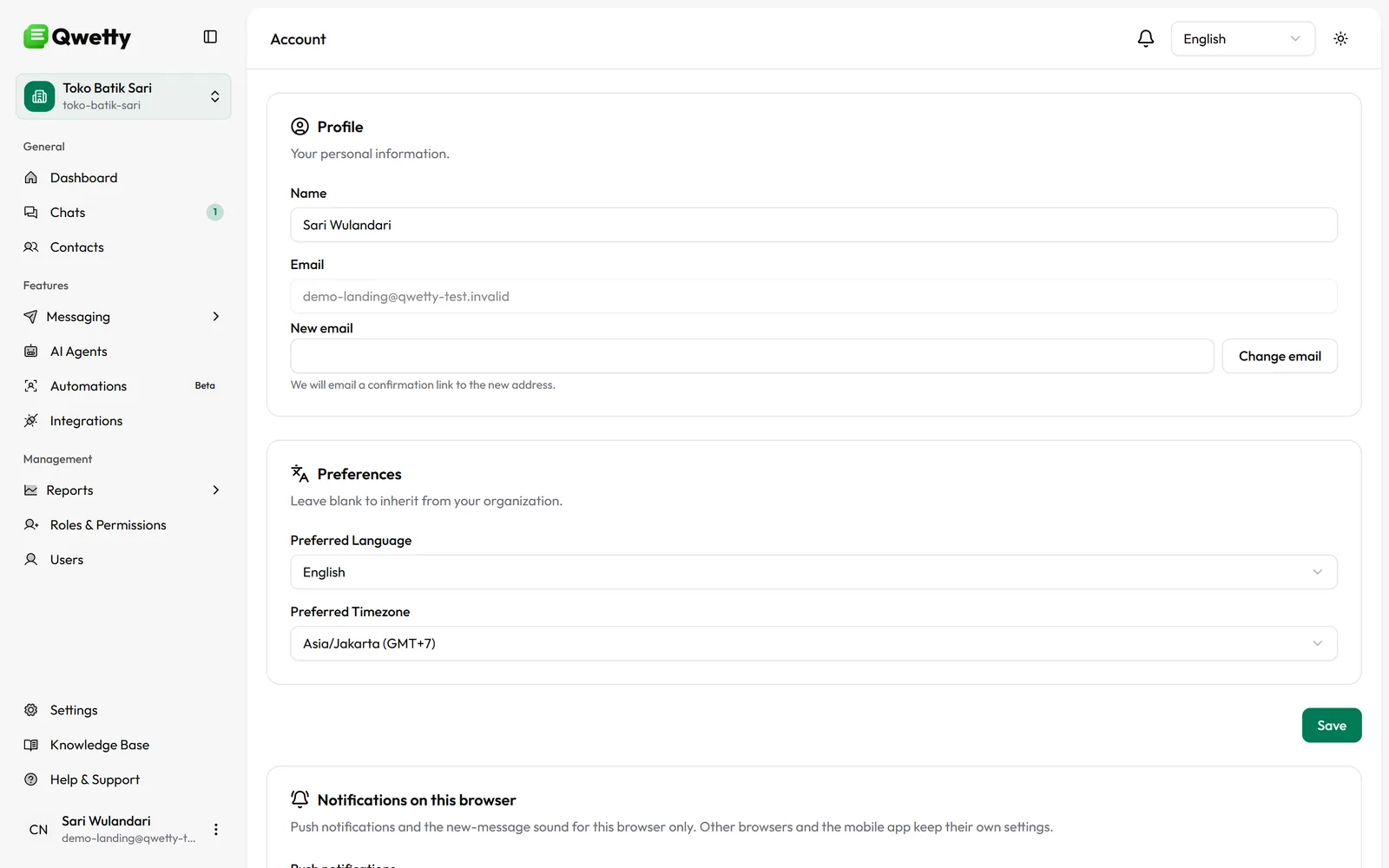
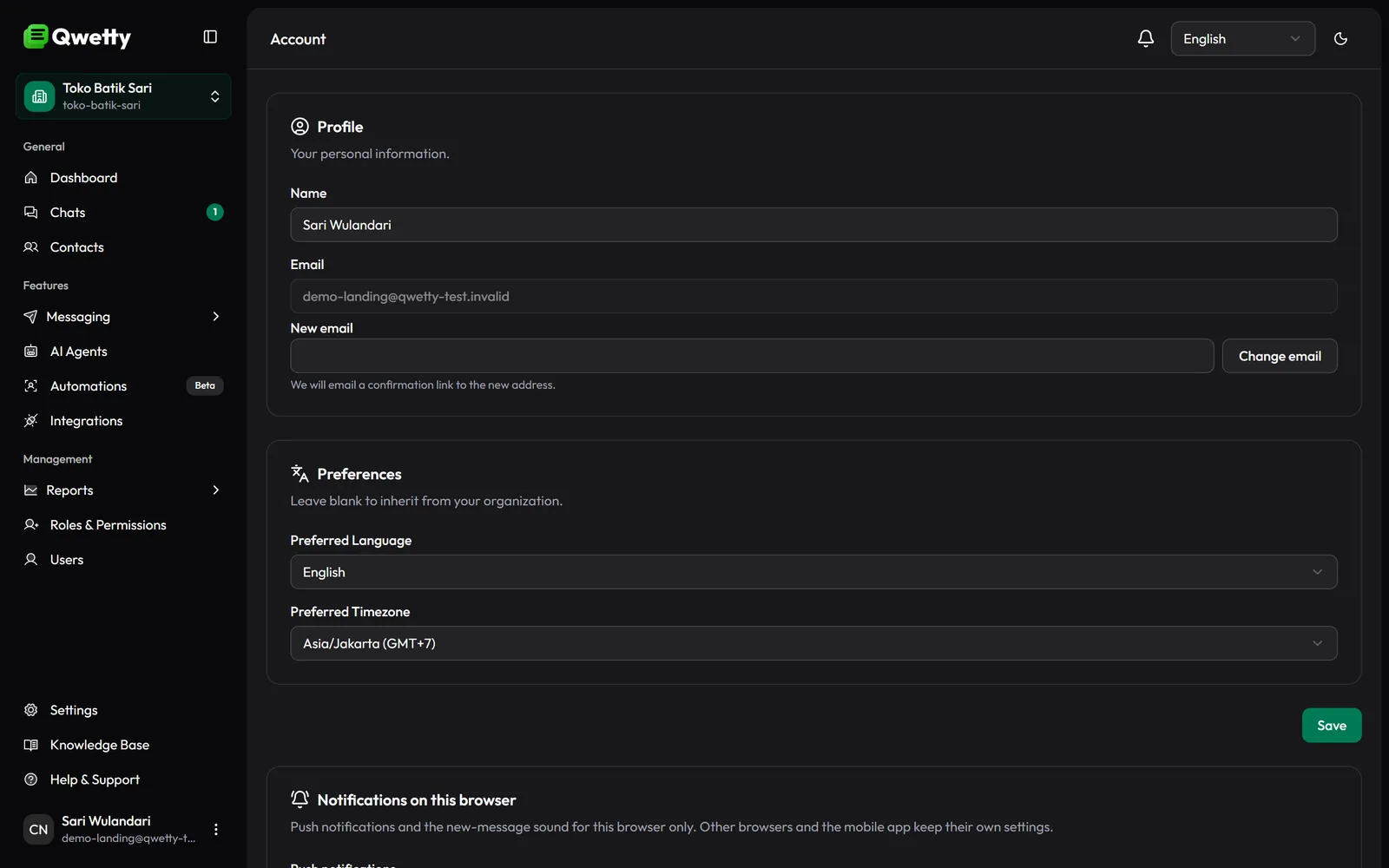
Your Account page holds everything that belongs to you as a person rather than to your organization: your name and email, the language and timezone Qwetty uses for you, how you sign in, and your notifications on this browser.
Opening your account
Section titled “Opening your account”Click your name at the bottom of the sidebar and choose Account. Every member can open it; no permission is needed.
The page has these sections, top to bottom:
| Section | What it covers |
|---|---|
| Profile | Your name and sign-in email (this page) |
| Preferences | Your language and timezone (this page) |
| Notifications on this browser | Push notifications and the new-message sound — see Notifications |
| Password, Connected accounts, Sessions | How you sign in — see Password & Sessions |
| Two-factor sign-in | A code from an authenticator app — see Two-Factor Sign-In |
| Organization | Leaving, or handing over, the organization you are in — see Leave or Delete Your Account |
| Delete account | Closing your account for good — same page |
Changing your name
Section titled “Changing your name”- In Profile, edit Name
- Click Save below the Preferences card
Your teammates see this name on assignments, internal notes, the agent report and the activity log.
Changing your sign-in email
Section titled “Changing your sign-in email”Your current address is shown in Email and cannot be edited directly. To change it:
- Type the new address in New email
- Click Change email
- Open the confirmation link Qwetty sends to the new address
Until you open that link, nothing changes and you keep signing in with the old address. If you typed the wrong address, click Use a different address and try again.
Language and timezone
Section titled “Language and timezone”The Preferences card has two settings:
- Preferred Language — English or Bahasa Indonesia. This is the language of the app and of the emails Qwetty sends you.
- Preferred Timezone — Used for the dates and times you see in the app.
Both start on Use organization default, which follows whatever the organization has set in Settings → General (shown in brackets). Choose a value only if yours should differ — for example, a team member working from another timezone.
Click Save. The page reloads so that every date and label switches over at once.
Next steps
Section titled “Next steps”- Password & Sessions — Change your password and see where you are signed in
- Two-Factor Sign-In — Protect your account with a second step
- Notifications — Choose what you are alerted about

