

Channel Management
Disconnecting a Channel
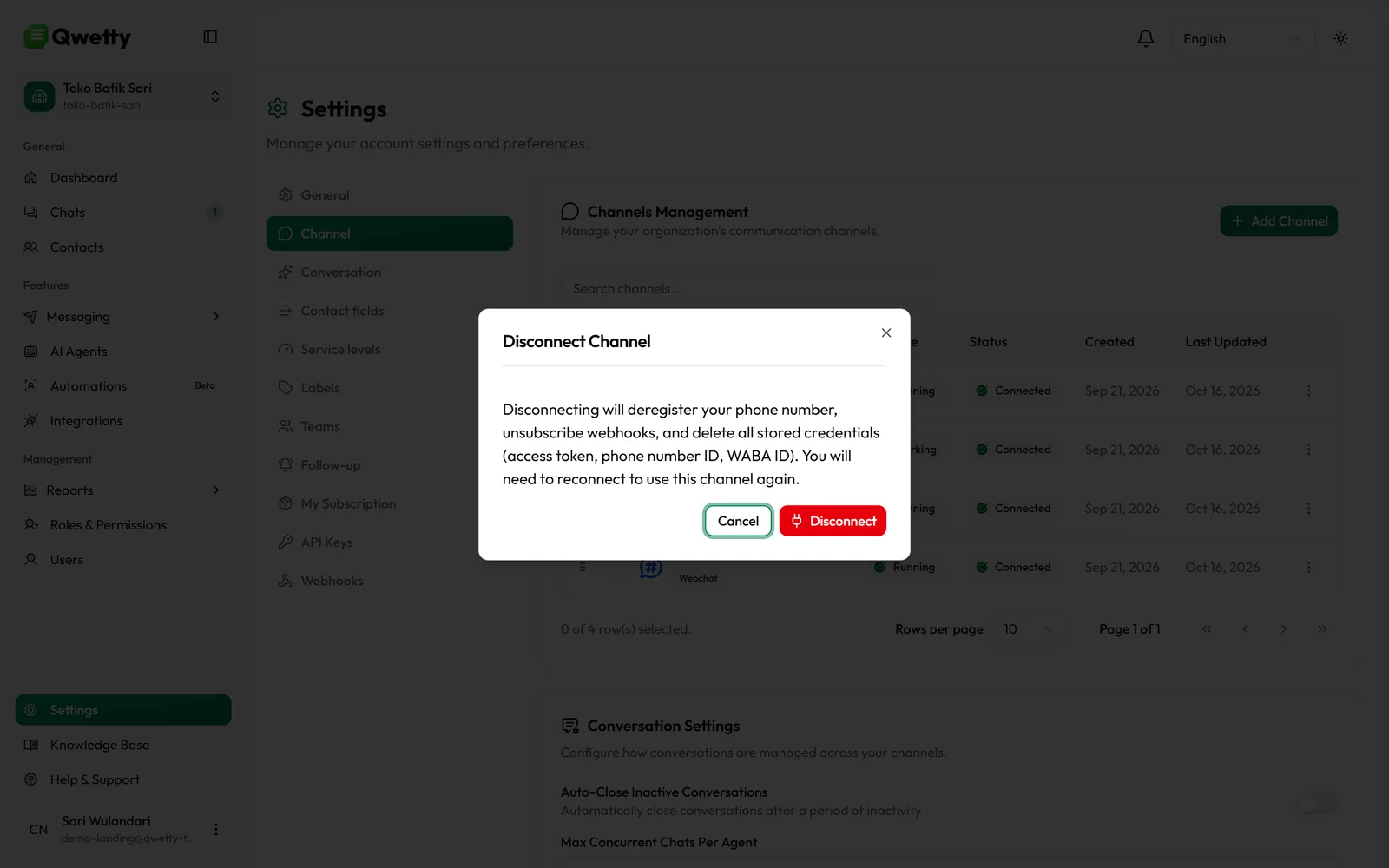
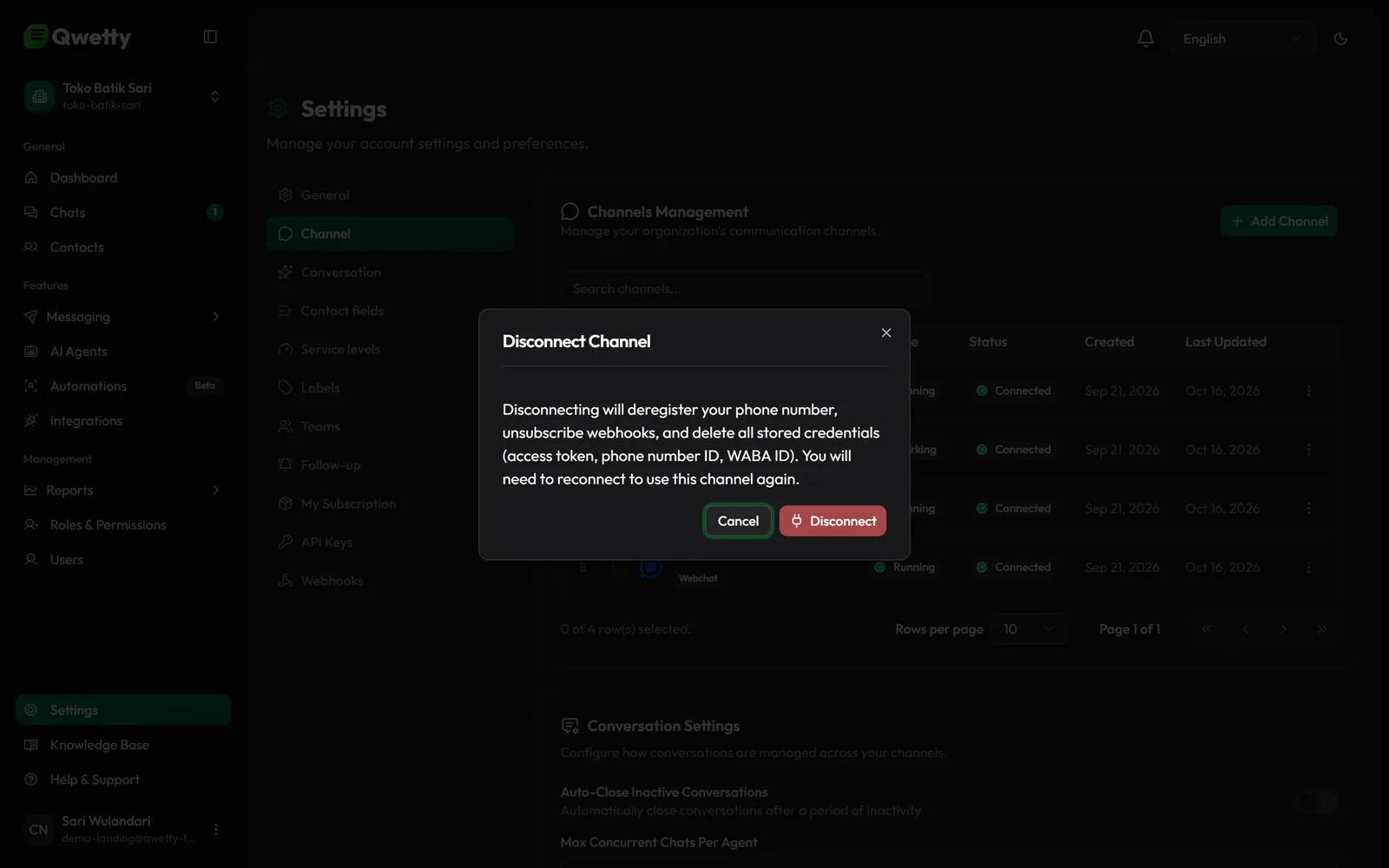
You can disconnect a channel when you no longer need it or want to reconnect with different credentials.
Disconnect vs Delete
Section titled “Disconnect vs Delete”| Action | What happens |
|---|---|
| Disconnect | The channel stops sending/receiving messages and its stored credentials are removed, but the channel record, chats, and message history are preserved |
| Delete | The channel and its settings are permanently removed. Existing chats and message history are kept, but can no longer be replied to |
How to disconnect
Section titled “How to disconnect”- Go to Settings → Channel
- Click the channel you want to disconnect to open its Details
- Click Disconnect in the details header (or choose Disconnect from the channel’s row menu in the list)
- Confirm the action
After disconnecting:
- No new messages will be sent or received on this channel
- Existing conversations remain in your inbox
- You can reconnect the channel at any time with Connect — you will need to log in to the account again
Web Chat channels have no external account, so they cannot be disconnected — delete them instead.
WhatsApp Business App (coexistence) numbers cannot be disconnected from Qwetty. Open the WhatsApp Business app on your phone, go to Settings → Account → Business Platform, and tap Disconnect Account.
How to delete
Section titled “How to delete”- Go to Settings → Channel
- Open the row menu (⋮) of the channel you want to delete
- Choose Delete Channel and confirm
Warning: Deleting a channel cannot be undone. Its existing chats and message history are kept, but you can no longer reply to them.
When to disconnect vs delete
Section titled “When to disconnect vs delete”- Disconnect when you’re troubleshooting, switching providers, or temporarily pausing a channel
- Delete when you no longer need the channel at all
Next steps
Section titled “Next steps”- Channels Overview — Reconnect or create a new channel
- Connect WhatsApp — Reconnect your WhatsApp account

