

Reports & Analytics
Agent Performance
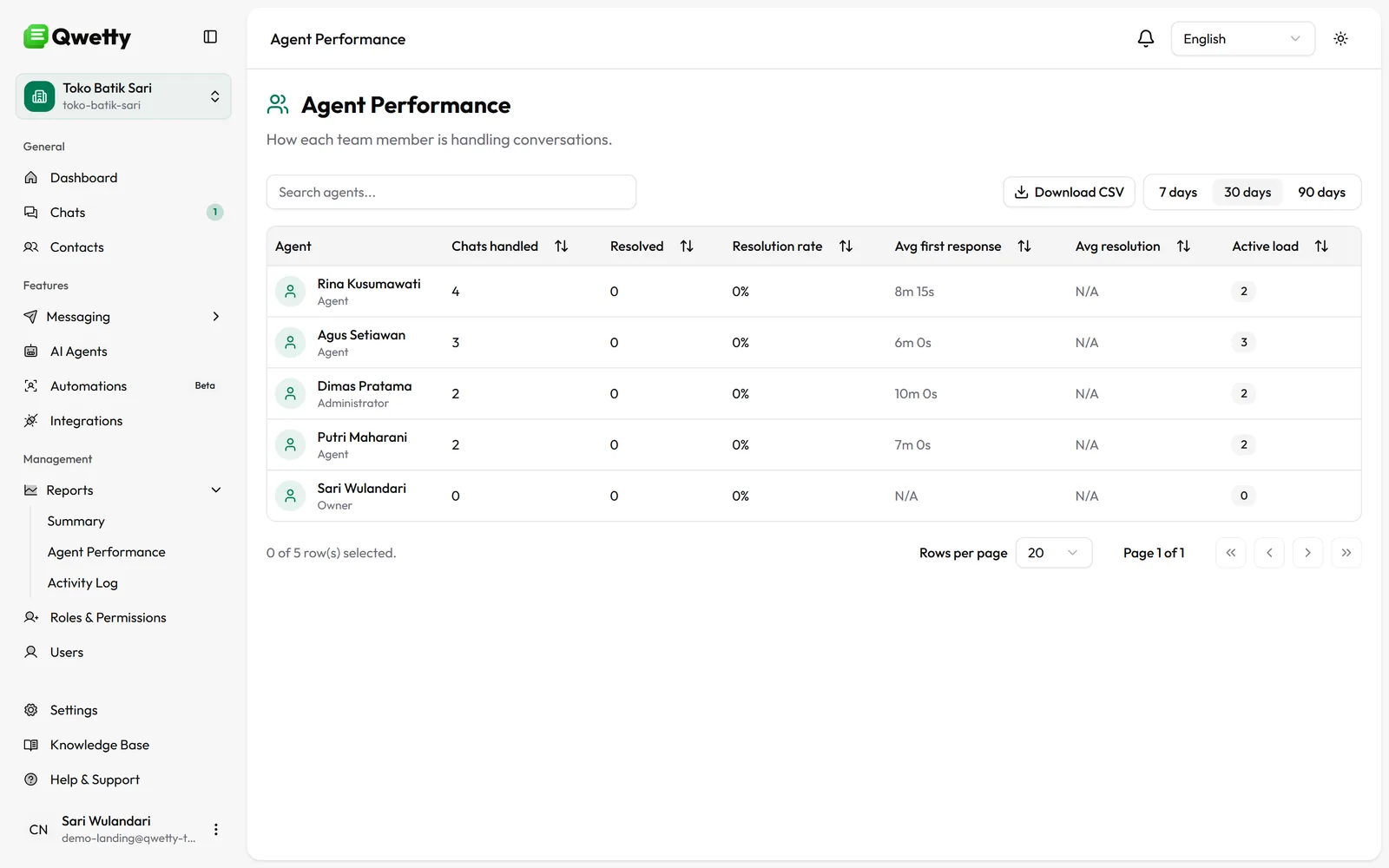
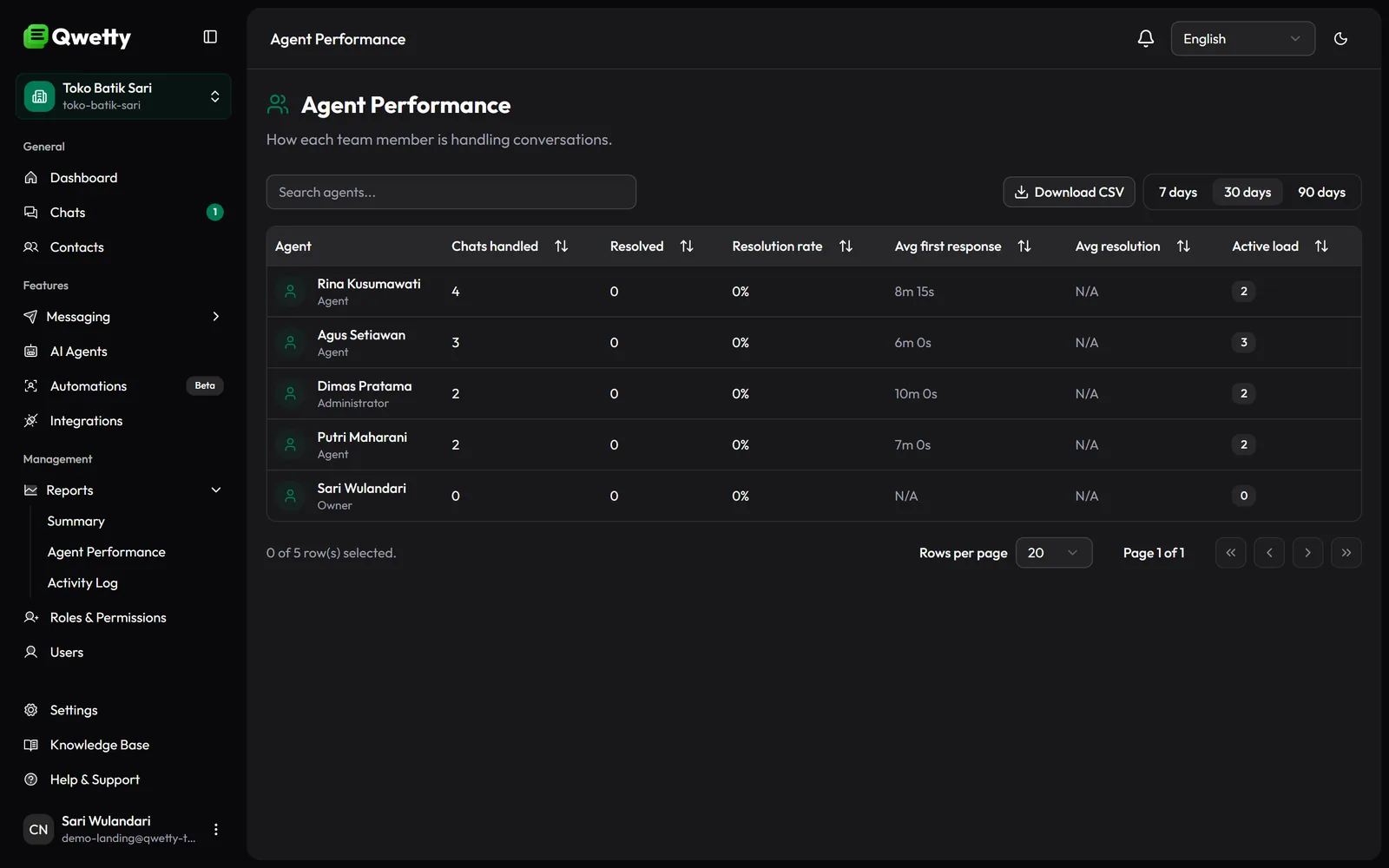
The Agent Performance report shows how each member of your team is handling conversations: how many chats they worked on, how many they closed, how quickly they replied, and how much is on their plate right now.
“Agent” here always means a person in your organization. Replies sent by an AI agent are never credited to anyone on this report.
Opening the report
Section titled “Opening the report”Go to Reports → Agent Performance.
To see it you need:
- the Reports → View permission (see Roles & Permissions), and
- a plan that includes Dashboard analytics. Without it the page shows Not available on your plan and a prompt to upgrade.
Choosing a period
Section titled “Choosing a period”Use the 7 days, 30 days and 90 days buttons at the top right. The period always ends now, so 30 days means the last 30 × 24 hours, not the calendar month. The report opens on 30 days.
The list and each agent’s detail page have their own period buttons.
The agent list
Section titled “The agent list”Every member of the organization appears, including owners and administrators, with their role under their name. The list starts with the busiest agent (most chats handled) and shows 20 agents per page.
- Type in Search agents… to filter the list by name or email.
- Click a column heading to sort by it; click again to reverse the order.
- Click an agent’s name to open their detail page.
| Column | What it counts |
|---|---|
| Chats handled | Conversations in which the agent sent at least one message during the period. Internal notes and system messages do not count. A conversation two agents both replied in counts once for each of them. |
| Resolved | Conversations the agent closed during the period. A resolution is credited to whoever closed the chat, even if someone else did most of the talking. |
| Resolution rate | Resolved divided by Chats handled. Because the two are counted separately, it can go above 100% for someone who closes many chats they did not reply in. |
| Avg first response | The average time from a customer’s first message in a conversation to this agent’s first reply after it (see How response time is measured). N/A when there is nothing to measure. |
| Avg resolution | For the chats the agent closed, the average time from when the conversation was created to when it was closed. N/A when they closed none. |
| Active load | Open conversations assigned to the agent right now. This is a live count and ignores the period. |
An agent’s detail page
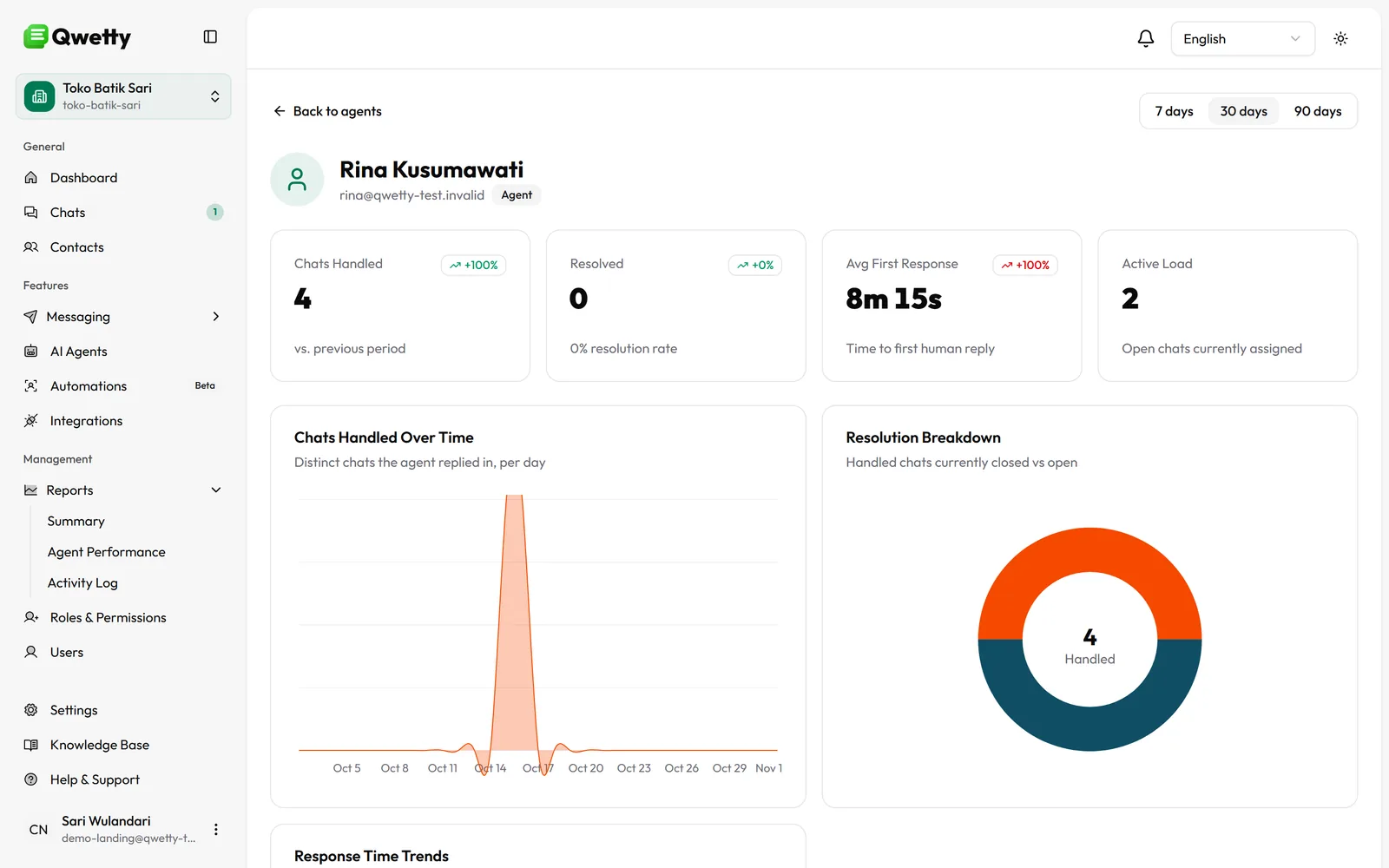
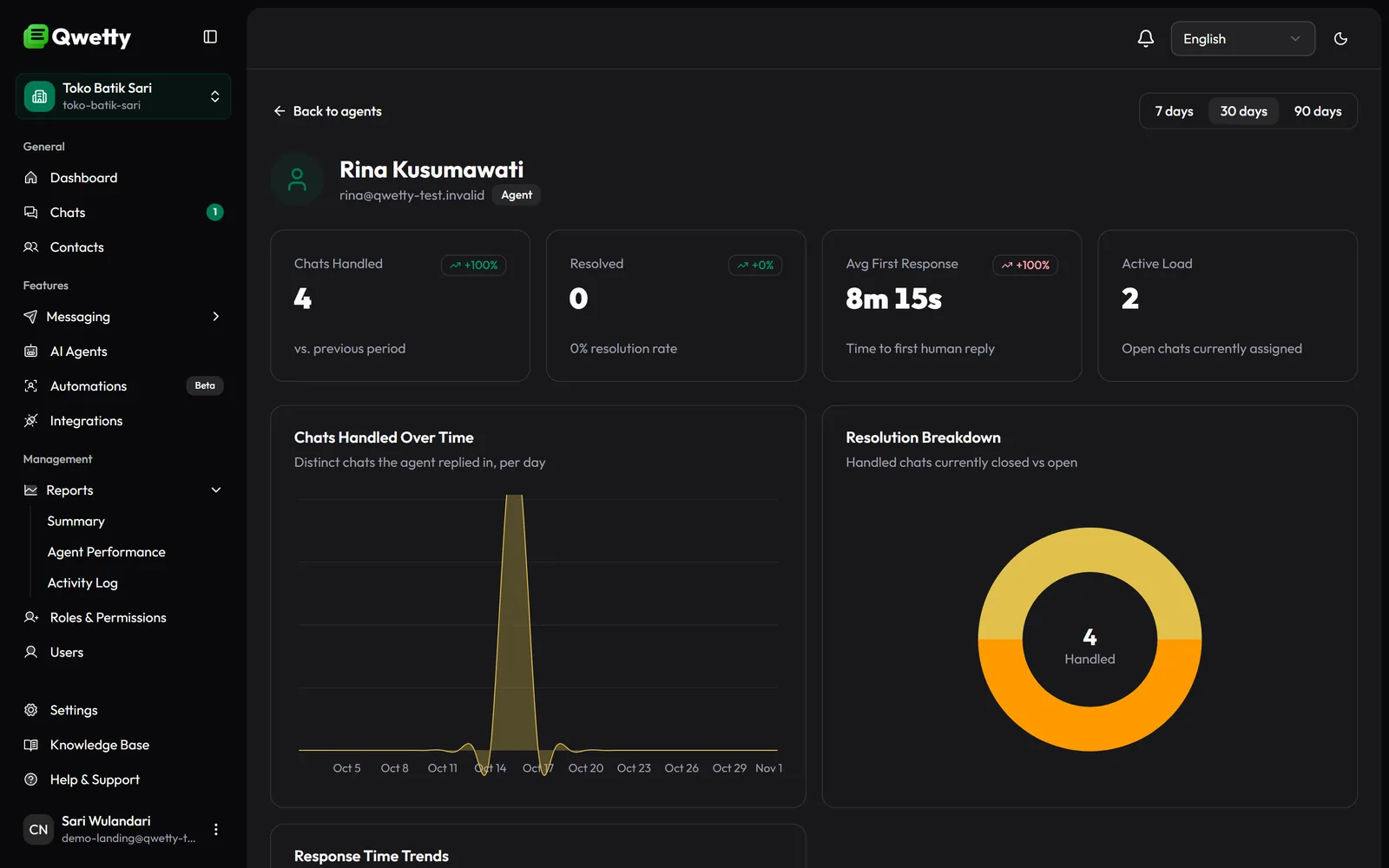
Section titled “An agent’s detail page”The detail page shows the agent’s name, email and role, the same period buttons, and Back to agents to return to the list.
Headline cards
Section titled “Headline cards”| Card | Shows |
|---|---|
| Chats Handled | The same count as the list, with a change badge vs. previous period |
| Resolved | Chats closed by the agent, with the change badge and the agent’s resolution rate underneath |
| Avg First Response | Time to first human reply, with a change badge. For this card a falling number is shown in green, because a faster reply is better. |
| Active Load | Open chats currently assigned to the agent. No change badge, because it is a live count. |
The previous period is always the same length, immediately before the one you picked: with 7 days selected, the badges compare the last 7 days with the 7 days before that.
Charts
Section titled “Charts”- Chats Handled Over Time — distinct chats the agent replied in, per day, in your organization’s timezone.
- Resolution Breakdown — of the chats the agent handled in the period, how many are Closed now and how many are still Open. Pending and snoozed chats count as open here, because they are not resolved. The number in the middle is the total handled.
- Response Time Trends — daily reply times for the period, by day in your organization’s timezone. The Avg Human and First Human lines show this agent’s replies only; Avg Bot and First Bot are organization-wide.
- Peak Hours Analysis — how many messages the agent sent in each hour of the day, in your organization’s timezone. Use it to see when someone actually works, compared with their shift.
Response Time Trends and Peak Hours Analysis need a plan with Advanced analytics (peak hours, sentiment); on other plans they show an upgrade prompt.
Recent Handled Chats
Section titled “Recent Handled Chats”The last ten conversations the agent sent a message in, newest first, with the channel and the chat’s current status (Open, Pending, Snoozed or Closed). It follows the period you picked. Click a chat to open it in the inbox.
How response time is measured
Section titled “How response time is measured”Response times on this report use the same rules as the rest of Qwetty’s reports:
- Only conversations that the customer started in the period are measured. A conversation you started — a broadcast, a template, an automation — has nothing to respond to.
- Group chats are left out. Only one-to-one conversations count.
- Internal notes are never treated as a reply.
- Messages from other agents do not reset the clock. If a colleague answered first, this agent’s first reply is still measured from the customer’s first message.
Downloading the data
Section titled “Downloading the data”Click Download CSV on the list to save agents.csv for the selected period. It has one row per member, busiest first, with these columns:
user_id, name, email, role, chats_handled, resolved, resolution_rate (a fraction, so 0.75 means 75%), first_response_seconds, avg_resolution_seconds, active_load.
Times are in seconds, and an empty cell means there was nothing to measure. The detail page has no download.
Next steps
Section titled “Next steps”- Understanding Metrics — The organization-wide Summary page
- Managing Conversations — Assigning and closing chats
- Roles & Permissions — Who can see reports

