

Connecting Channels
Channels Overview
Channels are the messaging platforms that connect to Qwetty. Each channel lets you send and receive messages from a specific platform.
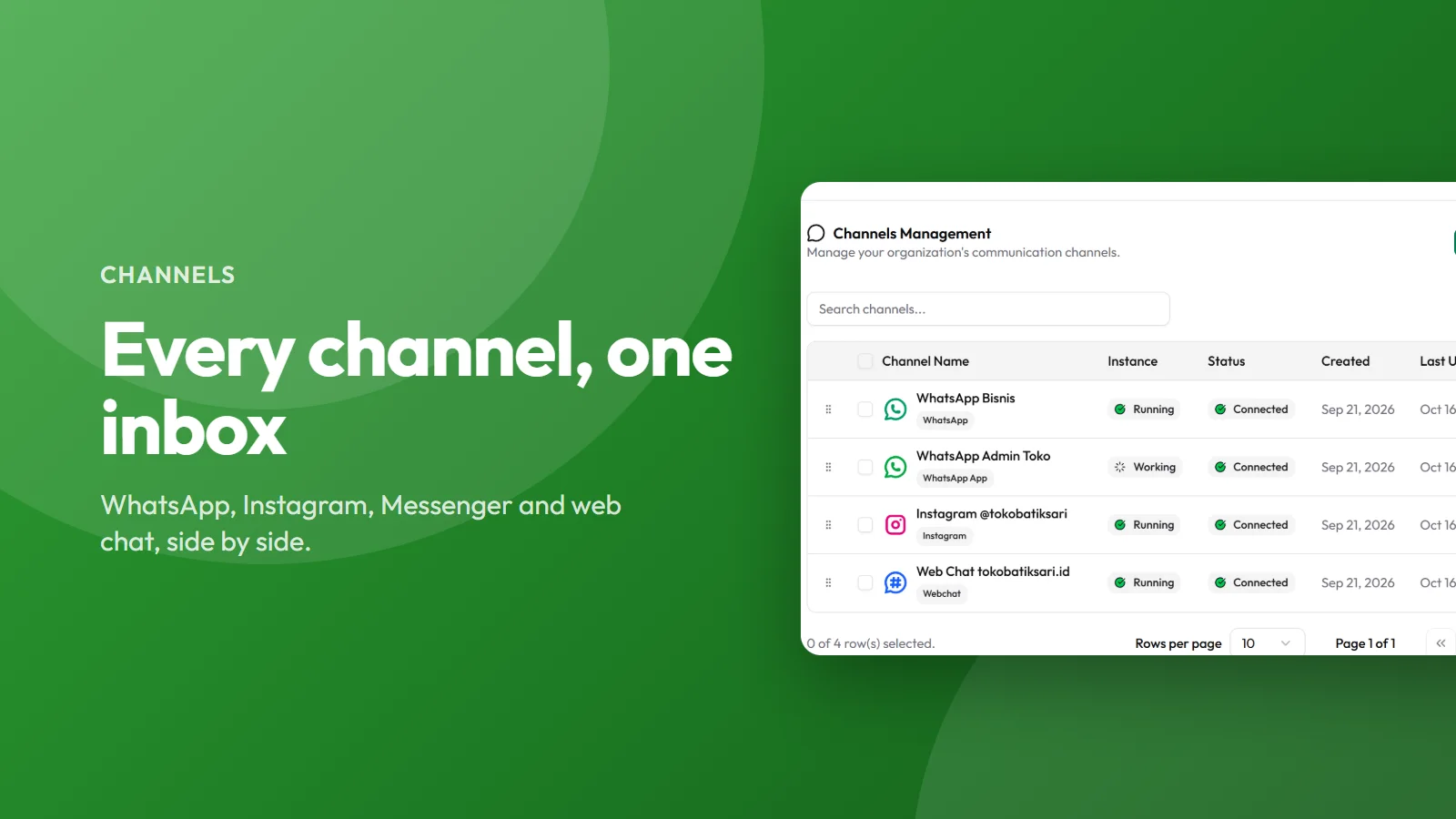
Supported channels
Section titled “Supported channels”| Channel | Type | Connection Method | Key Features |
|---|---|---|---|
| WhatsApp Business API | WHATSAPP_API | Meta embedded signup or manual credentials | Templates, media messages, delivery receipts, quality rating |
| Log in with Instagram | DMs, profile info, media sharing | ||
| Messenger | MESSENGER | Log in with Facebook and choose a Page | Page messages, media sharing |
| Web Chat | WEB | Embed widget on your website | Guest sessions, customizable design, real-time messaging |
Messenger
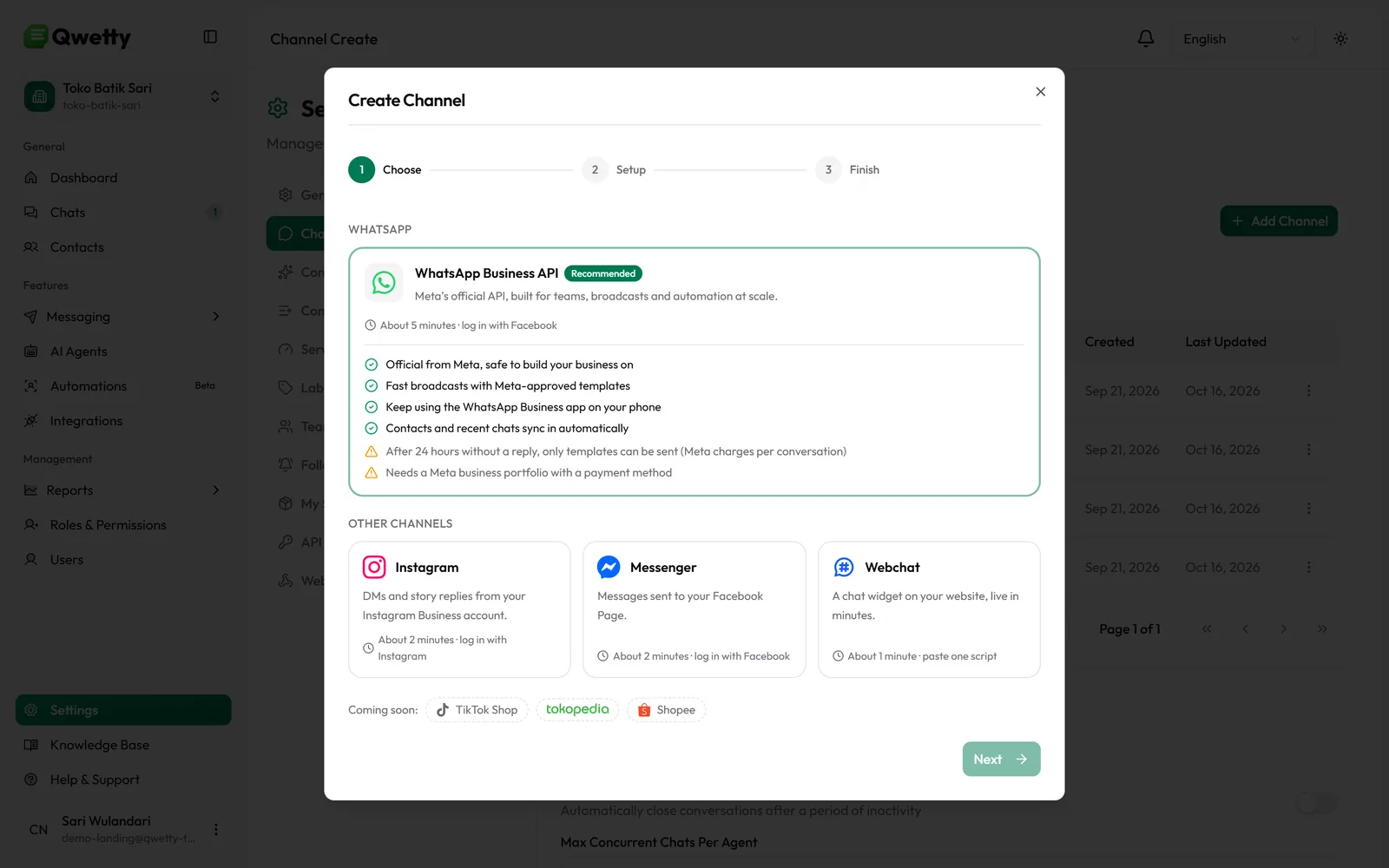
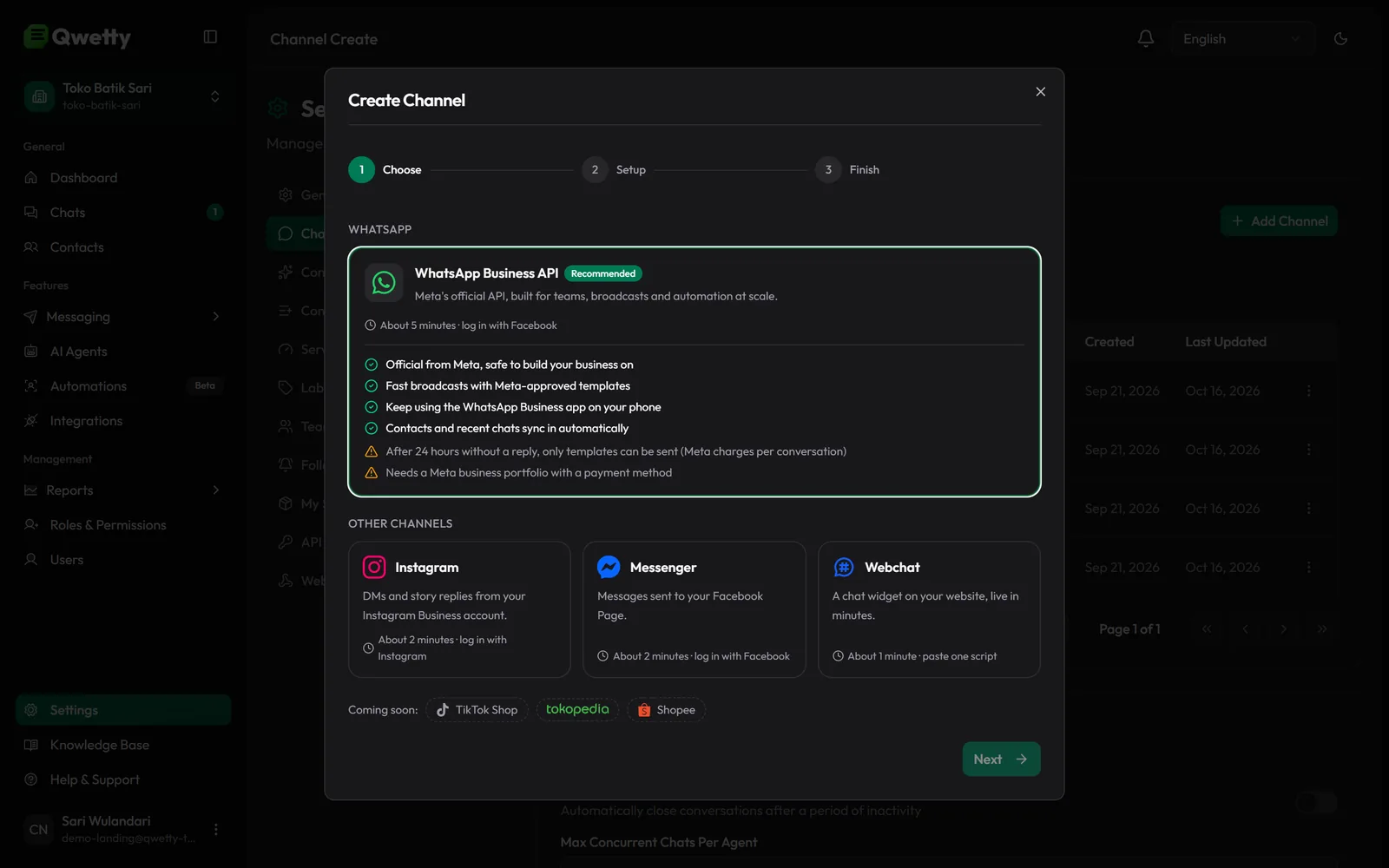
Section titled “Messenger”To connect a Facebook Page, go to Settings → Channel, click Add Channel, choose Messenger and click Continue with Messenger, then click Continue with Facebook. Log in, and under Choose a Page pick the Page whose Messenger inbox you want to answer in Qwetty. You need admin access to the Page, and a Page can be connected to only one channel at a time.
Where to manage channels
Section titled “Where to manage channels”All channel management lives under Settings → Channel:
- Create new channels
- Connect to messaging platforms
- Configure channel settings and design
- Monitor channel health and analytics
- Disconnect or delete channels
Channel states
Section titled “Channel states”| State | Meaning |
|---|---|
| Connected | Channel is active and receiving messages |
| Connecting | Connection is being established |
| Disconnected | Channel is not active — no messages will be sent or received |
Web Chat channels have no external account to connect, so they are always connected.
Next steps
Section titled “Next steps”- Connect WhatsApp
- Connect Instagram
- Web Chat Widget
- Channel Limitations — Messaging windows and restrictions per channel

