

Contacts
Segments
A segment is a saved set of conditions — “tagged vip, and joined this year”, “has a WhatsApp conversation, and the Membership tier field is Gold”. It is not a fixed list: every time you use it, it matches the contacts that meet the conditions at that moment. A contact who gets the tag tomorrow is in the segment tomorrow.
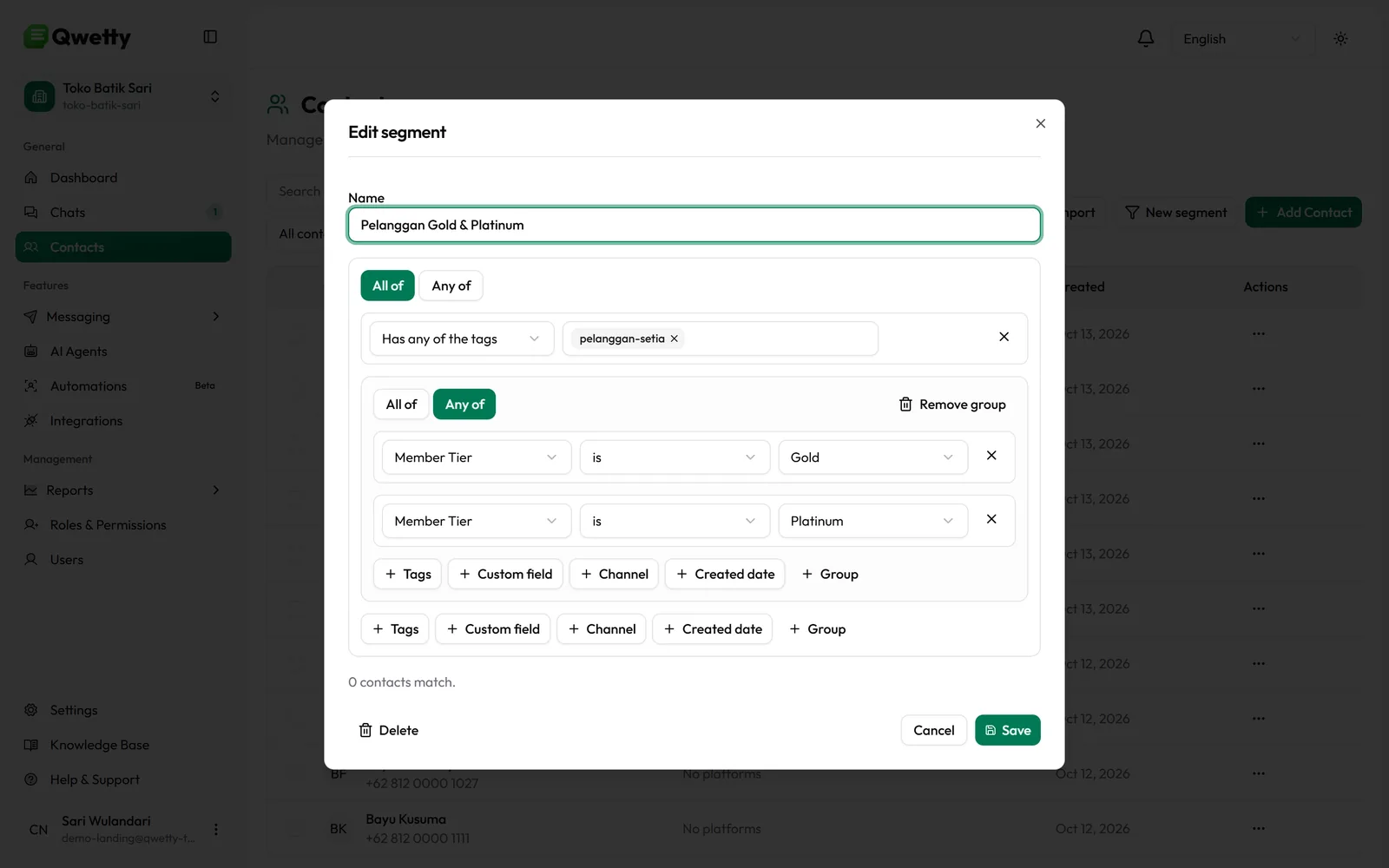
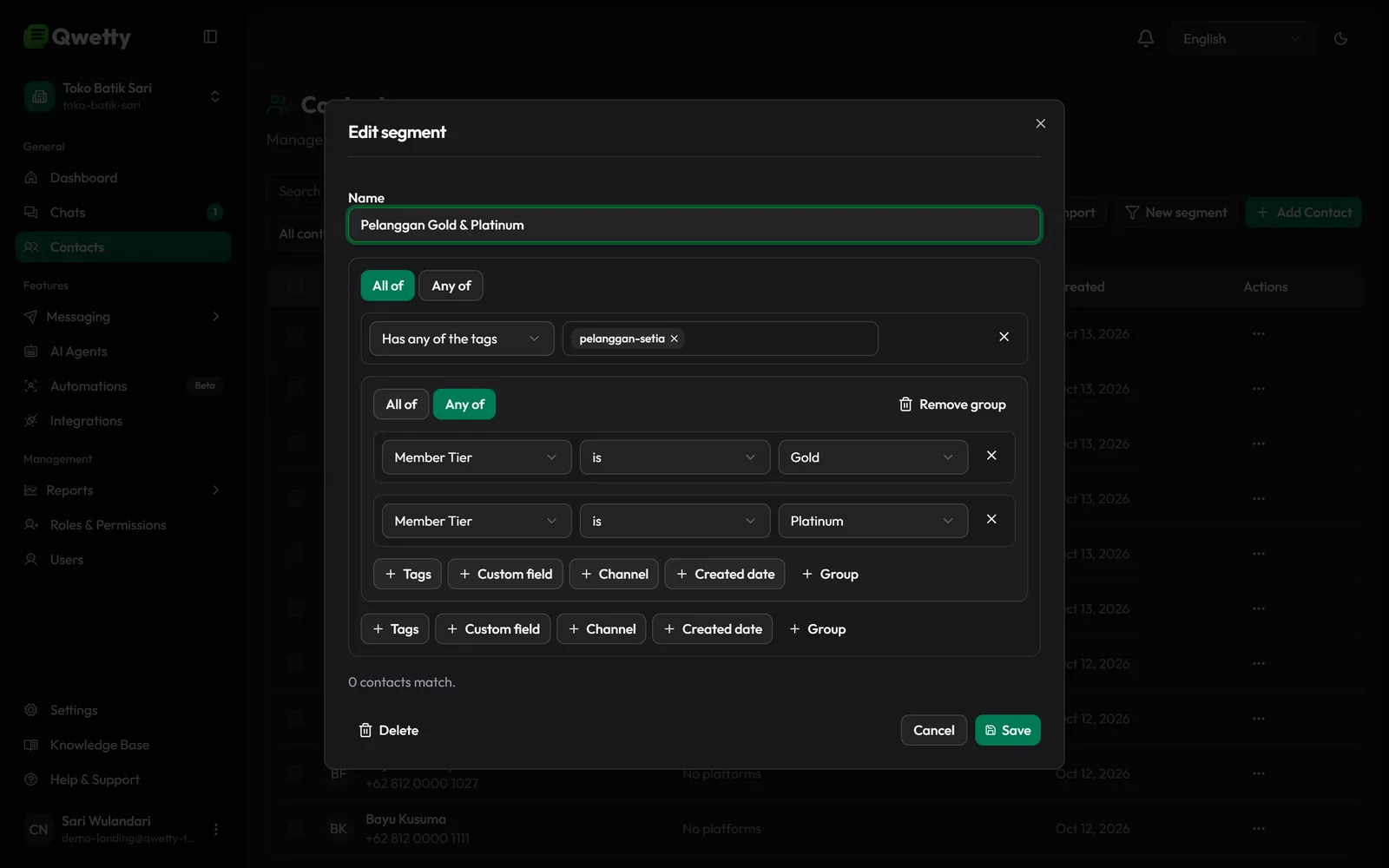
Segments are shared by everyone in the organization. Creating, editing and deleting them needs the Contacts → Edit permission, because a segment decides who a broadcast reaches.
Creating a segment
Section titled “Creating a segment”- Go to Contacts and click New segment
- Enter a Name (up to 80 characters)
- Build the conditions (see below). The segment starts with one empty Tags condition
- Watch the count under the conditions — it tells you how many contacts match
- Click Save
Save stays disabled until the segment has a name and every condition is complete.
An organization can have up to 100 segments.
Conditions
Section titled “Conditions”Add a condition with the buttons at the bottom of a group: Tags, Custom field, Channel, Created date, or Group.
Pick how to match, then type one or more tags (press Enter after each; existing tags are suggested as you type):
| Option | Matches contacts that… |
|---|---|
| Has any of the tags | carry at least one of the tags |
| Has all of the tags | carry every one of the tags |
| Has none of the tags | carry none of the tags — including contacts with no tags at all |
A tags condition can list up to 20 tags. Tags must match exactly as they are spelled.
Custom field
Section titled “Custom field”Choose a Field, a Condition, and — for conditions that compare — a Value. The conditions offered depend on the field’s type:
| Condition | Text | Choice | Number | Date | Yes / no |
|---|---|---|---|---|---|
| is | ✓ | ✓ | ✓ | ✓ | ✓ |
| contains | ✓ | ✓ | |||
| is greater than / after | ✓ | ✓ | |||
| is less than / before | ✓ | ✓ | |||
| is empty | ✓ | ✓ | ✓ | ✓ | ✓ |
| is not empty | ✓ | ✓ | ✓ | ✓ | ✓ |
- is and contains ignore upper and lower case on text and choice fields
- For a date, is greater than / after means strictly after the date, and is less than / before strictly before it
- is empty matches contacts that have no value for the field
The Custom field button only appears once your organization has custom fields.
Channel
Section titled “Channel”Matches contacts who have a platform identity on any of the channels you pick — in practice, people who have messaged you on that channel, or whose identity was linked to it. Pick up to 20 channels.
The Channel button only appears if you also have the Channels → View permission, because the condition needs the list of channels.
Created date
Section titled “Created date”Matches contacts by when they were added to Qwetty. Fill in Created on or after, Created before, or both for a range. “Before” excludes that date itself, so on or after 1 January and before 1 February is exactly the month of January.
Combining conditions: All of / Any of
Section titled “Combining conditions: All of / Any of”Every group has a Match switch at the top:
- All of — a contact must meet every condition in the group (AND)
- Any of — a contact must meet at least one condition in the group (OR)
For a mix of the two, click Group to add a group inside the group. A new inner group starts with the opposite setting from its parent, so inside an All of group you get an Any of group. For example:
All of
- Tags: Has any of the tags
vip- Group — Any of
- Custom field: Membership tier is
Gold- Created date: Created on or after 1 January 2026
matches VIP contacts who are either Gold members or joined this year.
Limits that keep a segment fast:
- Groups can be nested up to 3 levels deep (the outer group counts as one)
- A group holds up to 20 conditions and groups
- A segment holds up to 50 conditions in total. Once you reach it, the add buttons are disabled
Remove a condition with the × next to it, or a whole inner group with Remove group. A group always keeps at least one condition.
The live count
Section titled “The live count”Under the conditions, Qwetty shows how many contacts currently match, for example 128 contacts match. It updates a moment after you stop editing. While any condition is incomplete you see Finish every condition to see how many contacts match. instead.
The count includes contacts who have opted out of automated messages; a broadcast leaves them out (see below).
Using a segment
Section titled “Using a segment”Filtering the contact list
Section titled “Filtering the contact list”On the Contacts page, pick a segment from the Segment filter (it shows All contacts by default). The list, and an Export CSV made from it, then show only the contacts in that segment. See Search, Filter and Export.
As a broadcast audience
Section titled “As a broadcast audience”When creating a broadcast, choose Segment under Recipients and select the segment. The broadcast shows how many people it reaches, and how many it skips because they opted out or have no phone number.
A scheduled broadcast works out its recipients again when it starts sending, so it reaches whoever is in the segment at that moment.
Editing and deleting a segment
Section titled “Editing and deleting a segment”Select the segment in the Segment filter on the Contacts page, then click the pencil icon next to it. This opens Edit segment, where you can change the name and conditions and click Save.
To delete it, click Delete in the same dialog and confirm. Only the segment is removed — the contacts in it are kept.
Next steps
Section titled “Next steps”- Custom Fields — Add the fields segments can filter on
- Creating Broadcasts — Send a template message to a segment

