

Broadcasts
Broadcast Pacing
Pacing sets how quickly broadcast messages go out. Sending too fast can get a regular WhatsApp account flagged, and can hit WhatsApp Cloud API rate limits, so every broadcast is spaced out according to your organization’s pacing.
Opening the pacing settings
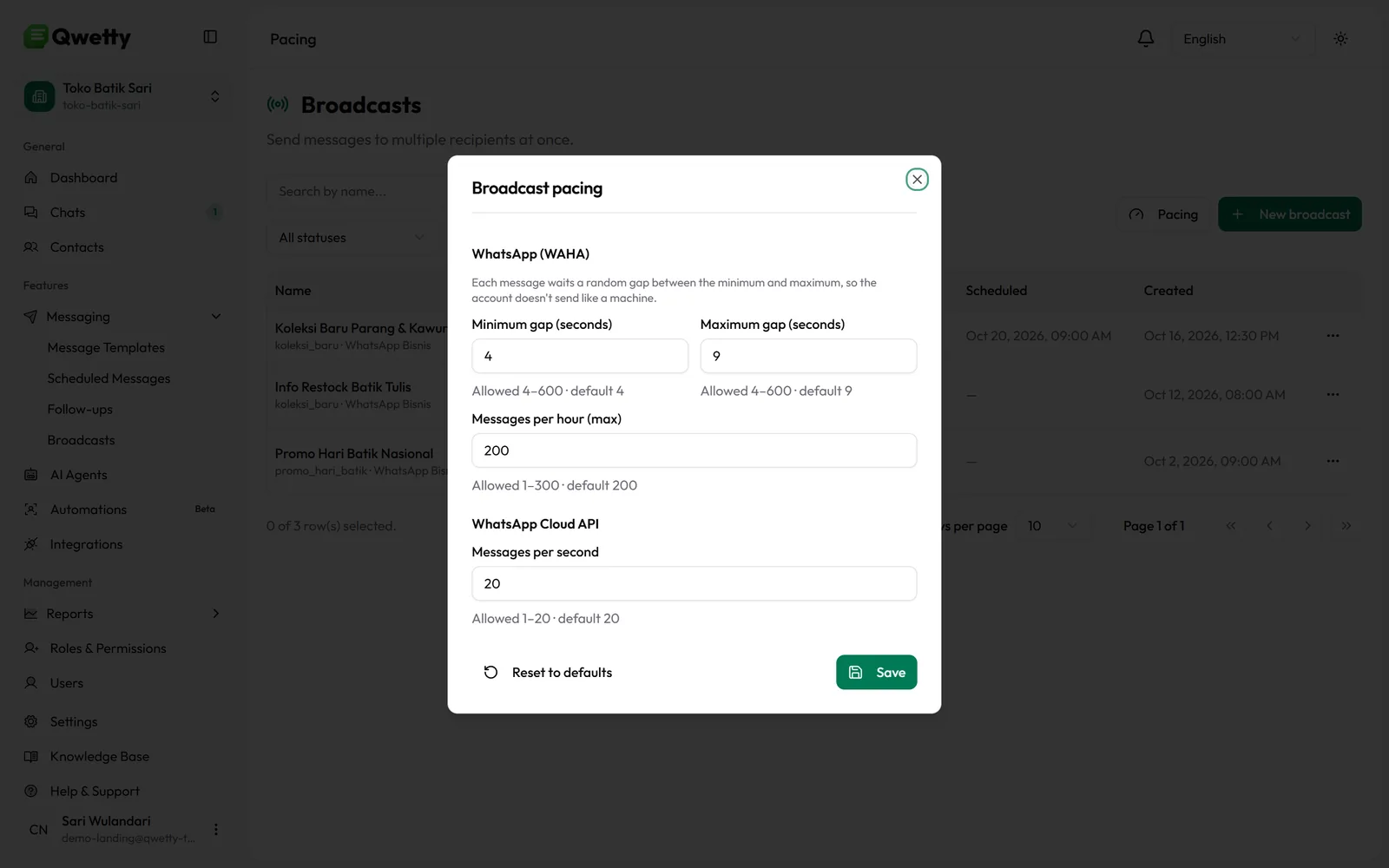
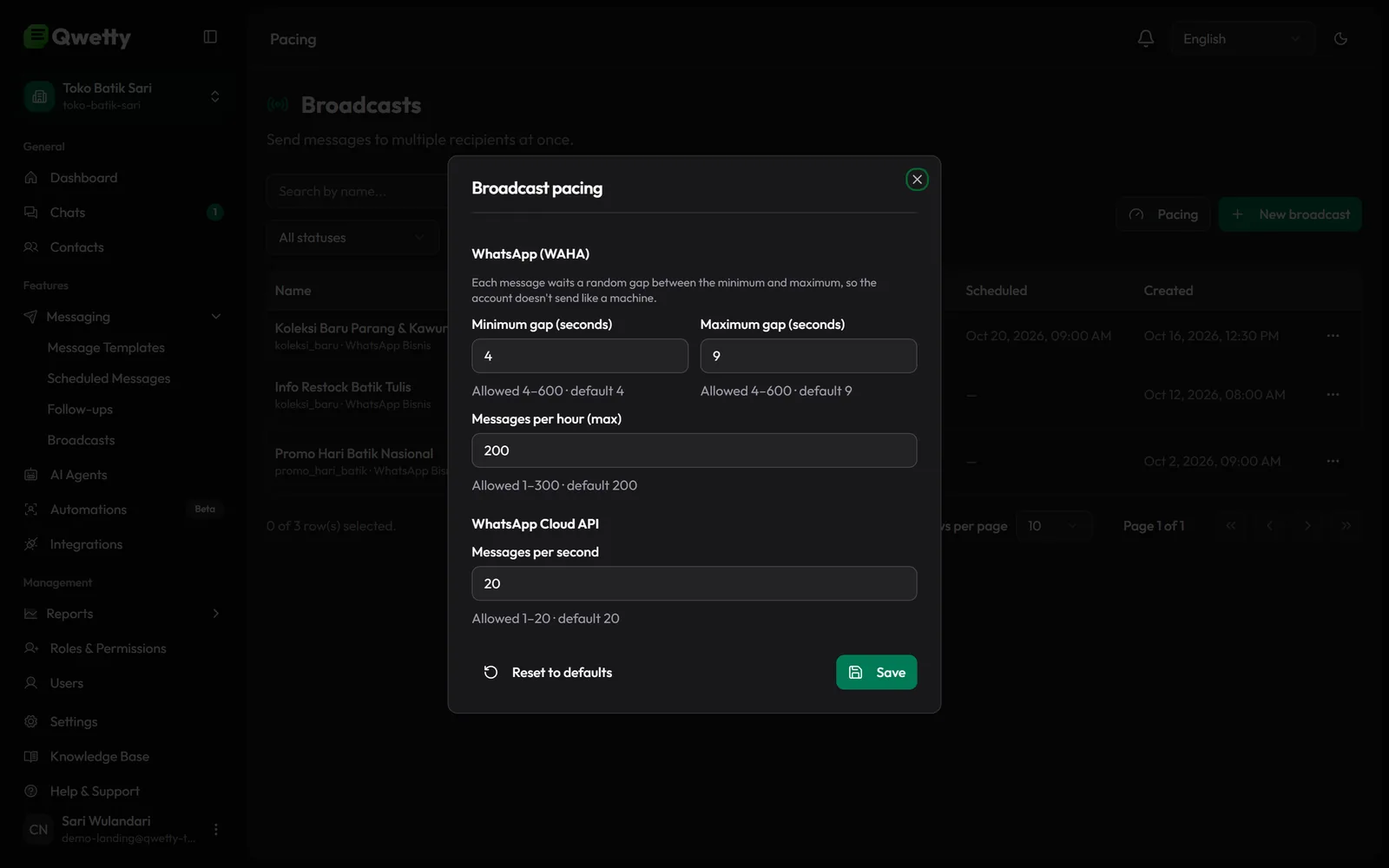
Section titled “Opening the pacing settings”Go to Broadcasts and click Pacing. The Broadcast pacing window has one section per channel type.
Anyone who can see broadcasts can open it. To change it you need permission to edit settings (Settings → Edit); without it the fields are read-only and the window says “You need permission to edit settings to change pacing.”
WhatsApp Cloud API
Section titled “WhatsApp Cloud API”| Setting | What it does | Allowed | Default |
|---|---|---|---|
| Messages per second | How many broadcast messages a channel sends each second | 1–20 | 20 |
WhatsApp (WAHA)
Section titled “WhatsApp (WAHA)”These settings apply to WhatsApp App channels — a regular WhatsApp account connected by QR code. WhatsApp bans accounts that send like a machine, so each message waits a random gap between the minimum and the maximum, and there is an hourly cap.
| Setting | What it does | Allowed | Default |
|---|---|---|---|
| Minimum gap (seconds) | The shortest wait between two messages | 4–600 | 4 |
| Maximum gap (seconds) | The longest wait between two messages. Must be at least the minimum gap | 4–600 | 9 |
| Messages per hour (max) | The most broadcast messages the channel sends in any rolling hour | 1–300 | 200 |
Under each field, the window shows the allowed range and the default, for example “Allowed 4–600 · default 4”.
Saving and resetting
Section titled “Saving and resetting”Click Save to apply your values, or Reset to defaults to fill in the defaults, then save. The limits are ceilings: you can always go slower, never faster.
New pacing applies to messages that haven’t been given a send slot yet. A broadcast that is already sending keeps the times it was given.
How pacing works
Section titled “How pacing works”- Pacing is per channel. Two broadcasts on the same channel share its pace: the second one’s messages are queued after the first’s. Broadcasts on different channels don’t slow each other down.
- Cancelling a broadcast gives its unused send slots back, so the next broadcast on that channel doesn’t wait behind it.
- On the broadcast’s detail page, the progress panel estimates the time remaining, for example “~25 minutes remaining”.
How long a broadcast takes
Section titled “How long a broadcast takes”| Channel | Recipients | Approximate time with defaults |
|---|---|---|
| WhatsApp Cloud API | 1,000 | About a minute |
| WhatsApp App | 100 | About 11 minutes |
| WhatsApp App | 1,000 | About 5 hours (capped at 200 an hour) |
Message quota
Section titled “Message quota”Every broadcast message counts toward your plan’s monthly message quota, like any other message you send. If the quota runs out partway through a broadcast, the remaining recipients are marked Failed. Once you have quota again — a new month, or a higher plan — open the broadcast and Retry them.
Next steps
Section titled “Next steps”- Broadcasts Overview — Statuses and concepts
- Creating a Broadcast — Step-by-step guide

