

Inbox & Conversations
Internal Notes
An internal note is a message for your team, written inside the conversation it is about. Use notes to hand over context (“customer already got a refund on 12 May”), ask a colleague for help, or record a decision — without the customer ever seeing it.
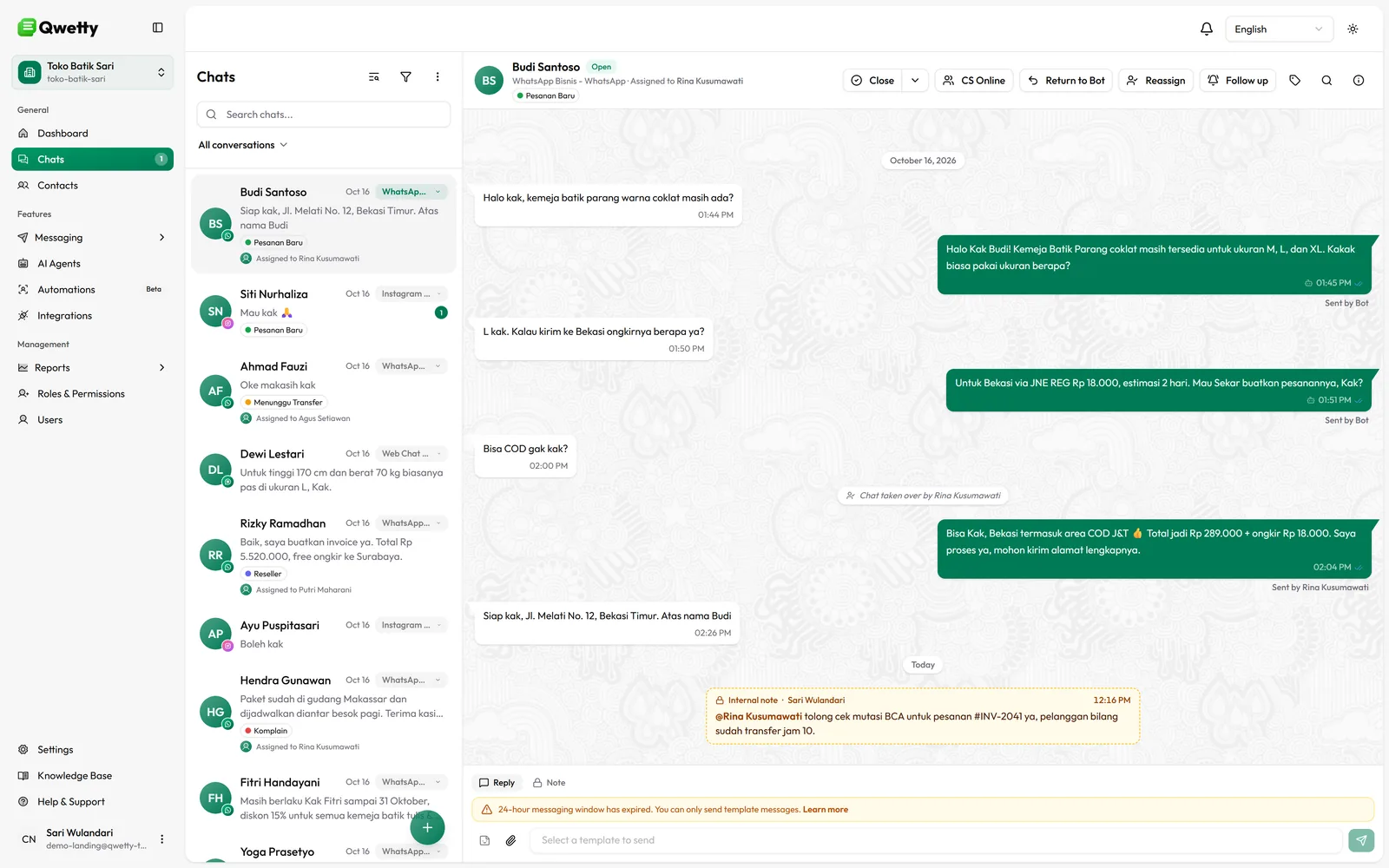
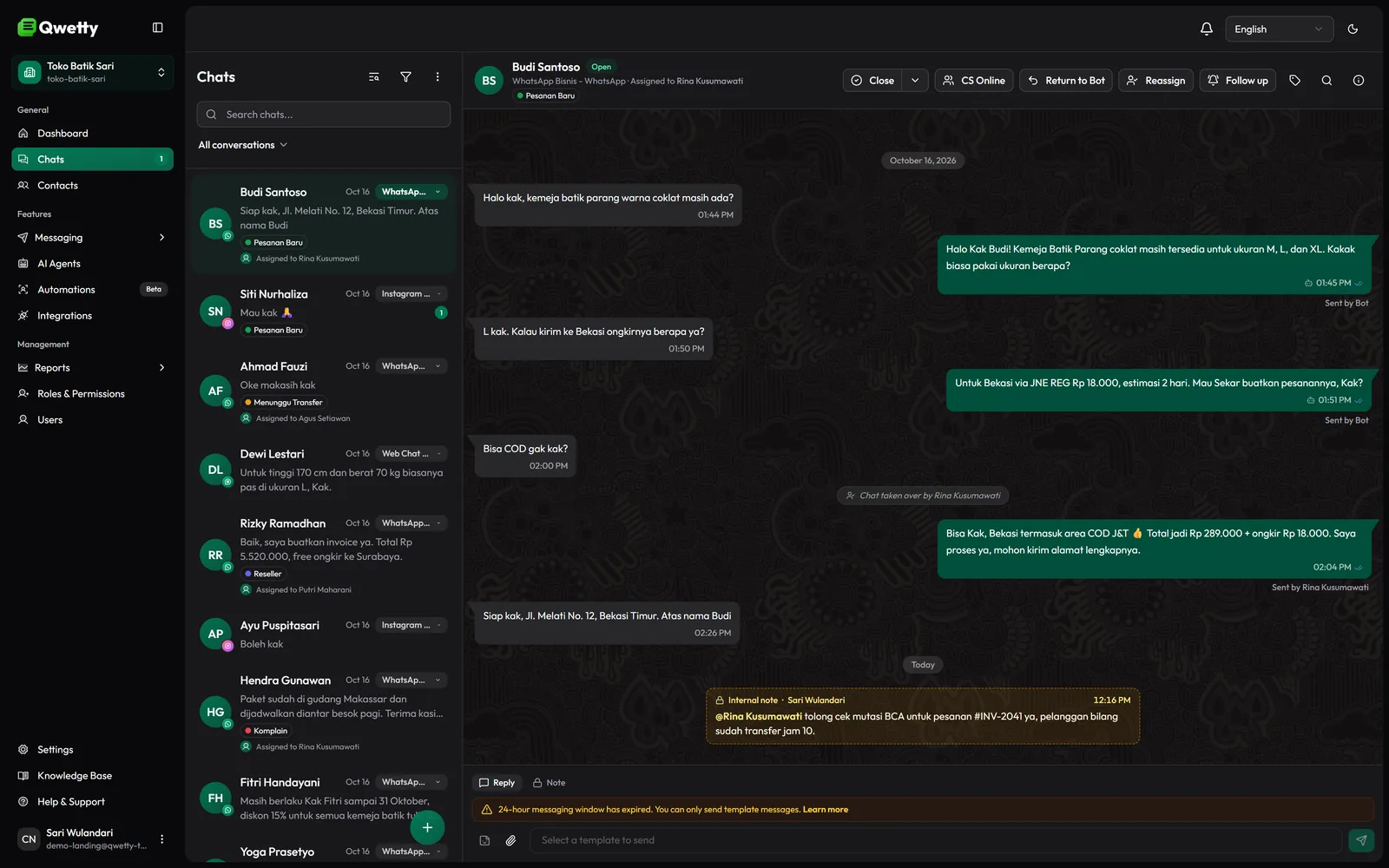
Writing a note
Section titled “Writing a note”- Open the conversation
- Above the message box, switch from Reply to Note
- Type your note — the box reads Write an internal note — @ to mention a teammate
- Press Enter to save it (Shift+Enter adds a new line)
The composer switches back to Reply whenever you open another chat, so you never type a note into the wrong mode by habit.
Notes are text only and can be up to 10,000 characters. You can’t attach files to a note.
What makes a note internal
Section titled “What makes a note internal”A note is never sent anywhere. In particular, a note:
- Is not delivered to the customer on any channel, and does not count toward your message quota
- Does not trigger the chatbot, automations or webhooks
- Does not move the conversation up the chat list or change its last-message preview
- Is not shown to a Web Chat visitor
- Does not stop the first-response timer — only a real reply does (see Service Levels)
Mentioning a teammate
Section titled “Mentioning a teammate”Type @ in a note to pick a teammate from the list. Use the arrow keys to move through the list and Enter or Tab to choose.
- The list only offers teammates who can see this conversation. An agent who only sees chats assigned to them is offered only on their own chats
- You can’t mention yourself
- If you edit a name after picking it so that it no longer matches, that mention is dropped
Each mentioned teammate is notified:
- An entry in their Notifications centre (the bell) — “Dewi mentioned you”
- A push notification in the Mentions category, if they have push notifications on. They can turn this category off in their notification preferences
- A pop-up in the app with an Open button that takes them to the note. If they are currently working in another organization, the button reads Switch and open
Mentioning someone does not give them access to the conversation.
Where notes appear
Section titled “Where notes appear”- In the thread — Notes sit in the conversation in time order, centred across the thread on an amber card with a dashed border, labelled Internal note, with the author’s name and the time. Mentioned names are highlighted
- In message search — Search all messages includes notes, marked Internal note in the results. See Search, Filters and Views
Editing and deleting notes
Section titled “Editing and deleting notes”Notes can’t be edited or deleted once saved. They have no message menu — no reply, forward, reactions or Delete for me. If a note was wrong, add a new note that corrects it.
Permissions
Section titled “Permissions”Writing a note only needs Chats → View on a conversation you can see. That means you can leave a note even when you can’t reply — for example when you don’t have Send Message, when the chatbot is handling the conversation, or when the conversation’s channel was deleted. Notes are written by people only; API keys can’t create them.
Next steps
Section titled “Next steps”- Teams and Assignment — Hand conversations to the right person
- Message Actions — What you can do with a single message
- Notification & Security — Notification settings

