

Broadcasts
Broadcasts
Broadcasts let you send an approved WhatsApp template message to a list of contacts in one go — useful for announcements, promotions, and bulk follow-ups. Delivery is tracked per recipient so you can see exactly who received, read, replied to, or failed to receive the message.
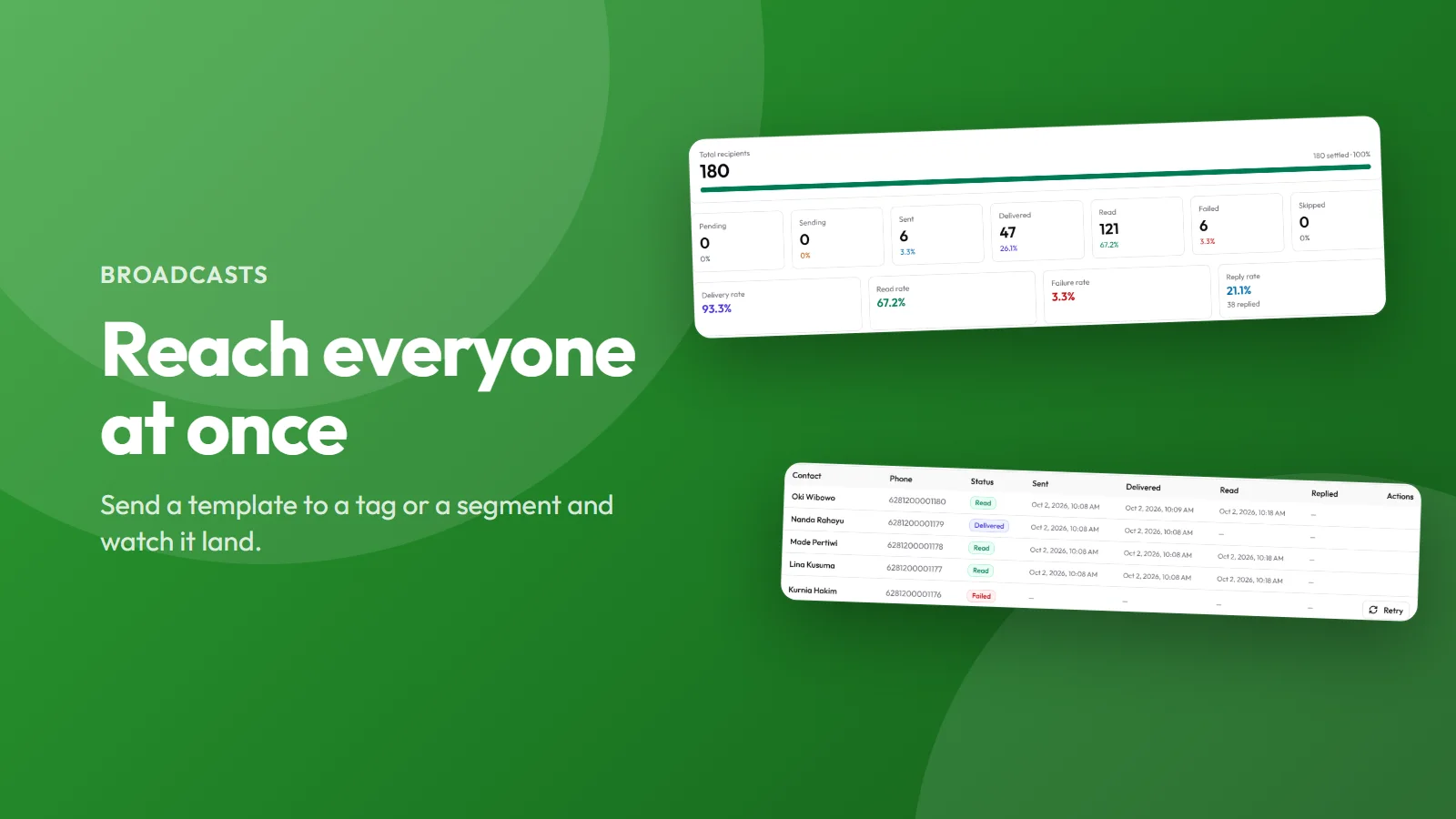
Broadcasts are a WhatsApp feature. On a WhatsApp Cloud API channel, the template picker only allows Meta templates that are approved for that channel, so you can’t send something Meta would reject. On a WhatsApp App channel (only available to some accounts), you send a local template or your own message instead, spaced out so the account isn’t flagged.
What you can do
Section titled “What you can do”- Choose an audience — Pick individual contacts, everyone carrying certain tags, or a saved contact segment
- Use an approved template — Bind values to the template’s variables, either a fixed value or a contact field
- Schedule — Send immediately or at a future date and time
- Track delivery — See per-recipient sent / delivered / read / replied / failed counts
- Retry failures — Re-send to individual recipients that failed
- Cancel — Stop a scheduled broadcast, or one that is still sending (recipients already sent to aren’t affected, and a message already on its way may still go out)
- Set pacing — Control how fast broadcasts go out
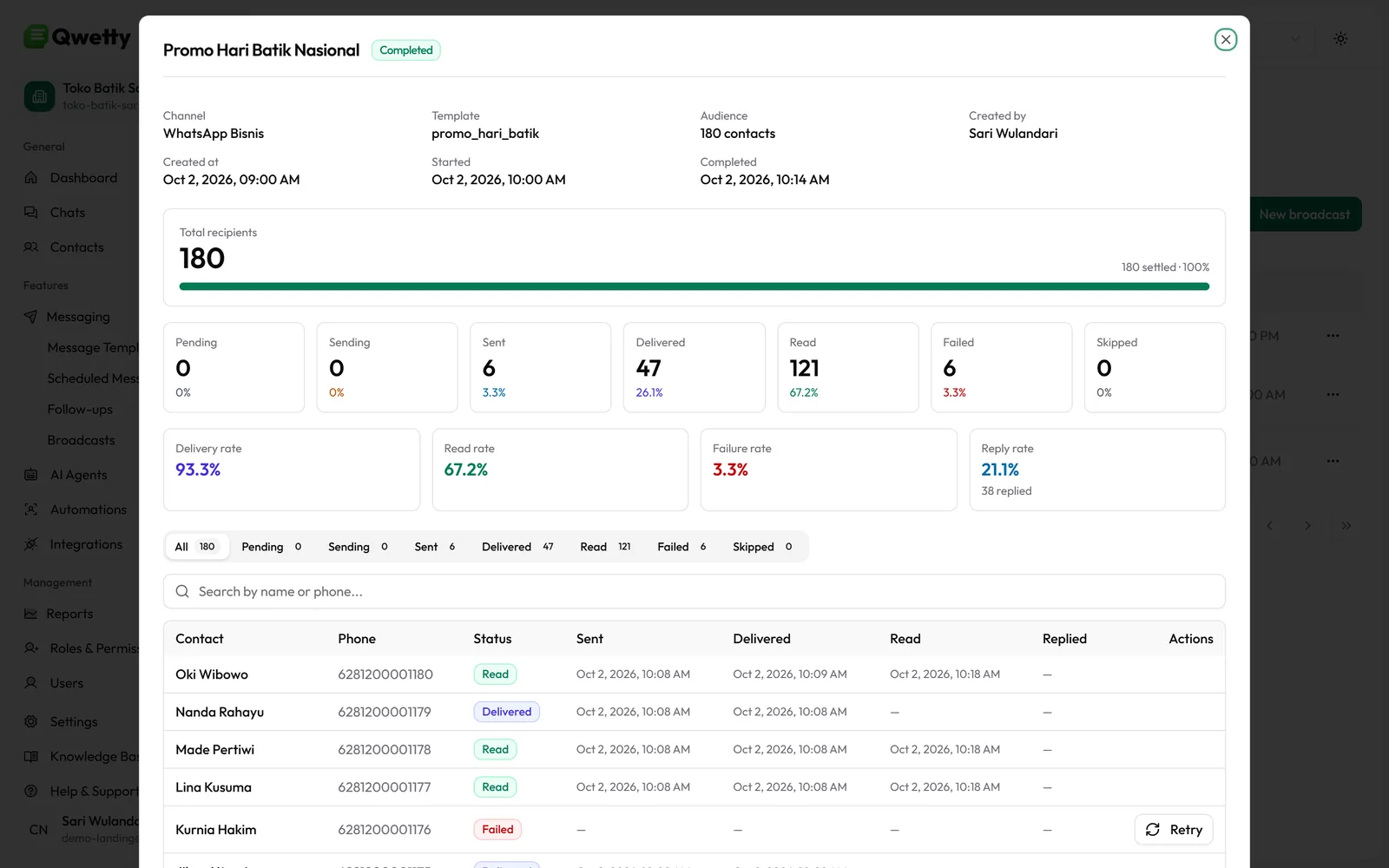
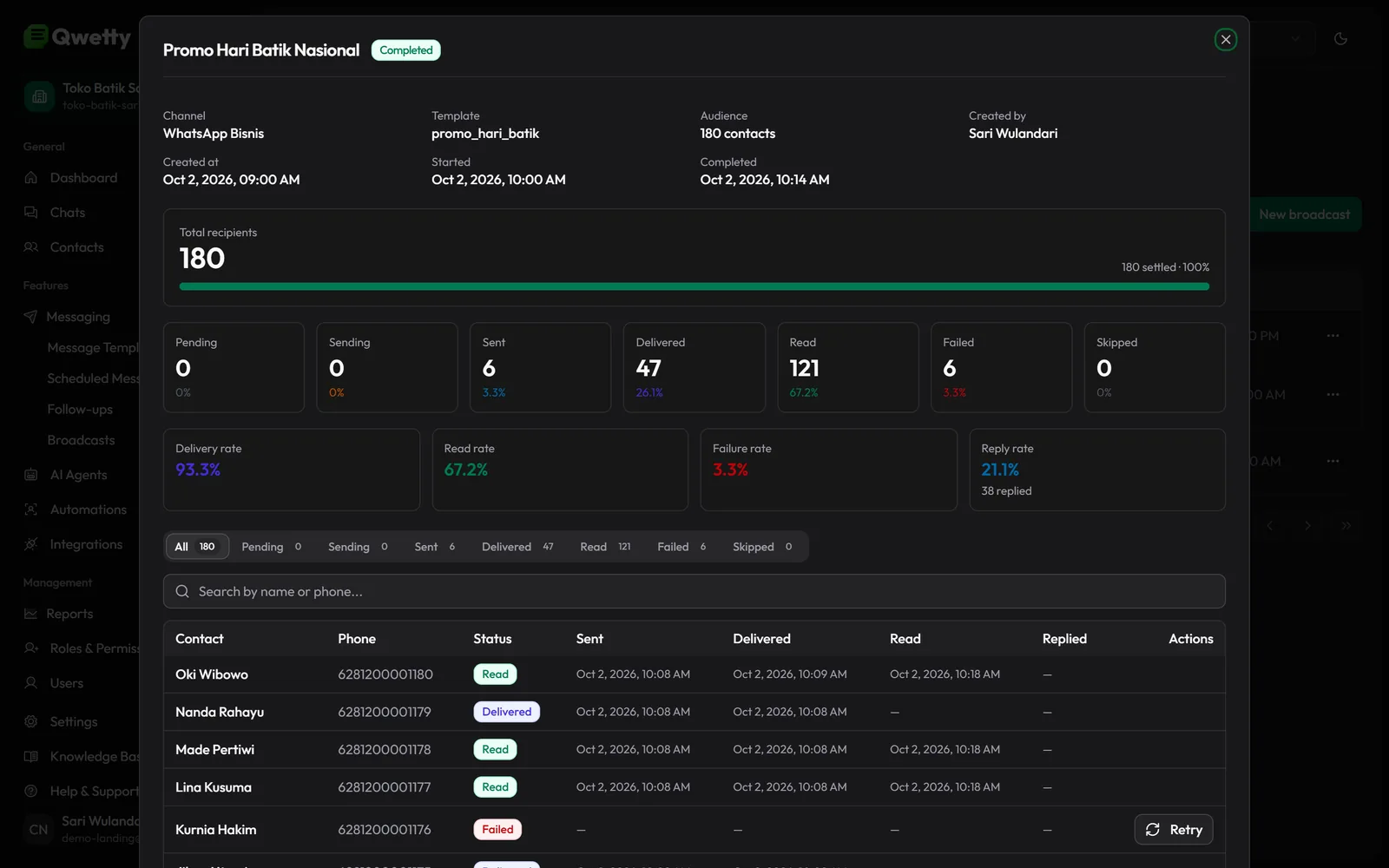
Contacts who have opted out of automated messages, and contacts without a phone number, are skipped automatically.
Broadcast status
Section titled “Broadcast status”| Status | Meaning |
|---|---|
| Draft | Saved without a schedule, so it doesn’t send |
| Scheduled | Queued to send at a future time |
| Sending | Currently being delivered to recipients |
| Completed | Finished sending to all recipients |
| Cancelled | Cancelled before completing |
| Failed | The broadcast failed |
Recipient status
Section titled “Recipient status”Each recipient is tracked individually:
| Status | Meaning |
|---|---|
| Pending | Waiting its turn to be sent |
| Sending | Message is being sent to this recipient |
| Sent | Message left Qwetty |
| Delivered | Message reached the recipient’s device |
| Read | Recipient has seen the message |
| Failed | Delivery to this recipient failed (you can retry) |
| Skipped | Not sent, for example because the contact opted out |
Managing broadcasts
Section titled “Managing broadcasts”Go to Messaging → Broadcasts from the main navigation to view, create, edit, and delete broadcasts. A broadcast can be edited while it is a draft or scheduled, and deleted unless it is sending. Access requires the broadcasts permission and the broadcasts feature on your plan.
Use the search box to find a broadcast by name, and the status filter to show only one status.
A recipient counts as Replied when they write in the chat within 72 hours after the broadcast message was sent or delivered. Replies are counted alongside the status, so a recipient can be Read and replied at the same time. Contacts who opt out after a broadcast was created are Skipped when their turn comes.
Permissions
Section titled “Permissions”| To | You need |
|---|---|
| See broadcasts, their progress and pacing | Broadcasts → View |
| Create and send a broadcast | Broadcasts → Create |
| Edit a draft or scheduled broadcast | Broadcasts → Edit |
| Delete a broadcast | Broadcasts → Delete |
| Retry a failed recipient | Broadcasts → Send |
| Cancel a broadcast | Broadcasts → Cancel |
| Change pacing | Settings → Edit |
Pacing
Section titled “Pacing”Click Pacing on the Broadcasts page to set the send speed: Messages per second for WhatsApp Cloud API, and a minimum and maximum gap plus a Messages per hour (max) cap for WhatsApp App channels. Every broadcast message also counts toward your monthly message quota. See Broadcast Pacing for the limits and defaults.
Next steps
Section titled “Next steps”- Creating a Broadcast — Step-by-step guide
- Broadcast Pacing — Send speed, limits and quota
- Message Templates — Create and sync approved templates
- Scheduled Messages — Schedule a single message instead

