

Connecting Channels
Web Chat Widget
Embed a customizable chat widget on your website so visitors can message your team directly.
Create a Web Chat channel
Section titled “Create a Web Chat channel”Creating a channel runs through a short wizard (Choose → Customize → Finish):
- Go to Settings → Channel and click Add Channel
- Choose — Select Webchat, then click Continue with Webchat
- Customize — Keep or change the prefilled channel name (e.g., “Website chat”), then set the initial appearance:
- Primary Color — Accent color of the widget
- Widget Title — Heading shown in the chat window (e.g., “Chat with us”)
- Widget Subtitle — Secondary text below the title
- Require pre-chat form — Visitors fill in their details before starting a conversation
- Click Create channel to finish
Customize the widget
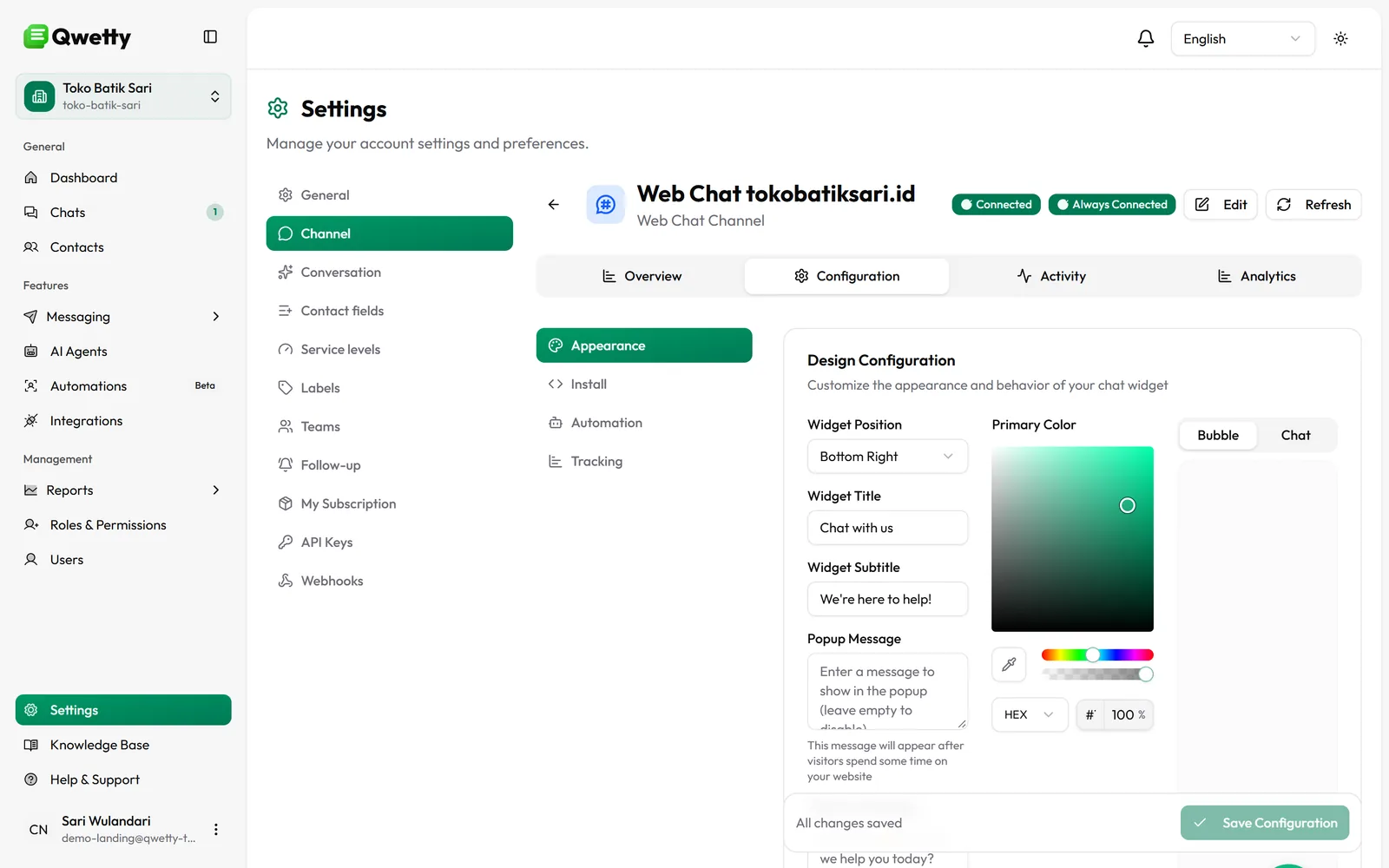
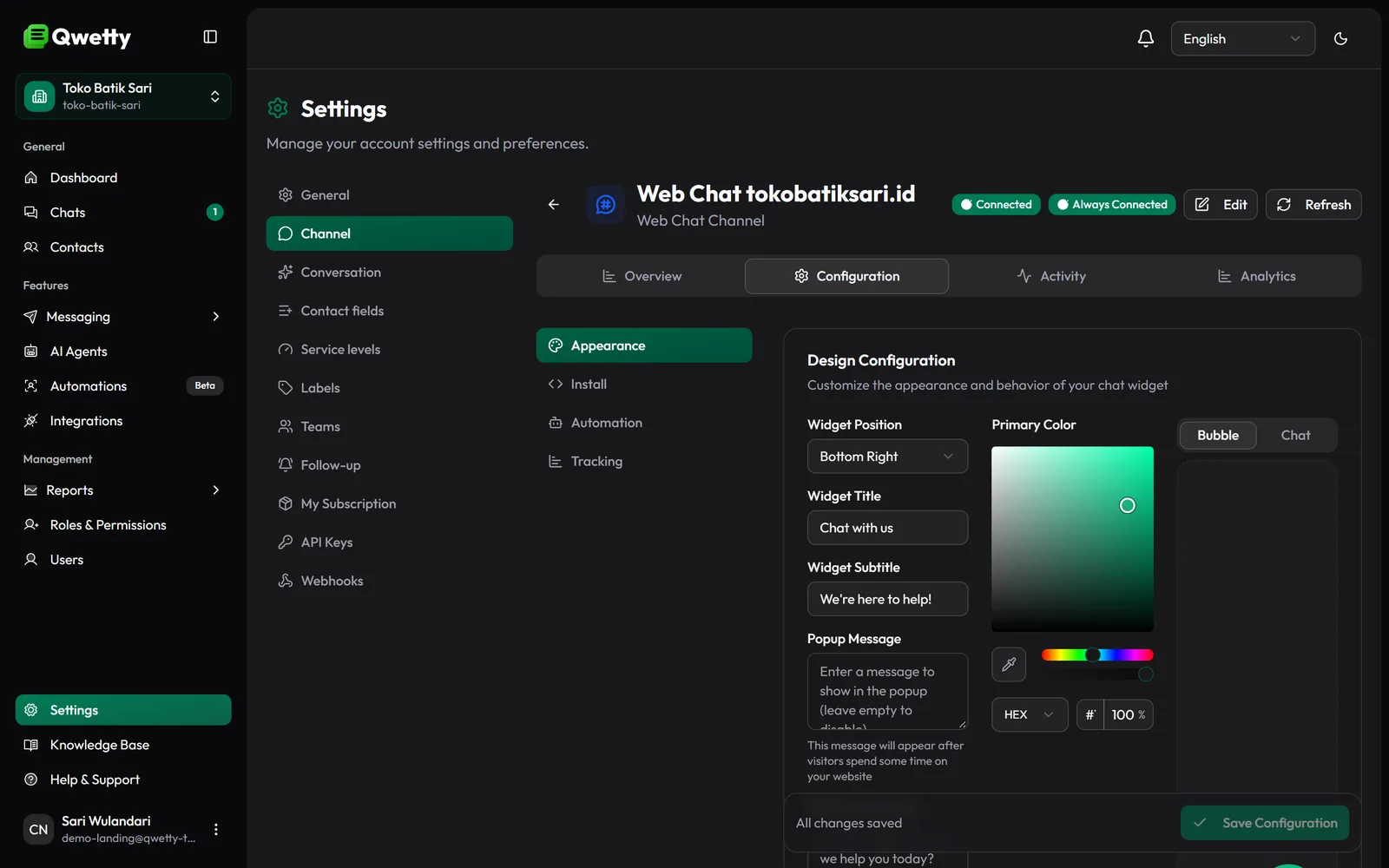
Section titled “Customize the widget”After creating the channel, open Settings → Channel → [Your Channel] → Details → Configuration → Appearance to fine-tune the appearance:
| Setting | Description |
|---|---|
| Widget Position | Bottom Right or Bottom Left of the screen |
| Primary Color | Accent color of the widget |
| Widget Title | Heading shown in the chat window |
| Widget Subtitle | Secondary text below the title |
| Popup Message | Optional greeting shown before the visitor opens the chat |
| Welcome Message | Optional first chat bubble shown when a visitor opens a conversation |
| Popup Delay (seconds) | How long to wait (0–60 seconds) before showing the popup message |
| Require pre-chat form | Collect the visitor’s name, email, and phone before the chat starts |
Click Save Configuration to apply your edits.
Embed on your website
Section titled “Embed on your website”Open Configuration → Install and copy the generated embed snippet. Qwetty generates a single HTML <script> tag — paste it before the closing </body> tag of your site:
<script src="https://app.qwetty.com/webchat/embed.js" data-organization-id="YOUR_ORGANIZATION_ID" data-channel-id="YOUR_CHANNEL_ID" data-position="bottom-right" data-primary-color="#10b981" data-widget-title="Chat with us" data-widget-subtitle="We typically reply within minutes"></script>The values are pre-filled with your channel’s configuration in the Install section — copy the snippet from there rather than building it by hand. For the full list of supported data-* attributes, see the Web Chat Widget SDK.
How it works
Section titled “How it works”- Visitors start a guest chat session — no login required
- Messages appear in your Qwetty inbox alongside WhatsApp and Instagram conversations
- The widget uses WebSocket for real-time messaging
- If Require pre-chat form is enabled, visitors provide their name, email, and phone number before chatting
Next steps
Section titled “Next steps”- Channel Configuration — Advanced widget settings
- Inbox Overview — Managing web chat conversations
- Web Chat Widget SDK — Developer integration guide

