

Message Templates
Message Templates
Message templates are pre-built, reusable message formats that help your team respond quickly and consistently.
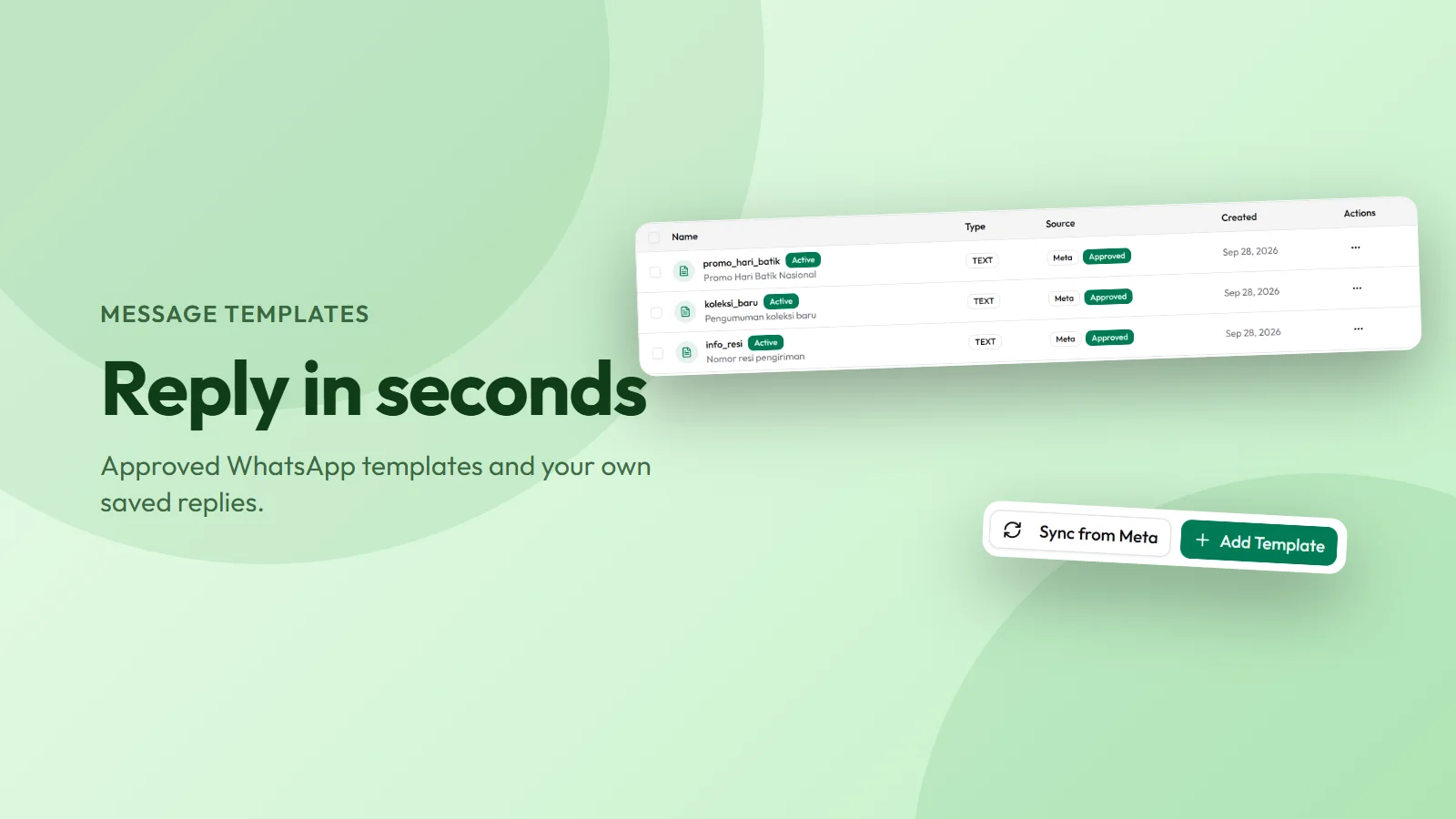
Why use templates?
Section titled “Why use templates?”- Speed — Insert common responses with one click
- Consistency — Ensure your team sends accurate, on-brand messages
- WhatsApp compliance — WhatsApp requires approved templates to start conversations outside the 24-hour messaging window
Template source
Section titled “Template source”Every template has a source:
- Local — A template stored only in Qwetty, for quick reuse in the inbox on any channel. A local template is either Shared with the whole organization or Personal to you, and can have a
/shortcut - Meta — A template submitted to Meta for WhatsApp approval (these carry extra structure — see below)
Template types
Section titled “Template types”| Type | Description |
|---|---|
| Text | Plain text message with optional variables |
| Image | Message with an image attachment |
| Video | Message with a video attachment |
| Document | Message with a document attachment |
Meta-sourced templates can additionally include a header, footer, and interactive buttons (URL, phone number, or quick reply).
The WhatsApp 24-hour rule
Section titled “The WhatsApp 24-hour rule”WhatsApp Business API has a messaging window rule:
- Within 24 hours of the customer’s last message, you can send any message (text, media, etc.)
- After 24 hours, you can only send approved message templates
This is why templates are essential for WhatsApp outbound messaging — they’re the only way to re-engage customers after the window closes.
Using templates in the inbox
Section titled “Using templates in the inbox”- Open a conversation in the Chats page
- Choose Template from the composer’s paperclip menu, or type
/in the message box - Pick a template — for a Meta template, fill in the variable values; a local template’s variables are filled in for you
- Send
WhatsApp note: When the 24-hour messaging window has closed on a WhatsApp API channel, a template becomes required — the composer blocks plain text and prompts you to select a template before sending.
Next steps
Section titled “Next steps”- Creating Templates — Build your own templates
- WhatsApp Template Sync — Sync templates from Meta

