

Follow-ups
Follow-up Settings
Follow-ups are configured in two places:
| Where | What it controls | Who can change it |
|---|---|---|
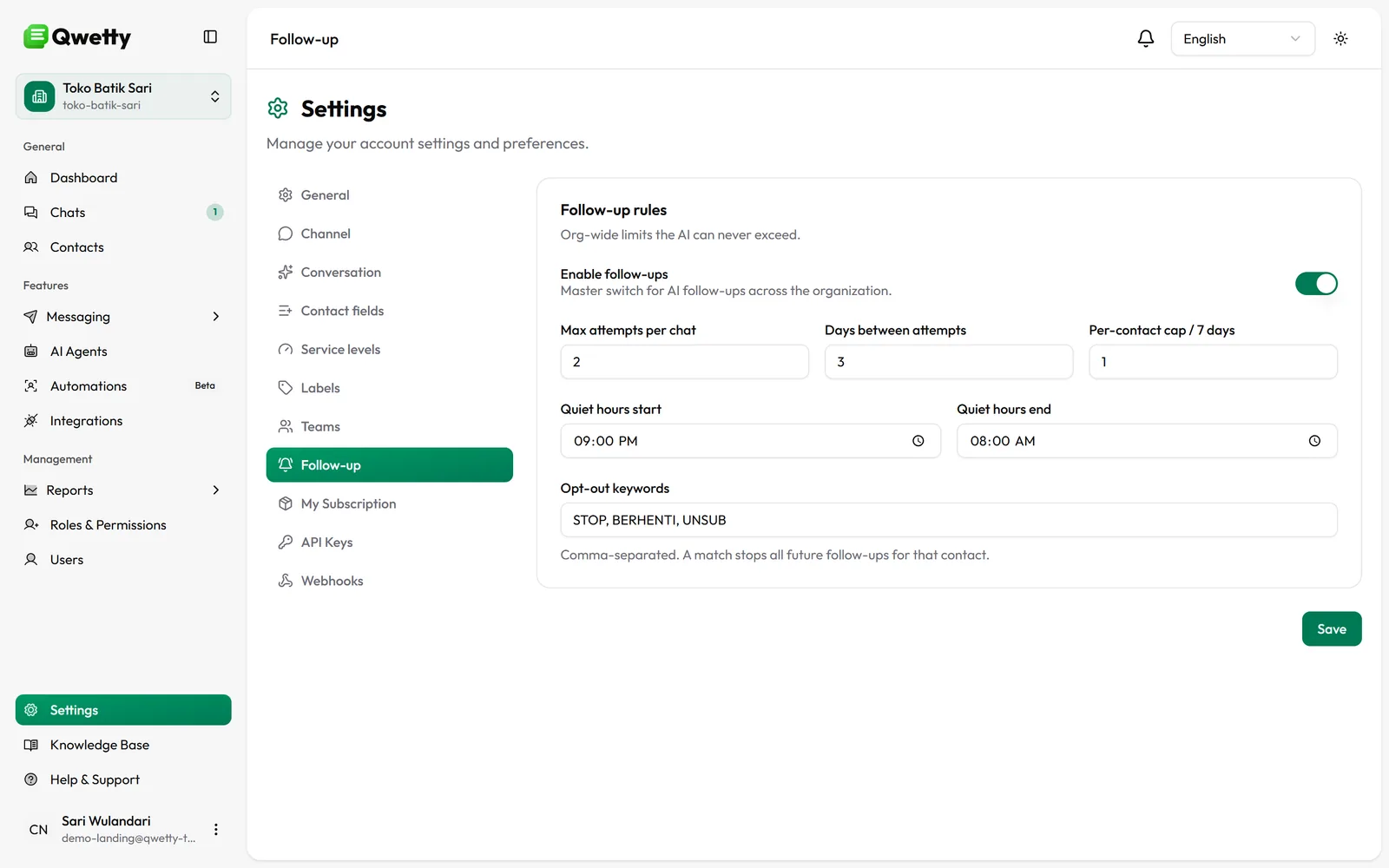
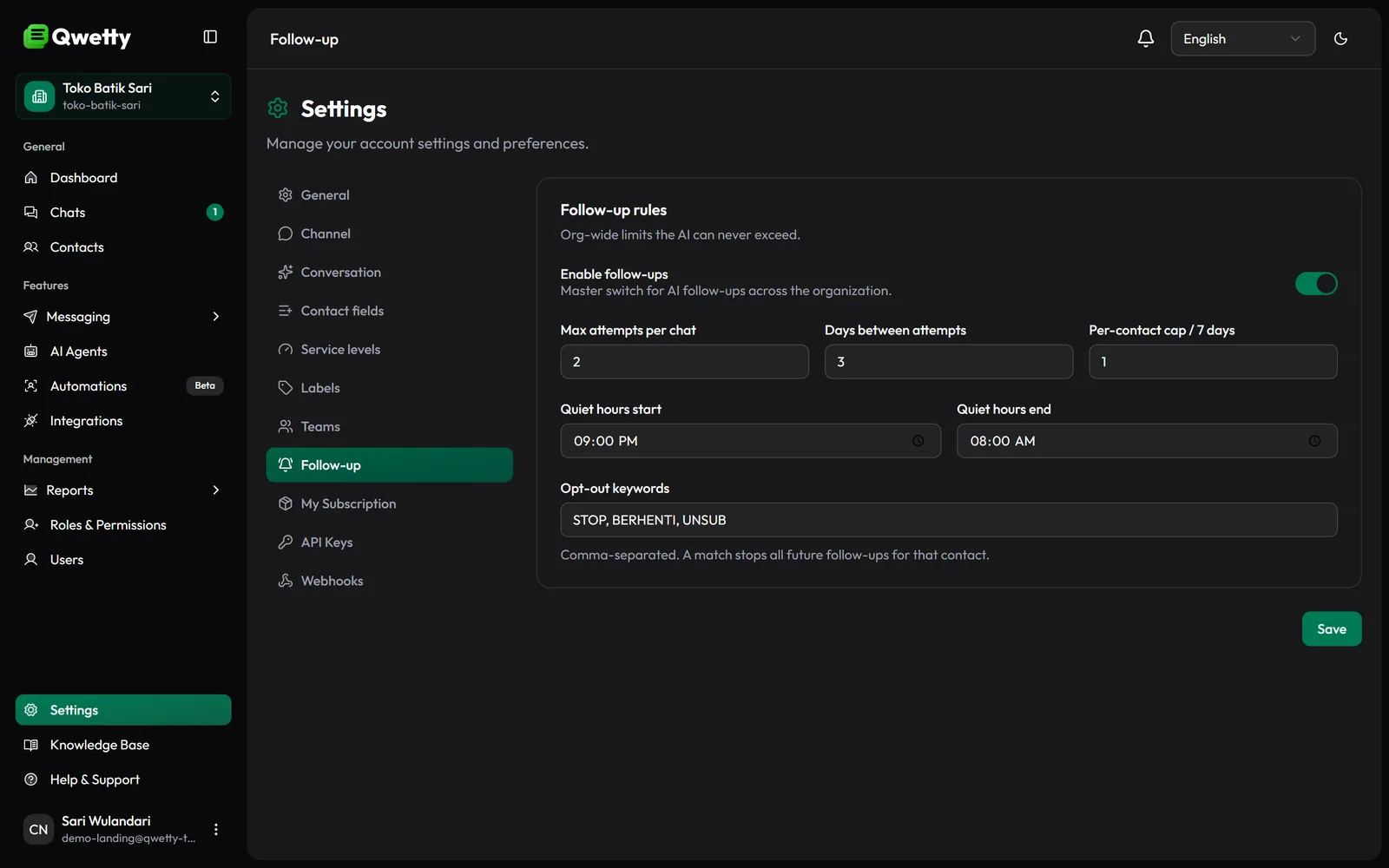
| Settings → Follow-up | Organization-wide rules that no AI agent can exceed: the master switch, attempt limits, quiet hours and opt-out keywords | Members with Settings → Edit |
| AI Agents → your agent → Handoff & Routing → AI Follow-up | Whether this agent follows up at all, what it aims for, how long it waits, whether it sends without approval, and its after-window template | Members with AI Agents → Edit |
An AI follow-up only happens when both are on: Enable follow-ups for the organization and Enable follow-up on the agent. Both screens need a plan that includes Follow-ups; otherwise they show an upgrade card.
Organization rules
Section titled “Organization rules”Go to Settings → Follow-up. The Follow-up rules card holds the limits the AI can never exceed. Members with only Settings → View see the values read-only.
| Setting | Default | Range | What it does |
|---|---|---|---|
| Enable follow-ups | On | — | Master switch for AI follow-ups across the organization. When off, no conversation is evaluated and nothing new is proposed. |
| Max attempts per chat | 2 | 1–5 | How many follow-ups may be sent in one conversation. Once reached, the AI stops evaluating that chat. |
| Days between attempts | 3 | 1–30 | How long the AI waits after a follow-up was sent in a chat before evaluating it again. |
| Per-contact cap / 7 days | 1 | 1–10 | How many follow-ups one person may receive in any 7-day period, counted across all their conversations and agents. |
| Quiet hours | On | — | Holds AI follow-ups due inside quiet hours until they end. Turn it off to send at any hour. |
| Quiet hours start / Quiet hours end | 21:00 / 08:00 | — | An AI-suggested send time that falls in this range is moved to the end of quiet hours. The times are in your organization’s timezone (Settings → General). Overnight ranges (start later than end) are supported. |
| Opt-out keywords | STOP, BERHENTI, UNSUB |
Up to 20 | Comma-separated. A customer whose message matches one is opted out (see below). |
Click Save to apply.
A few details worth knowing:
- Days between attempts counts from the last follow-up that was actually sent (or is scheduled or sending) in that chat. A suggestion the AI skipped or a teammate dismissed does not start the wait — the chat is simply checked again once the conversation moves on with a new message.
- Max attempts per chat and Per-contact cap / 7 days count sent follow-ups only, and they include manual follow-ups your team sent.
- Turning Enable follow-ups off does not cancel follow-ups that are already scheduled — dismiss or wait for them on the Follow-ups page.
Rules that apply to manual follow-ups
Section titled “Rules that apply to manual follow-ups”Manual follow-ups are a deliberate decision by a teammate, so they skip Max attempts per chat, Days between attempts, Per-contact cap / 7 days and quiet hours, and they don’t depend on Enable follow-ups. Opt-outs always apply.
Opt-out keywords
Section titled “Opt-out keywords”An inbound message counts as an opt-out only when the whole message is one of your keywords. Case and punctuation are ignored, and common courtesy words around it are allowed — “stop please”, “STOP!” and “tolong berhenti ya” all match STOP or BERHENTI. A keyword inside a sentence, such as “please don’t stop” or “stop by tomorrow”, does not.
When a message matches:
- The contact is opted out of follow-ups and of all automated messages — broadcasts and automation sends included
- Every proposed or scheduled follow-up in all of their conversations is cancelled
- Your team can still reply to them normally
To reverse an opt-out, open the contact and click Opt back in — see Managing Contacts.
AI agent settings
Section titled “AI agent settings”Each AI agent decides for itself whether to follow up on the conversations it handles. Open AI Agents, select the agent, go to the Handoff & Routing tab and find the AI Follow-up card.
| Setting | Default | What it does |
|---|---|---|
| Enable follow-up | Off | The agent evaluates its quiet chats and proposes a follow-up when warranted. The other settings appear once this is on. |
| Goal | Empty | What the agent should try to achieve, e.g. Re-engage warm leads who asked about pricing then went quiet. Given to the AI on every evaluation. |
| Guardrails | Empty | Cases where it must never follow up, e.g. Never follow up on complaints or after an explicit no. |
| Wait before evaluating (hours) | 18 | Minimum customer silence (1–168 hours) before a chat counts as stalled. |
| Auto-send when confident | Off | Off: every follow-up is proposed for your review. On: sent without approval when the AI is confident enough. |
| Confidence threshold | 0.8 | Shown when auto-send is on. Auto-send only when the AI’s confidence is at or above this value (0–1). Below it, the follow-up is proposed instead. |
| After-window template | None | The approved template used when the 24-hour window has closed on a WhatsApp API chat. |
Click Save in the card.
Goal and Guardrails are short instructions, up to 2,000 characters each. The AI already skips conversations where the customer declined, the issue is resolved or the conversation is a complaint; use Guardrails for rules specific to your business.
Choosing the auto-send threshold
Section titled “Choosing the auto-send threshold”The confidence score is the AI’s own estimate of how clearly a follow-up is warranted. A higher threshold sends fewer follow-ups automatically and leaves more for review. Start with the default of 0.8 and review the Confidence column on the Follow-ups page before lowering it.
After-window template
Section titled “After-window template”WhatsApp API only allows a free-form message within 24 hours of the customer’s last message. After that, only an approved template can be sent. If a stalled chat’s window has already closed when the AI evaluates it:
- With an after-window template — the AI fills in the template’s body variables (
{{1}},{{2}}, …) from the conversation, in the conversation’s language. The follow-up shows a template badge. - Without one — the follow-up is recorded as Skipped with the reason Messaging window closed — no after-window template configured for this agent.
The template is used only if it is enabled, approved by Meta, shared rather than personal, and either cross-channel or bound to the chat’s own channel. Choose a simple template with body-text variables only — header, button or media variables are not filled. If the AI can’t provide a value for every variable, the follow-up is skipped.
Instagram and Messenger have no templates, so a chat whose window has closed is skipped there.
Next steps
Section titled “Next steps”- Follow-ups — How follow-ups are decided and how to review them
- Message Templates — Create and get templates approved
- Creating a Bot — The other AI agent settings

