

Inbox & Conversations
Inbox Overview
The Inbox is where your team manages all customer conversations — regardless of which channel they came from.
How it works
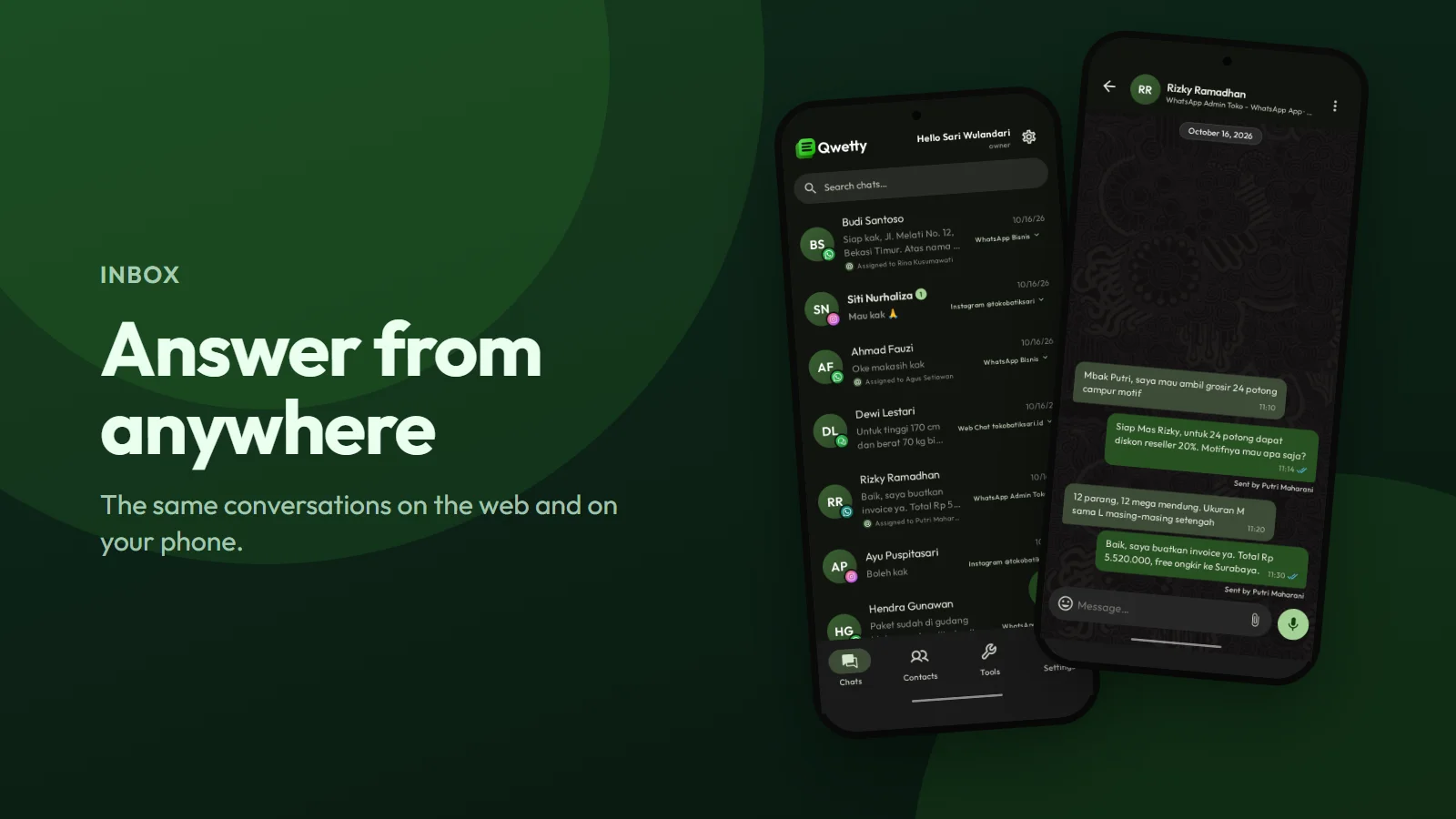
Section titled “How it works”All messages from WhatsApp, Instagram, Messenger, and Web Chat flow into a single, unified inbox. Each conversation appears as a chat thread with the contact’s name, last message, channel type, and timestamp.
Layout
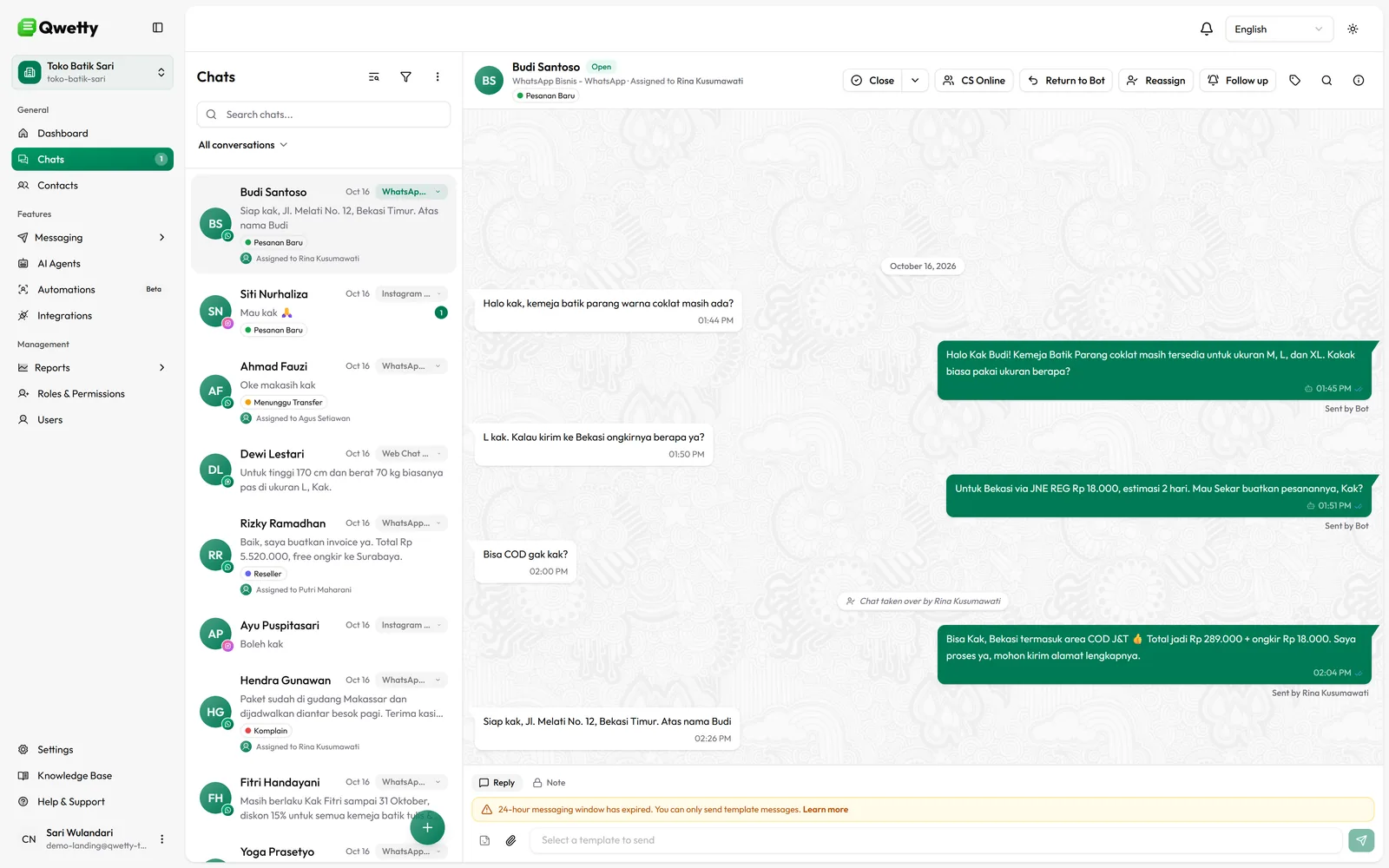
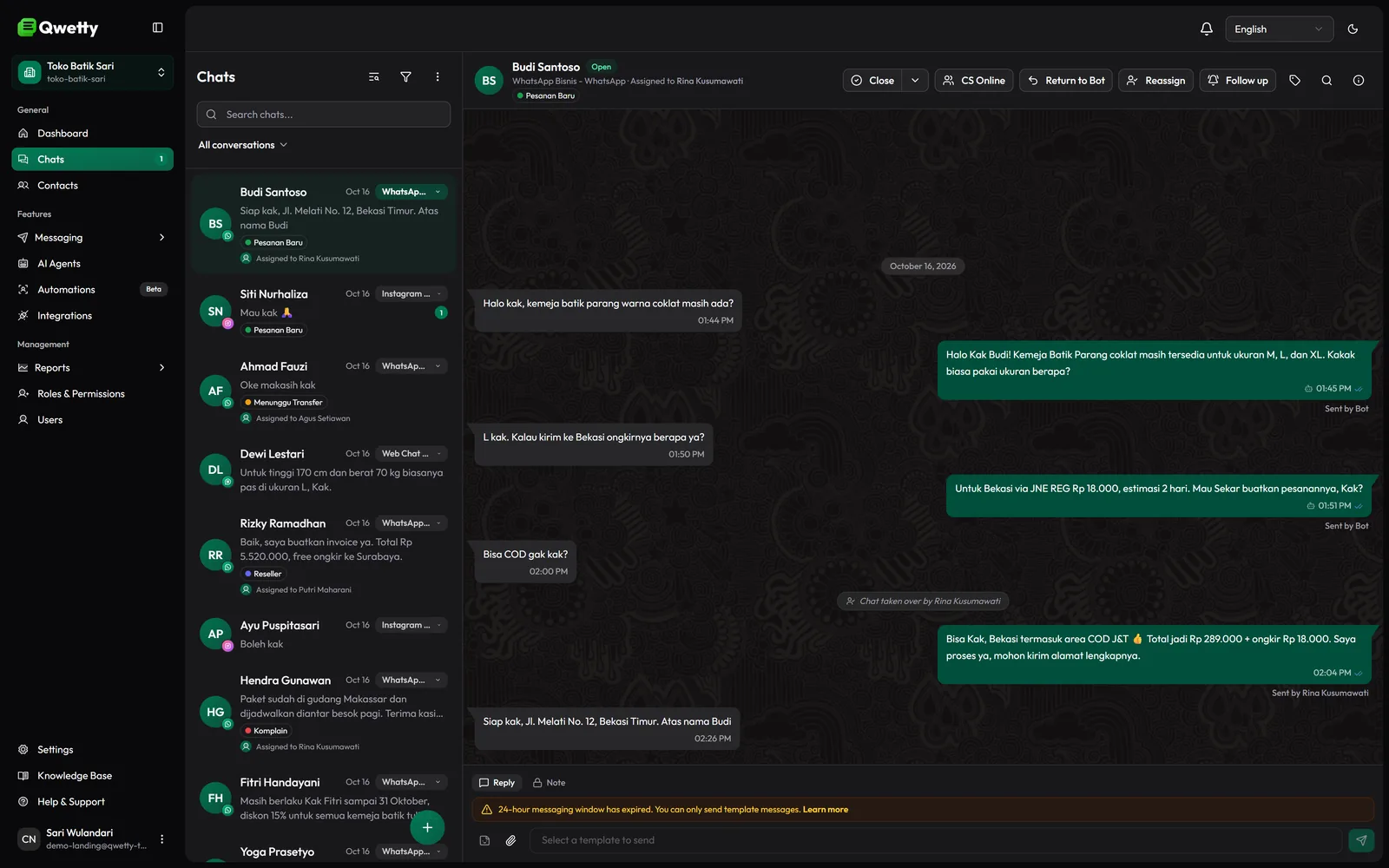
Section titled “Layout”The Chats page has three main sections:
- Chat list (sidebar) — All conversations, sortable and filterable
- Message view (center) — The conversation thread with the selected contact
- Contact panel (right) — Opened with Contact info: contact details, platforms, notes, an AI summary of the chat, and shared media and files
Conversation indicators
Section titled “Conversation indicators”| Indicator | Meaning |
|---|---|
| Channel icon | Which platform the conversation is on (WhatsApp, Instagram, Messenger, Web Chat) |
| Unread badge | Number of unread messages |
| Last message preview | Most recent message text and timestamp |
| Contact avatar | Profile picture from the platform |
What you can do from the inbox
Section titled “What you can do from the inbox”- Reply to messages — Send text, images, videos, audio, documents, and contact cards
- Use templates — Insert pre-built message templates
- View contact info — See the full contact profile and linked platforms
- Mark as read — Mark individual chats or all chats as read
- Assign a chat — Hand a conversation to a specific team member
- Change the status — Close, snooze, or mark a conversation as pending
- Add internal notes — Leave notes for teammates that the customer never sees
- Bot takeover / return — Take a chat over from the chatbot to reply manually, then return it to the bot
- Delete a chat — Permanently remove a conversation and its messages
Filtering and search
Section titled “Filtering and search”Use the search bar to find conversations by chat or contact name, phone number, or email. The filter panel (Filter Chats) lets you narrow the chat list by:
- Status — Open, Pending, Snoozed, or Closed
- Assignee — Mine, Unassigned, or a specific teammate
- Label and Team
- Channel — Show only conversations from a specific channel
- Chat Type — Groups only or individual chats only
- Unread Messages — Show only chats with unread messages
To search inside the messages themselves, use Search all messages (Ctrl+Shift+F). See Search, Filters and Views for details and saved views.
Next steps
Section titled “Next steps”- Managing Conversations — Assign, take over, and organize chats
- Sending Messages — Compose and send messages
- Contacts Overview — Understand the contact directory

