

Inbox & Conversations
Teams and Assignment
Two things decide who works on a conversation:
- The team — which group of people the conversation belongs to, such as “Sales” or “Support”. A conversation is in at most one team
- The assignee — the one person who owns the reply
You can set both by hand, and Qwetty can set them automatically for new conversations.
Who sees which conversations
Section titled “Who sees which conversations”What each member sees in the inbox depends on their role’s Chats permissions:
| Permission | Sees |
|---|---|
| All Chats | Every conversation in the organization |
| Assigned Chats | Conversations assigned to them |
| Unassigned chats | Additionally, every conversation that has no assignee yet (the unassigned queue) |
The built-in Agent role has Assigned Chats only, so an agent sees nothing until a conversation is assigned to them. Give a role Unassigned chats if its members should pick up work from the queue. See Roles & Permissions.
Creating a team
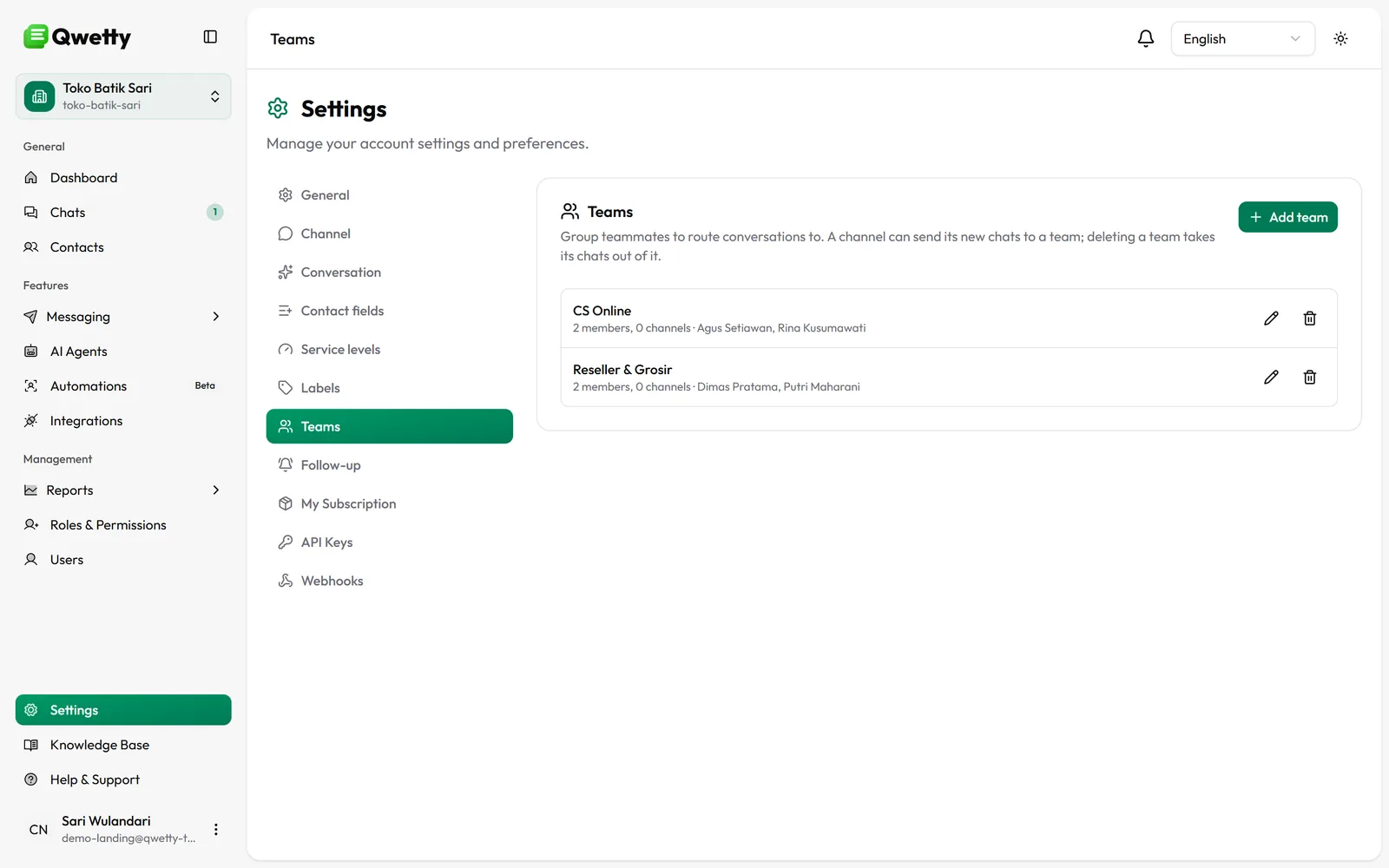
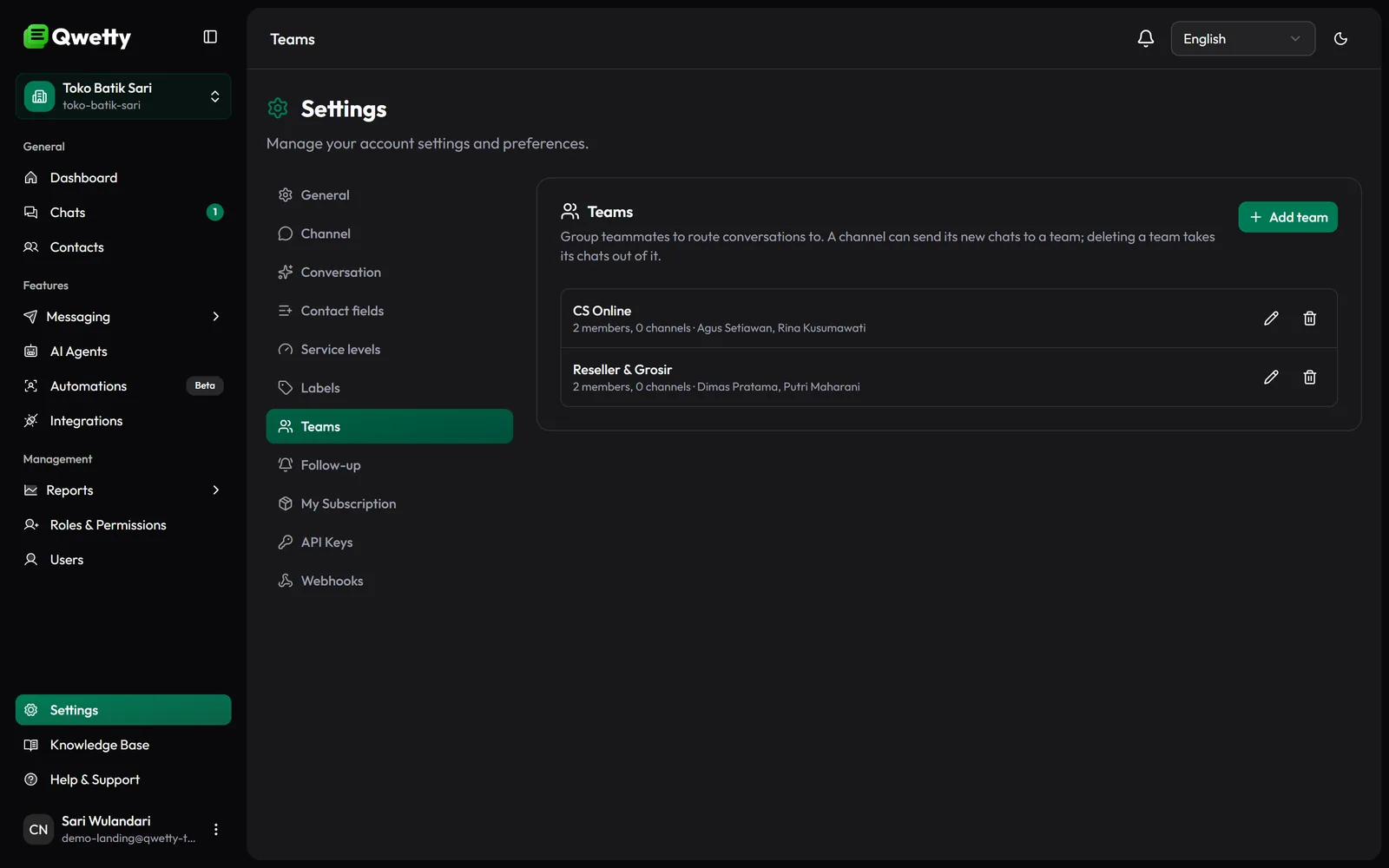
Section titled “Creating a team”- Go to Settings → Teams
- Click Add team
- Enter a Name (up to 60 characters, unique in your organization)
- Under Members, tick the teammates who belong to the team
- Optionally, under Default for channels, tick the channels whose new chats should go to this team
- Click Save
The Teams page lists each team with its member and channel count and the members’ names. Use the pencil to edit a team and the bin to delete it. An organization can have up to 50 teams.
Routing new chats to a team
Section titled “Routing new chats to a team”When you tick a channel under Default for channels, every new conversation that starts on that channel is placed in the team. A channel can be the default for only one team — ticking it on one team takes it off any other team. Existing conversations are not moved.
Moving a conversation to a team
Section titled “Moving a conversation to a team”- Open the conversation
- Click the Team button in the chat header (it shows the current team, or No team)
- Under Route to team, pick a team — or No team to take it out of every team
Moving a conversation to a team does not change its assignee: the agent already working on it keeps it. A line such as “Moved to team Sales” is added to the conversation for your team. Web Chat visitors are not told.
The Team button only appears when your organization has at least one team and you have the Reassign Chat permission.
Deleting a team
Section titled “Deleting a team”Deleting a team takes its conversations out of it — they become No team — and its channels stop routing to it. The conversations and their assignees are not affected.
Assigning a conversation
Section titled “Assigning a conversation”- Open the conversation
- Click Assign in the chat header (it reads Reassign when someone already owns the chat)
- Search for and pick a teammate. The current assignee is marked Assigned
- To remove the assignee, choose Unassign at the top of the list
You can also assign from the chat list: open a chat’s menu (right-click the chat, or click the channel name with the small arrow on it) and choose Assign or Reassign. The same menu shows who the chat is Assigned to, or Not assigned.
What happens when you assign:
- The new assignee gets a notification (“Budi assigned a conversation to you”) in their Notifications centre and as a push in the Assignments category. You don’t get one when you assign a chat to yourself
- A line such as “Chat assigned to Dewi” is added to the conversation
- On Web Chat, when a conversation passes from one agent to another, the visitor sees that the previous agent left and the new one joined
- If the new assignee only sees their own chats, the conversation appears in their inbox at once, and disappears from the previous assignee’s
You can only assign a conversation to a member whose role can view chats.
Taking over from the chatbot
Section titled “Taking over from the chatbot”When you click Take Over on a conversation the chatbot is handling, and nobody is assigned yet, the conversation is assigned to you. (This does not happen with the First reply method below — there, sending your reply is what assigns it.)
Automatic assignment
Section titled “Automatic assignment”Set up automatic assignment in Settings → General, in the Chat Assignment card. Changing these settings needs Settings → Edit.
Assignment methods
Section titled “Assignment methods”| Assignment Method | How a conversation is assigned |
|---|---|
| Manual | Never automatically — someone assigns it by hand |
| Round Robin | To eligible agents in turn, one after another |
| Load Balanced | To the eligible agent who currently has the fewest assigned conversations |
| First reply | To the first agent whose reply to an unassigned conversation is sent successfully |
The switches
Section titled “The switches”- Auto-Assign New Chats — Turns automatic assignment on. With Round Robin or Load Balanced, each new conversation is assigned as it arrives. With First reply, any unassigned conversation goes to the first agent who successfully replies to it
- Assign Existing Unassigned Chats — When a new message arrives on a conversation that still has no agent, assign it using the method above. Not shown for First reply
With Manual selected, nothing is assigned automatically, whatever the switches say.
Which agents are eligible
Section titled “Which agents are eligible”Round Robin and Load Balanced choose among members who:
- Are not the organization’s Owner or Admin, and
- Have the Assigned Chats permission (if nobody does, members with Send Message are used instead)
If the conversation is in a team, only that team’s members are eligible. If no member of the team is eligible, the conversation stays unassigned rather than going to someone outside the team. Round Robin keeps a separate turn order for each team, so one team’s traffic never skips another team’s agents.
Automatic assignments notify the agent the same way manual ones do, and the conversation shows “Auto-assigned to Dewi”.
Filtering by team or assignee
Section titled “Filtering by team or assignee”In Filter Chats above the chat list:
- Assignee — Mine, Unassigned, or a specific teammate. This section is only shown to members with All Chats; the teammate list also needs Reassign Chat
- Team — A specific team, or No team. Shown when your organization has at least one team
See Search, Filters and Views.
Permissions
Section titled “Permissions”| Action | Permission needed |
|---|---|
| Create, edit or delete teams | Settings → Edit |
| Move a conversation to a team | Chats → Reassign Chat |
| Assign, reassign or unassign | Chats → Reassign Chat |
| Change automatic assignment | Settings → Edit |
Next steps
Section titled “Next steps”- Service Levels — Set a first-response target and see overdue chats
- Labels — Tag conversations by topic
- Organization Settings — The rest of Settings → General

